Published at: 2025-10-30
Sales Inventory Implementation Guide
1. Scenario Overview (ERP-integrated, Type B Integration Model)
- A mid-to-large manufacturing enterprise.
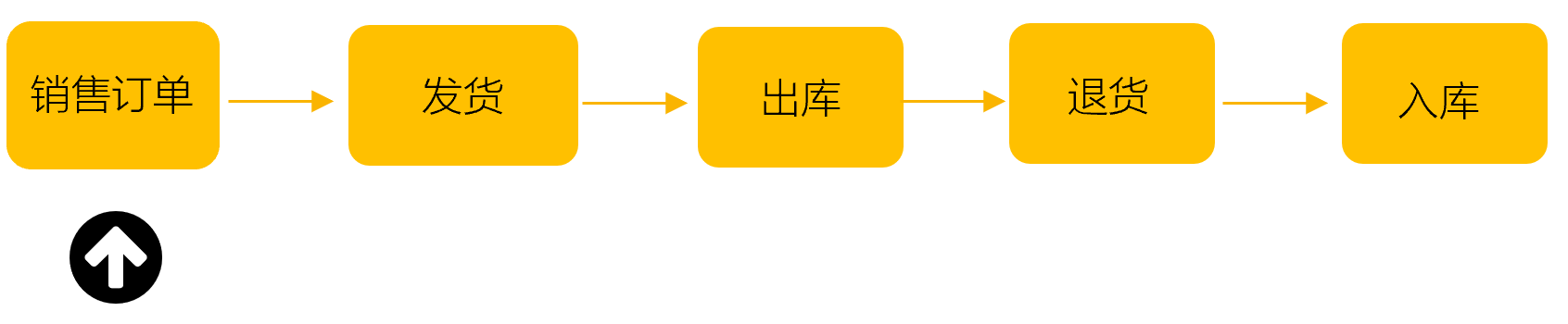
- Sales scenario: Sell network equipment to Distributors (serial-number tracking enabled). Manage Sales Orders in ShareCRM, synchronize them to ERP. After ERP completes outbound processing, synchronize outbound results back to ShareCRM. Use ShareCRM to track logistics, manage receipts, and handle Distributor after-sales returns and exchanges.
- Key roles: Sales Rep, Order Administrator, Shipping Operator.
- Full user guide: https://help.fxiaoke.com/1969/inventory-management
- Sales process flow:

2. Prerequisites
2.1 Purchase Inventory Management (required)
- You must purchase the Inventory Management application. If not purchased, contact your sales representative.
2.2 Purchase Logistics Query Pack (optional)
- If you need to query shipment tracking information on Shipping Orders or other records, purchase the Logistics Query Pack. Packages are offered in Large, Medium, and Small tiers with different query quotas—choose according to your business needs.
2.3 Purchase ERP Connector (optional)
- To integrate with a third-party ERP, purchase the corresponding Integration Platform connector. Different ERPs require different connectors (for example, to integrate Kingdee Cloud·Sky, purchase Integration Platform – Kingdee Cloud·Sky (Flagship) Connector).
3. System Configuration
3.1 Enable Type B Integrated Inventory
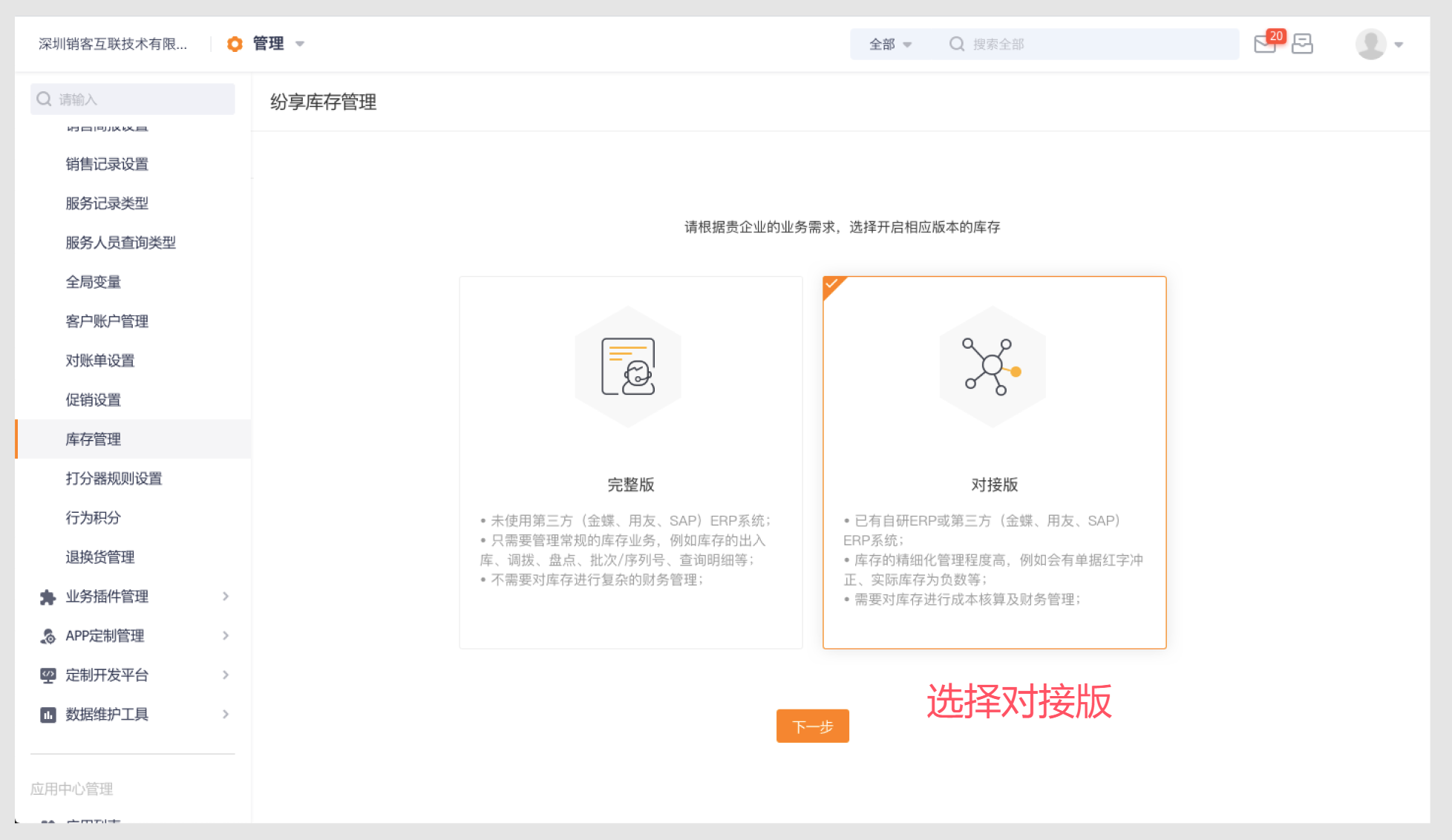
Enable path: Admin Console -> CRM Platform Management -> Business Rules -> Inventory Management.
If you enabled the Full Edition by mistake, follow the customer special request process to switch to the Integration edition. See: https://help.fxiaoke.com/1969/inventory-management/8c3f#header-6
3.2 Configure Shipping Order Mode
After enabling the Integration edition, choose the Shipping Order mode. We recommend the Delivery Notice mode. See: https://help.fxiaoke.com/1969/inventory-management/delivery-notice
3.3 Assign Relevant Roles
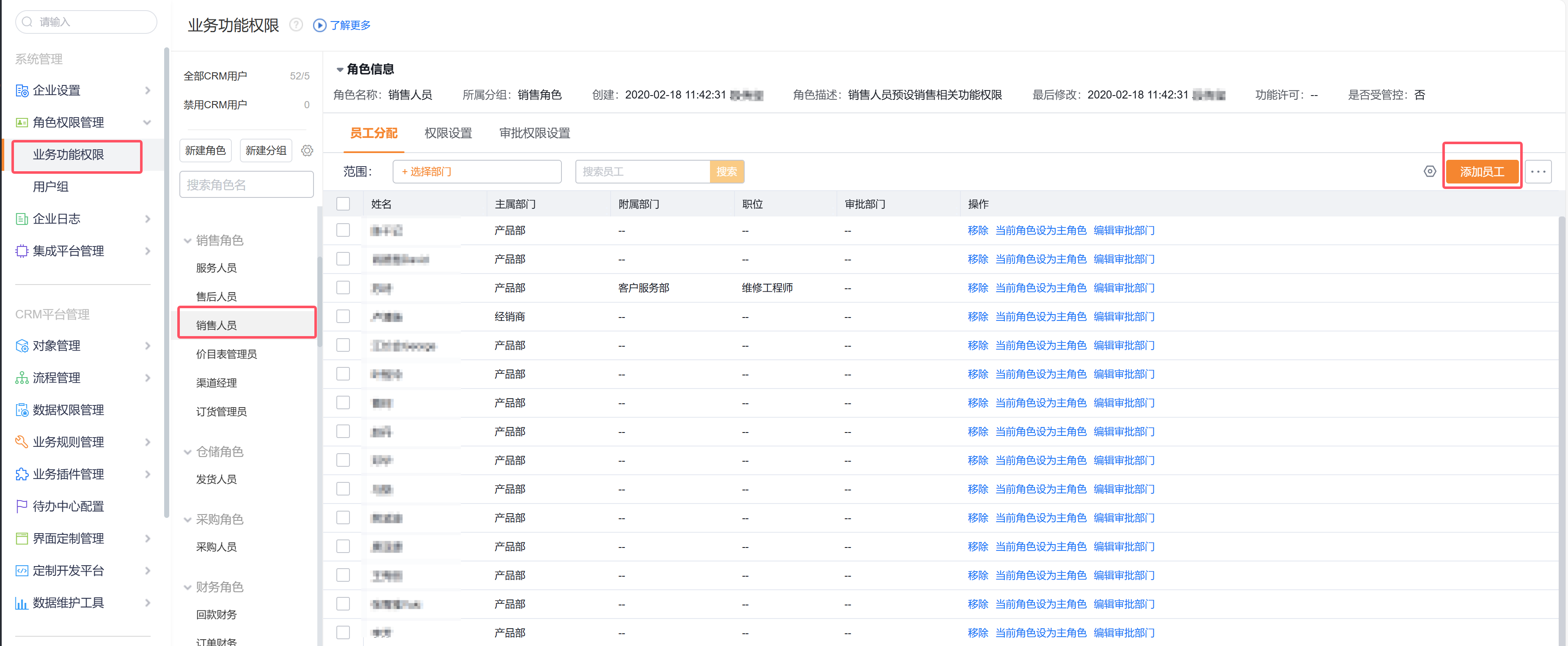
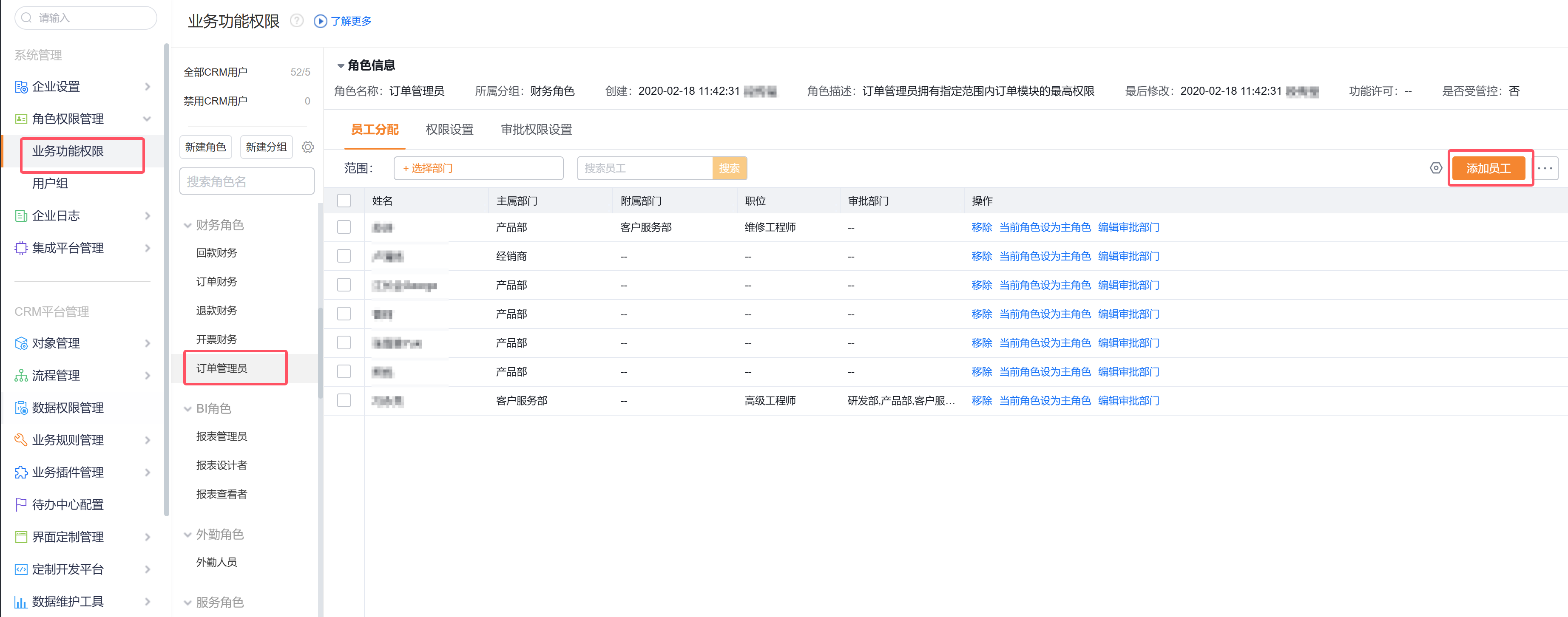
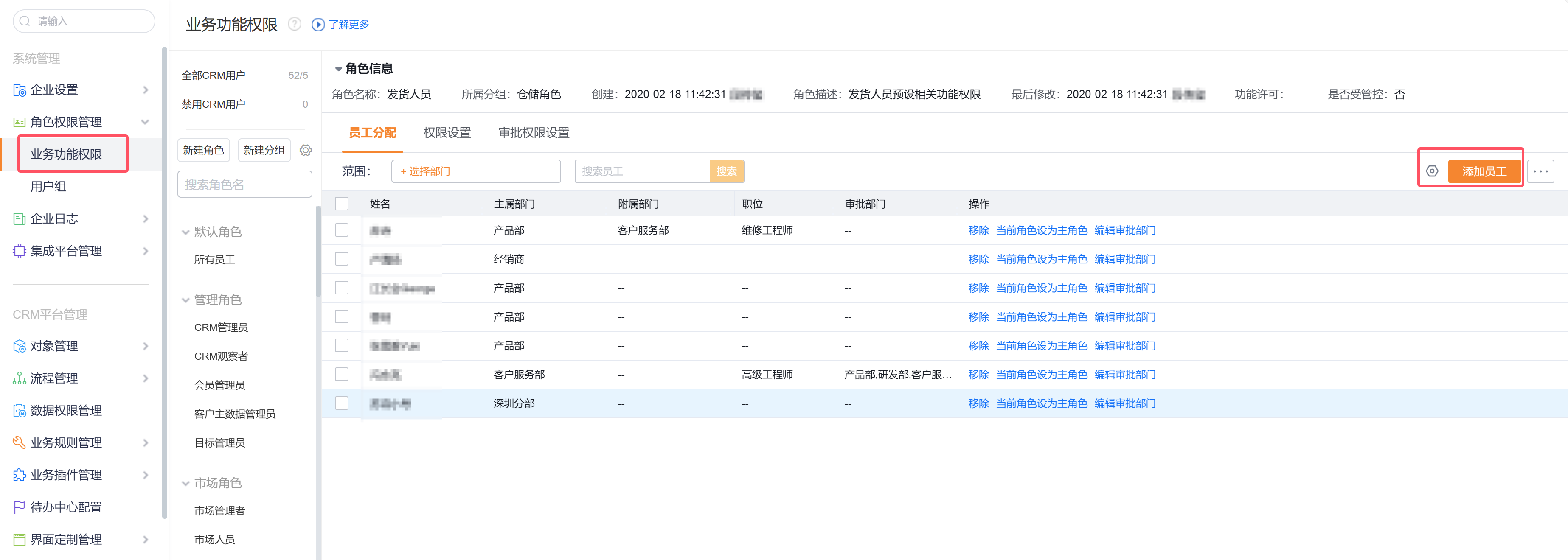
Core roles include: Sales Rep, Order Administrator, Shipping Operator.
Sales Rep:
Order Administrator:
Shipping Operator:
3.4 Base Data Synchronization
Use the Integration Platform connector to synchronize material master data, Warehouse and locations, and Inventory.
Different connectors require different integration and configuration—see: https://help.fxiaoke.com/9bfb/c68f
3.5 Sales Order Placement Rules

3.5.1 Set Order Placement Mode
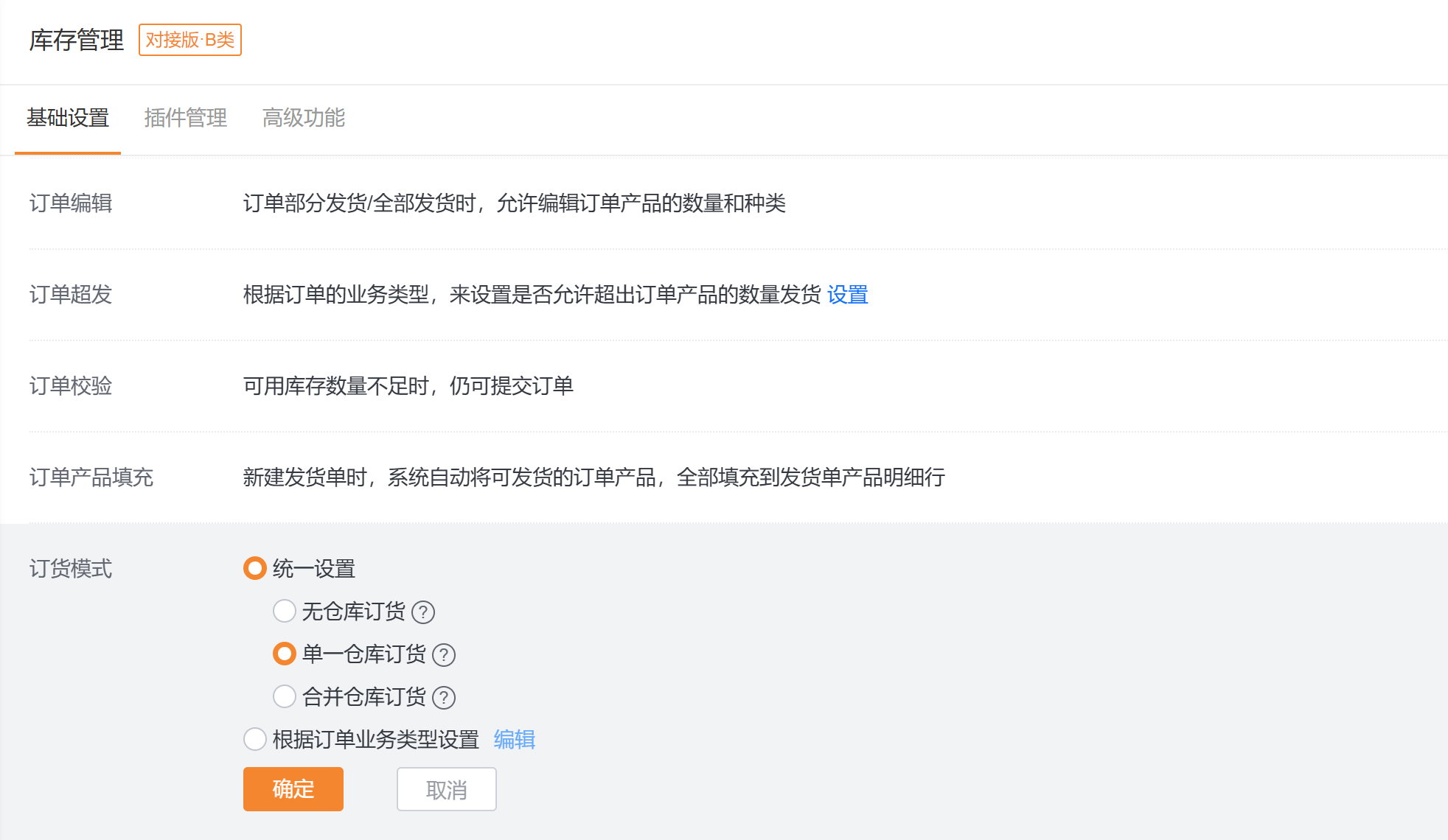
Three order placement modes are available: No-Warehouse, Single-Warehouse, and Consolidated-Warehouse.
- No-Warehouse: When creating a Sales Order, you do not select an ordering Warehouse. The system does not perform inventory queries or validation.
- Single-Warehouse: When creating a Sales Order, you select an ordering Warehouse. Inventory queries and validation use that Warehouse.
- Consolidated-Warehouse: When creating a Sales Order, you do not select an ordering Warehouse. The system queries and validates inventory across all applicable ordering Warehouses. See: https://help.fxiaoke.com/1969/inventory-management/warehouse#header-2
Default: Single-Warehouse. You can set globally or by Sales Order Record Type.
3.5.2 Set Order Validation Rules
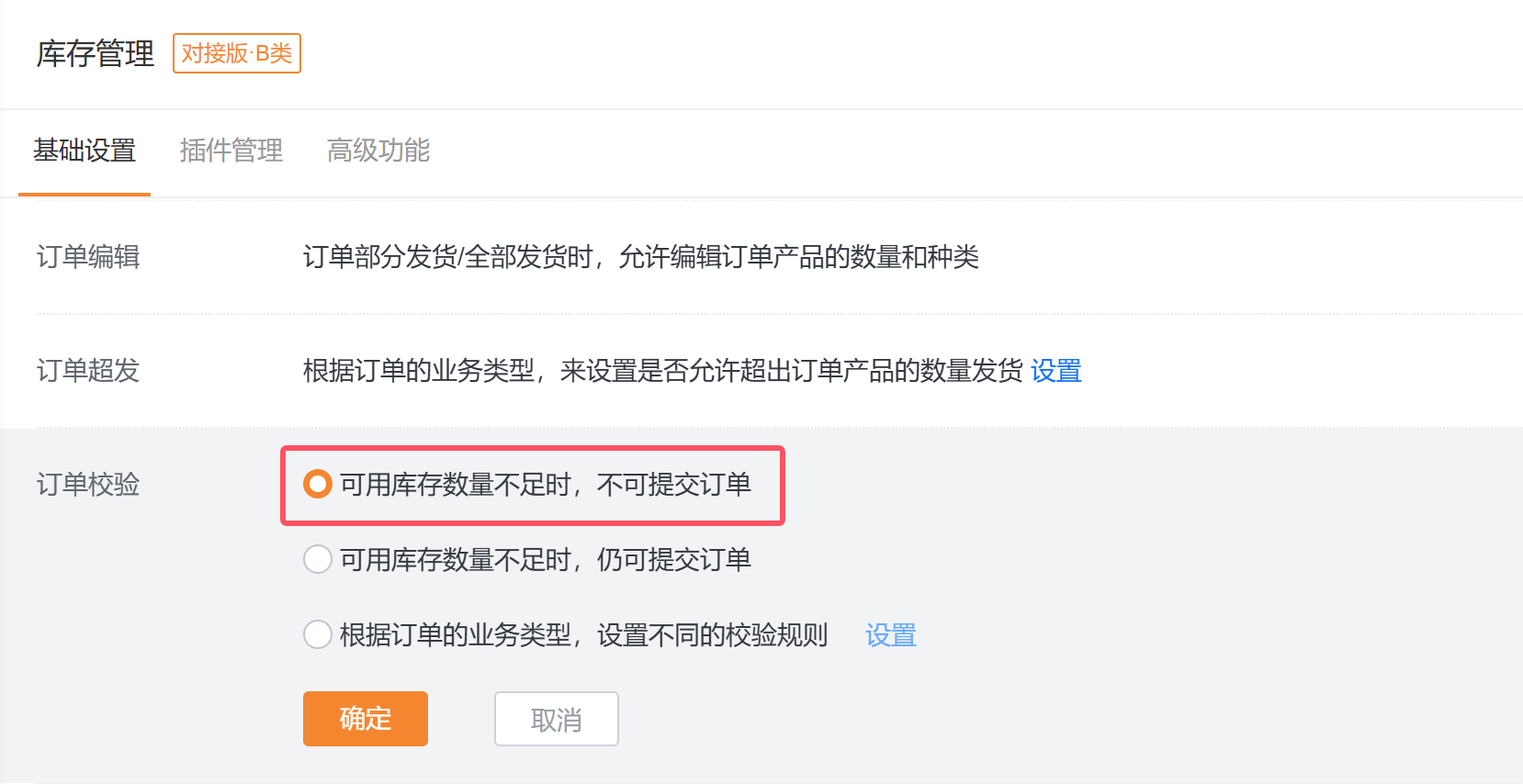
Two validation options:
- Prevent submission when Available Inventory is insufficient: If ordered quantity > current Available Inventory, the Sales Order cannot be submitted.
- Allow submission when Available Inventory is insufficient: Even if ordered quantity > current Available Inventory, the Sales Order can be submitted.
Default: Prevent submission when Available Inventory is insufficient. Configure globally or by Sales Order Record Type.
3.5.3 Show Available Inventory
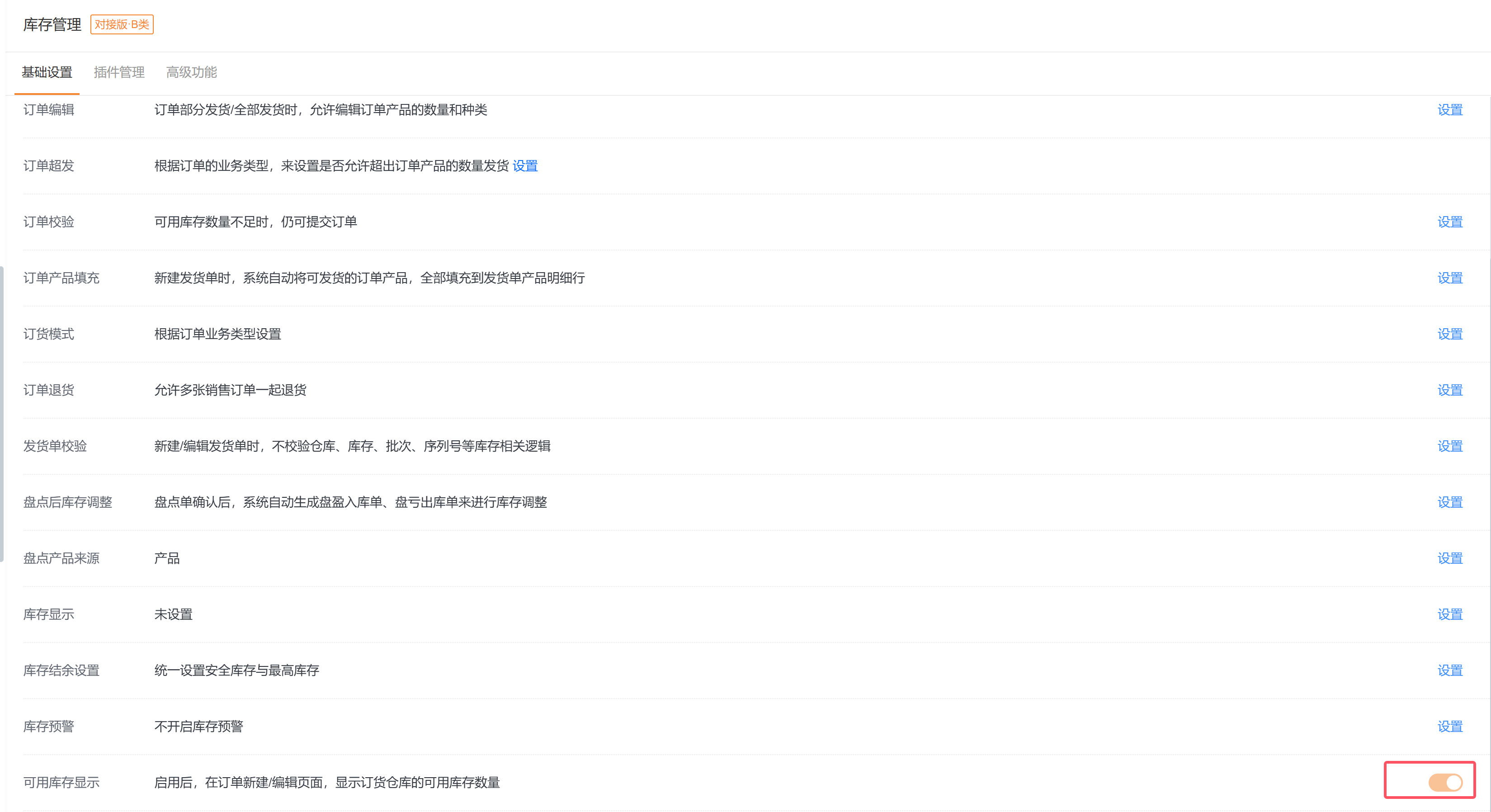
Enable the “Show Available Inventory” parameter to display the selected ordering Warehouse’s Available Inventory when creating a Sales Order.
Note: Enabling this consumes UI event quota. If you lack quota, purchase UI Event Data Update Pack [5 events].
3.5.4 Fetch Real-time ERP Available Inventory
If you want Sales Order creation to fetch real-time available inventory from ERP, see: https://help.fxiaoke.com/1969/inventory-management/a93b
3.6 Shipping Rules

3.6.1 Set Shipping Order Mode
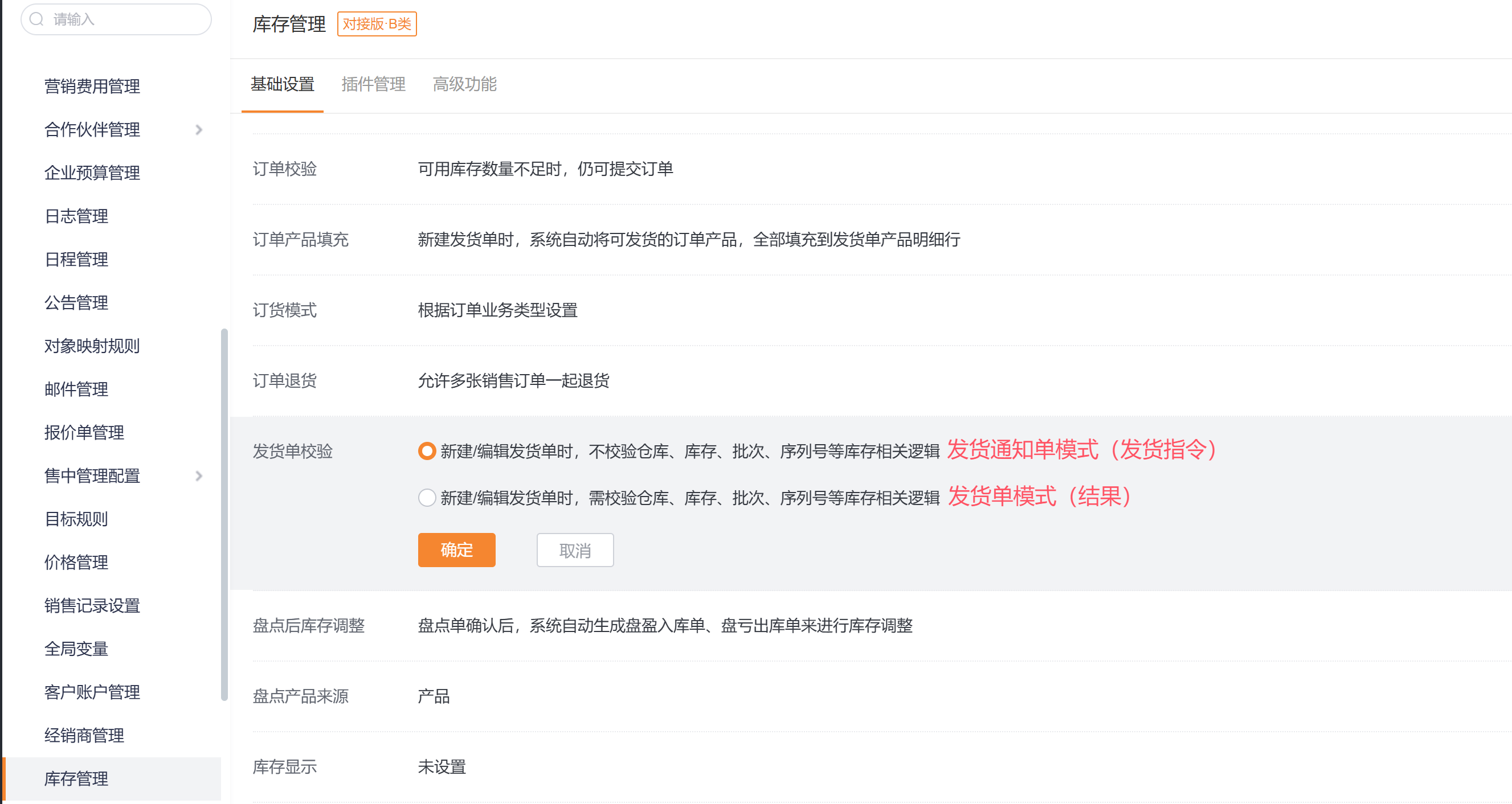
- Delivery Notice mode: Represents shipment instructions. Sync the instructions to ERP, then sync ERP’s shipment results back to ShareCRM as Outbound Orders. See: https://help.fxiaoke.com/1969/inventory-management/delivery-notice and https://help.fxiaoke.com/9bfb/c68f
- Shipping Order mode: Represents shipment results. Directly sync ERP’s shipment results to ShareCRM Shipping Orders. See: https://help.fxiaoke.com/9bfb/c68f
3.6.2 Set Order Product Fill Rules

Two fill rules when creating Shipping Orders in ShareCRM:
- Auto-fill: System automatically populates all deliverable Order Products into Shipping Order line items.
- Manual-fill: System does not auto-populate any products; users define mapping and fill manually.
Default: Auto-fill. To customize, select Manual-fill and configure mapping rules.
3.6.3 Enable Multi-Order Shipping
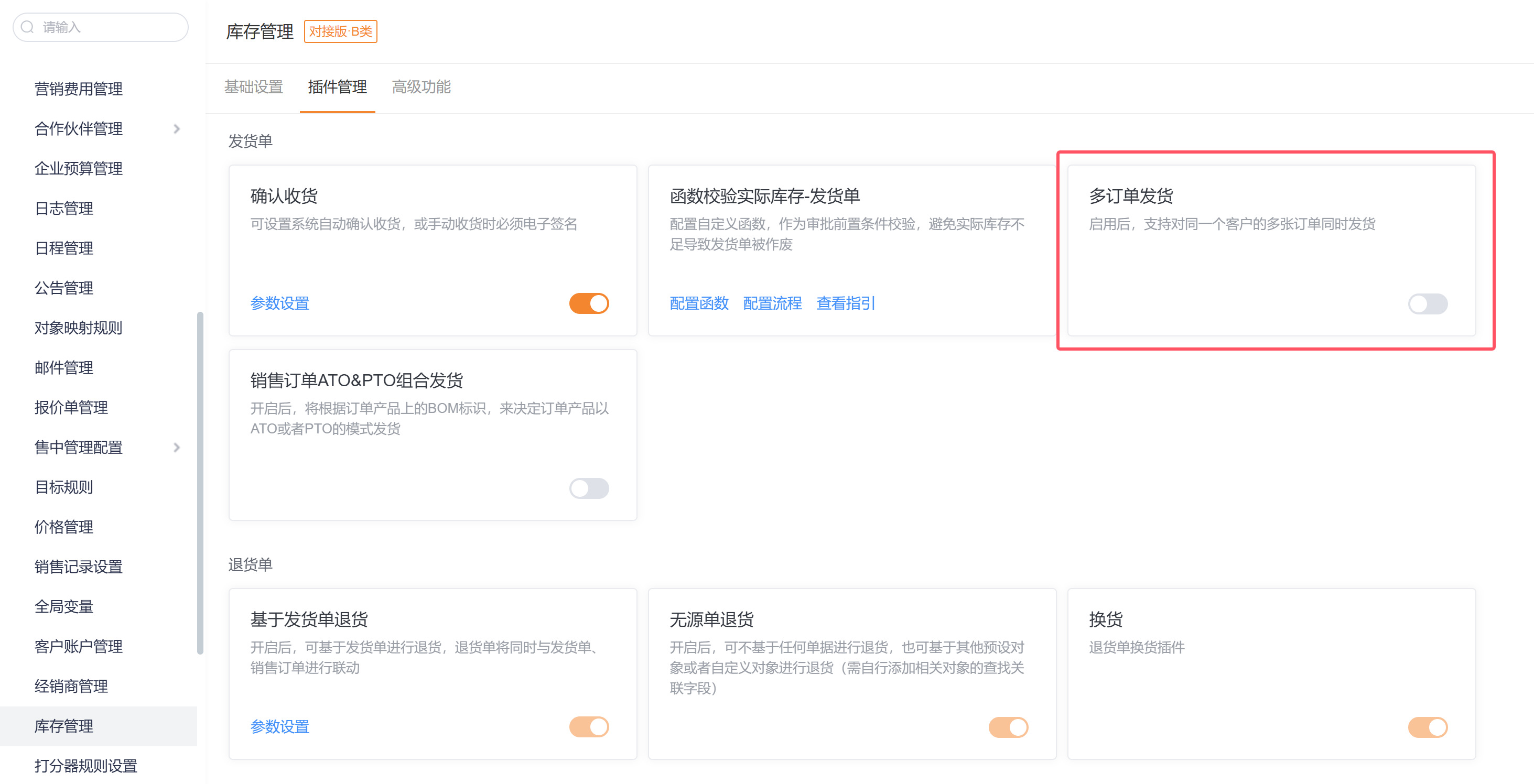
By default, a Shipping Order serves a single Sales Order. To ship multiple Sales Orders for the same Account at once, enable the Multi-Order Shipping plugin.
Enable path: Admin Console -> CRM Platform Management -> Business Rules -> Inventory Management -> Plugin Management.
See: https://help.fxiaoke.com/1969/inventory-management/delivery-note#header-2
3.6.4 ATO & PTO Combined Delivery for Sales Orders
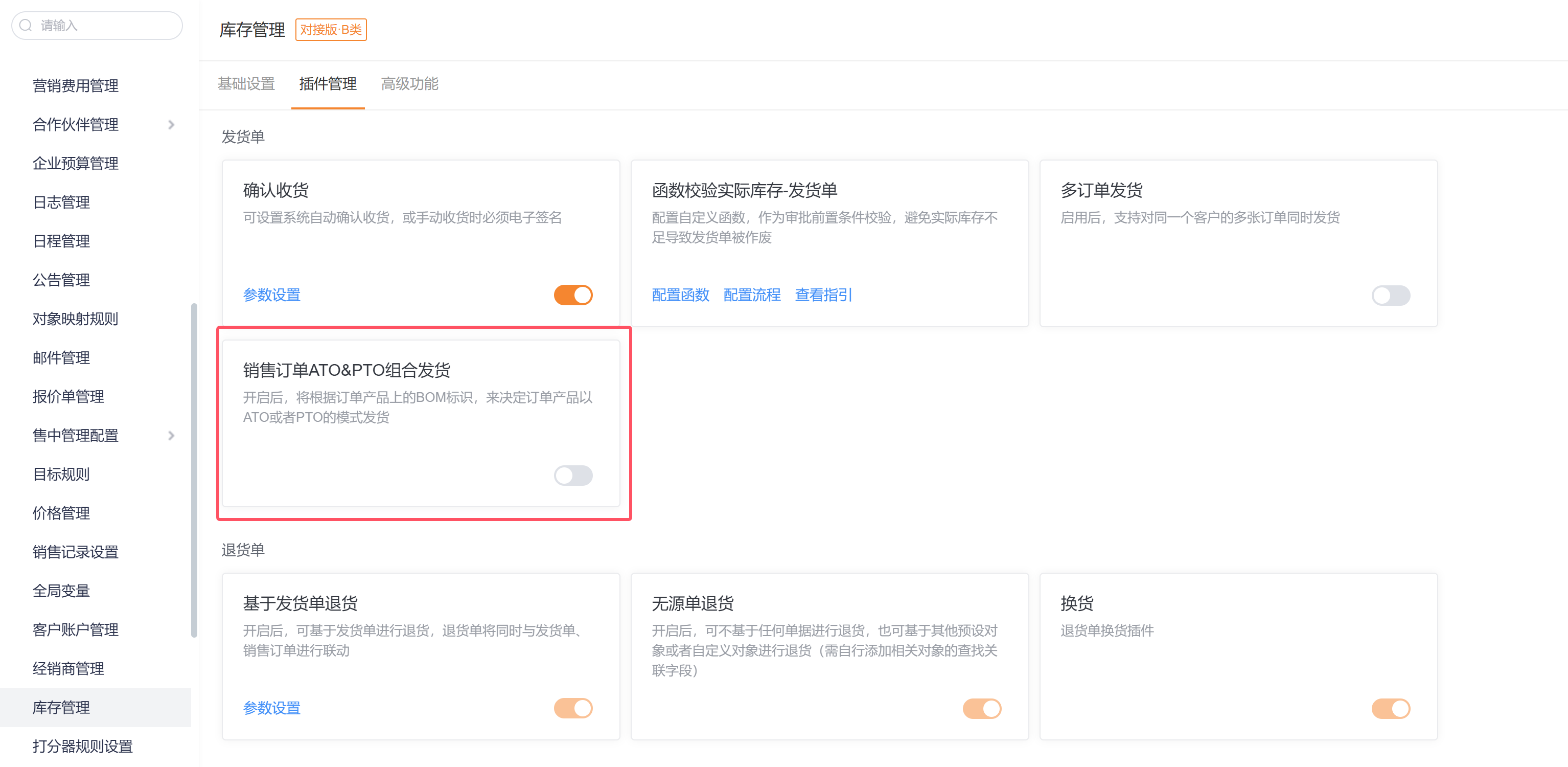
For ATO/PTO concepts, scenarios, and using ATO/PTO on Shipping Orders, see: https://help.fxiaoke.com/1969/inventory-management/ato-pto-delivery
3.6.5 Logistics Query
If you need shipment tracking on Shipping Orders, purchase the Logistics Query Pack (Large/Medium/Small tiers). See: https://help.fxiaoke.com/1969/inventory-management/delivery-note#header-4
3.6.6 Confirm Receipt
Shipping Order receipt confirmation methods:
- Manual confirmation
- Auto-confirm after timeout
- Auto-confirm upon logistics carrier delivery confirmation
See: https://help.fxiaoke.com/1969/inventory-management/delivery-note#header-5
3.7 Return Rules

3.7.1 Return Based on Sales Order
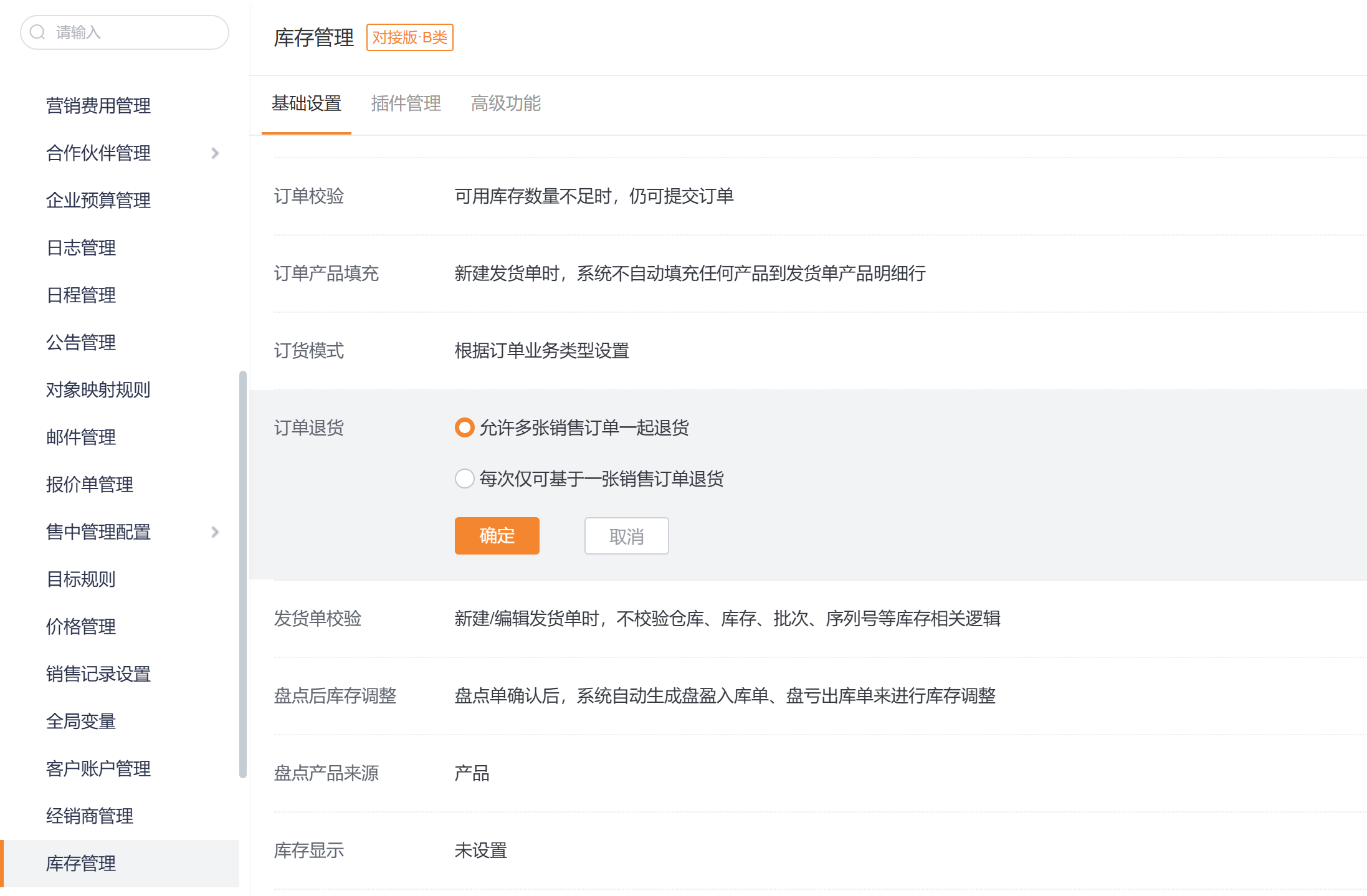
Return Orders support returns from Sales Orders. Two options:
- Allow returning multiple Sales Orders together.
- Restrict each return to a single Sales Order.
See: https://help.fxiaoke.com/1969/inventory-management/return-order#header-3
3.7.2 Return Based on Shipping Order
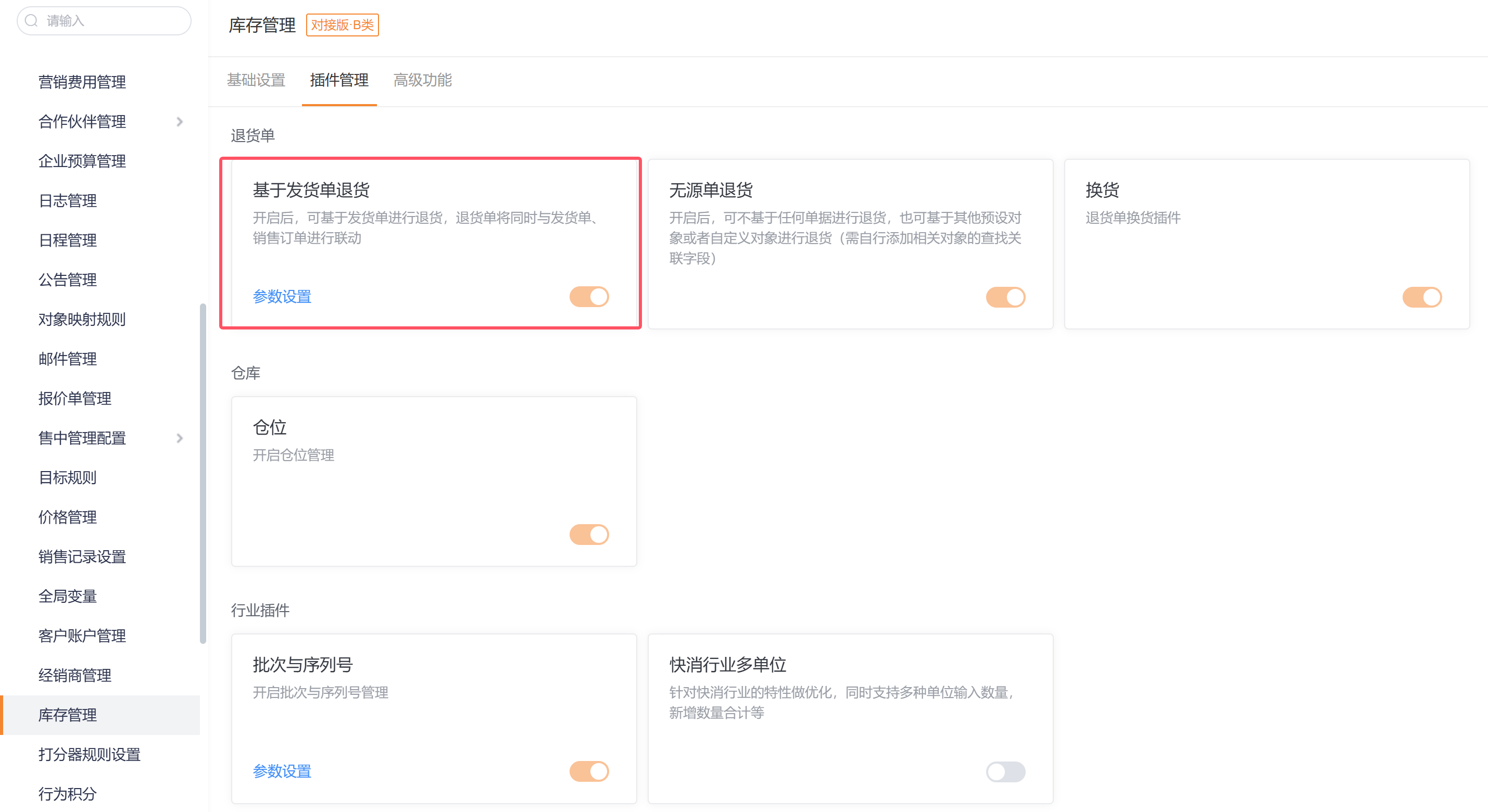
Return-from-Shipping-Order is disabled by default. Enable via: Admin Console -> CRM Platform Management -> Business Rules -> Inventory Management -> Plugin Management.
See: https://help.fxiaoke.com/1969/inventory-management/return-order#header-4
3.7.3 Return Without Source Document
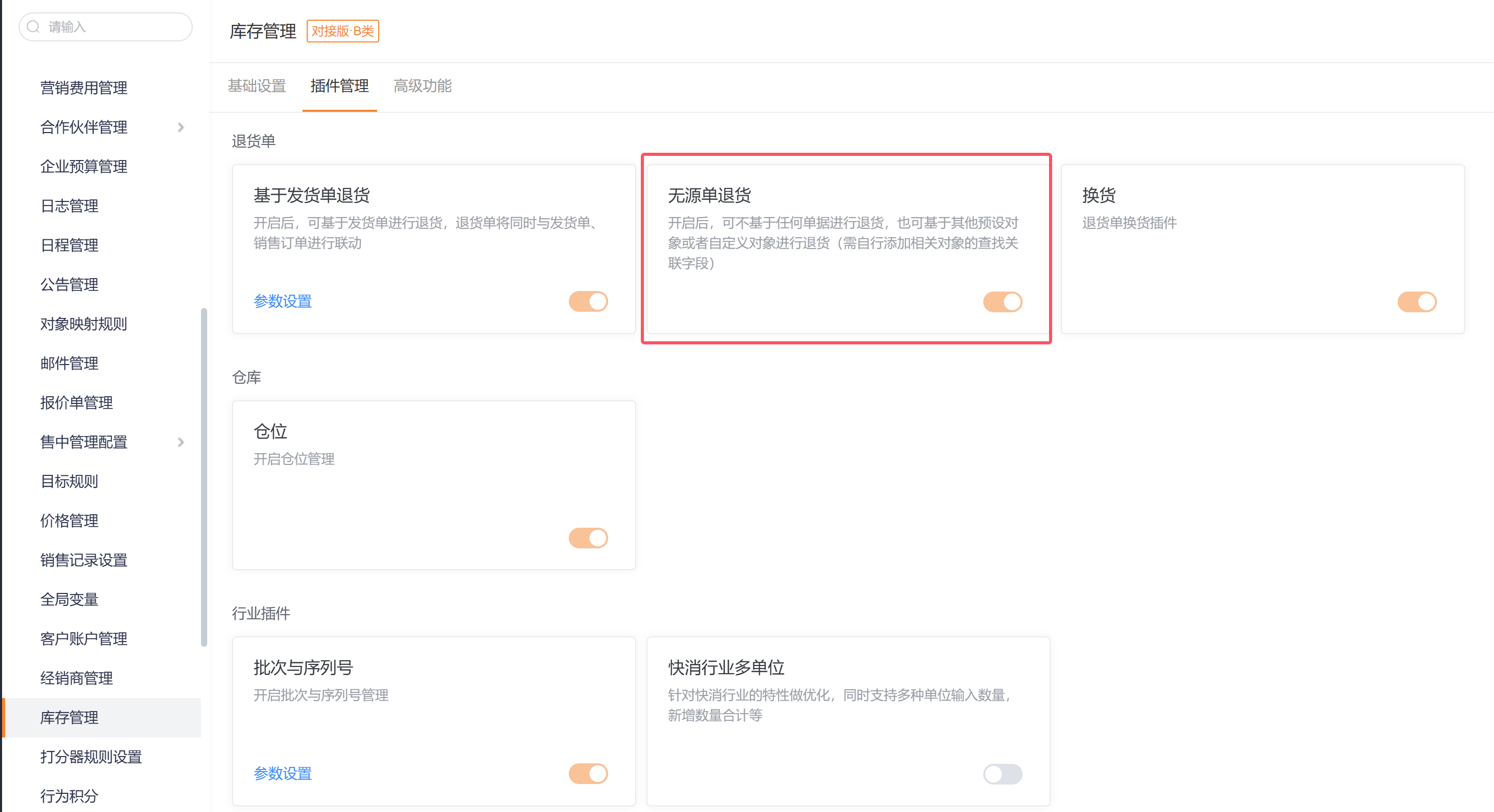
Return Without Source is disabled by default. Enable via Plugin Management. See: https://help.fxiaoke.com/1969/inventory-management/return-order#header-5
3.7.4 Exchanges
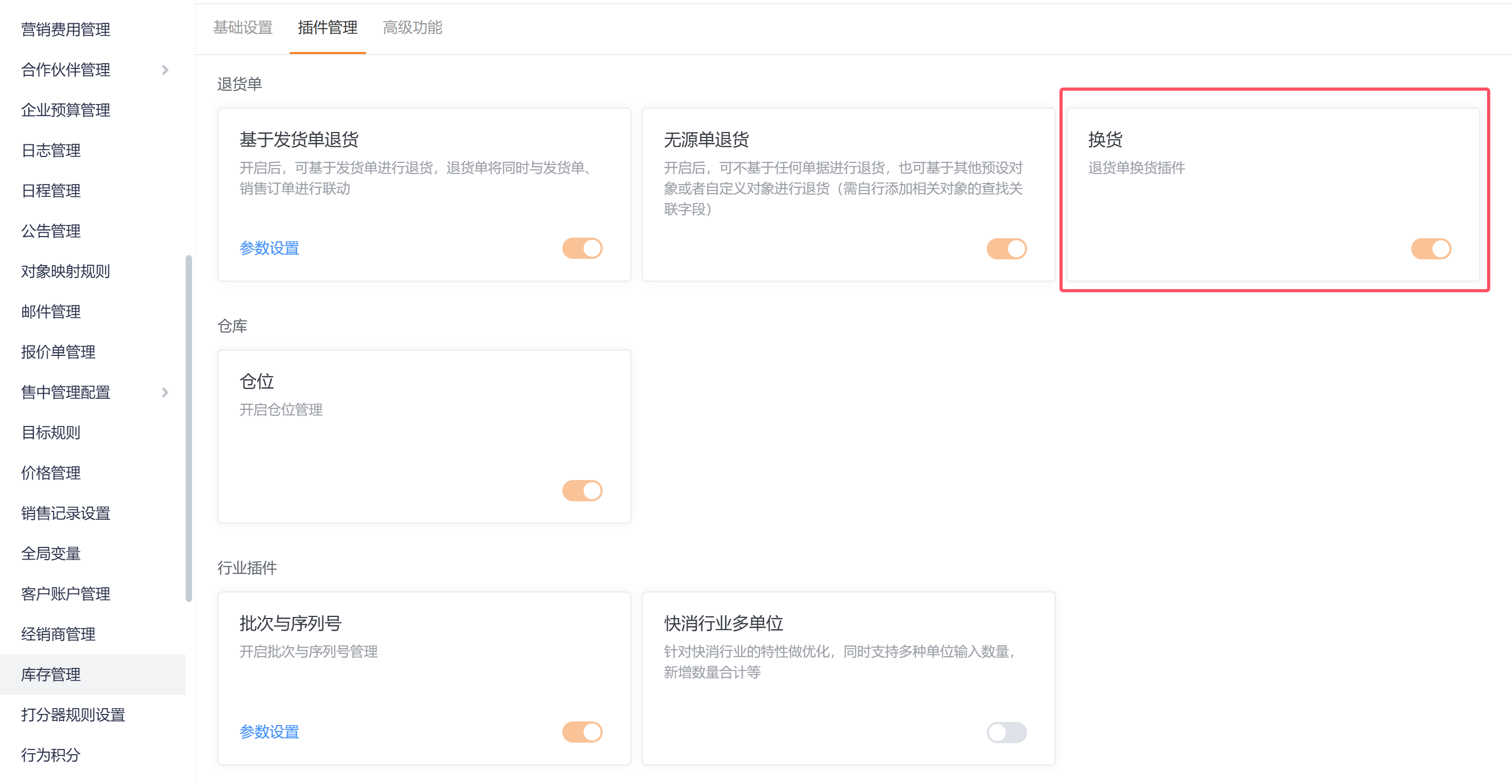
Exchange functionality is disabled by default. Enable via Plugin Management. See: https://help.fxiaoke.com/1969/inventory-management/return-order#header-6
4. Scenario Overview (Non-ERP, Type A Standalone Model)
- A mid-to-large manufacturing enterprise.
- Sales scenario: Complete the full mid-sales transaction loop entirely within ShareCRM, including Sales Orders, Shipping, internal Inventory management, and returns/exchanges.
- Key roles: Sales Rep, Order Administrator, Shipping Operator.
- Full user guide: https://help.fxiaoke.com/1969/inventory-management
- Sales process flow:

5. Prerequisites
5.1 Purchase Inventory Management (required)
- You must purchase the Inventory Management application. If not purchased, contact your sales representative.
5.2 Purchase Logistics Query Pack (optional)
- If you need shipment tracking on Shipping Orders or other records, purchase the Logistics Query Pack (Large/Medium/Small). Choose by expected query volume.
6. System Configuration
6.1 Enable Type A Full Edition Inventory
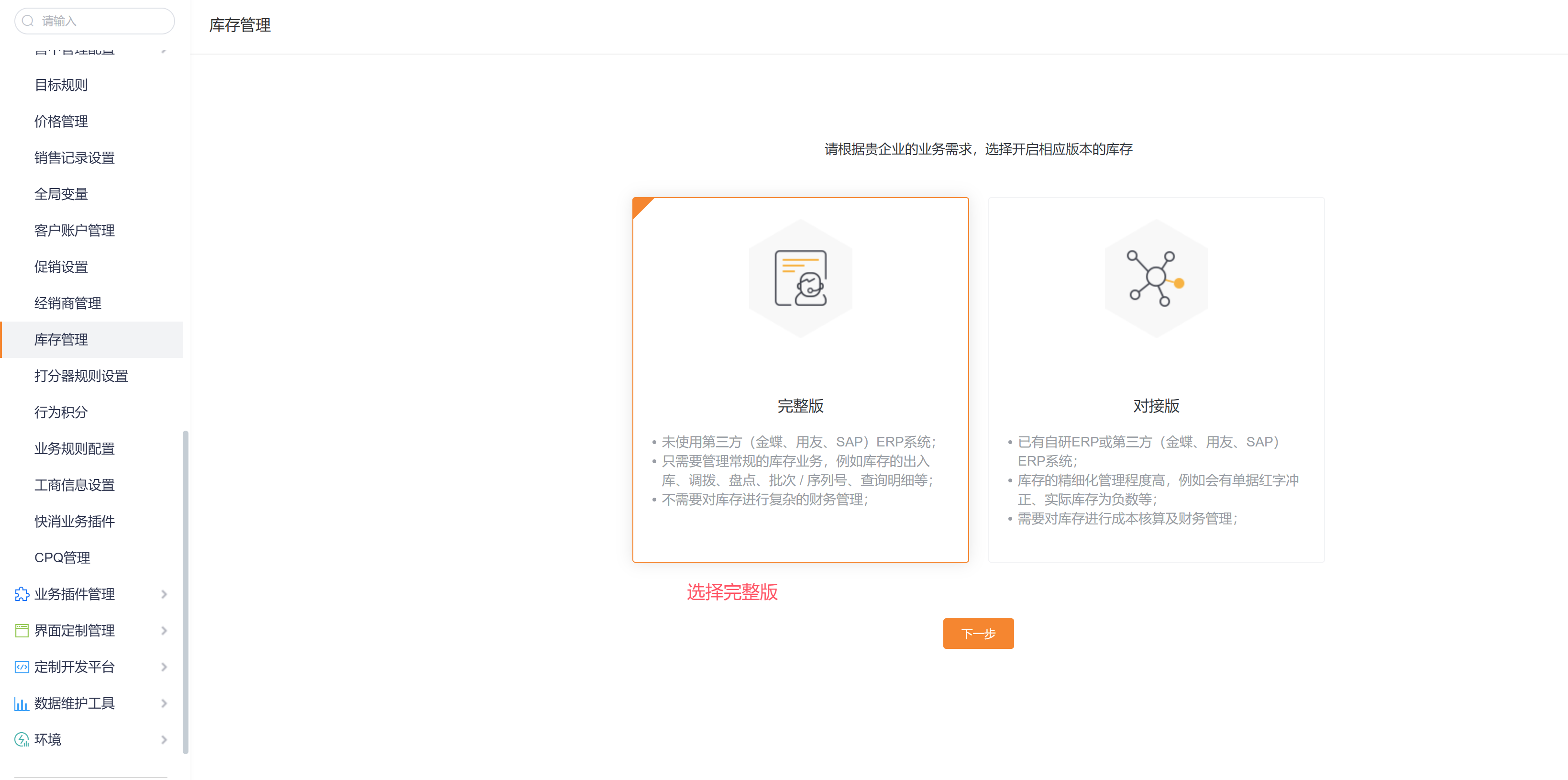
Enable path: Admin Console -> CRM Platform Management -> Business Rules -> Inventory Management.
If you enabled the Integration edition by mistake, follow the customer special request process to switch to Full Edition. See: https://help.fxiaoke.com/1969/inventory-management/8c3f#header-6
6.2 Configure Shipping Order Mode
After enabling Inventory, choose the Shipping Order mode. Delivery Notice is recommended. See: https://help.fxiaoke.com/1969/inventory-management/delivery-notice
6.3 Assign Relevant Roles
Core roles: Sales Rep, Order Administrator, Shipping Operator.
Sales Rep:
Order Administrator:
Shipping Operator:
6.4 Maintain Base Data
Maintain data directly in ShareCRM by creating or importing records for corresponding objects.
To create material master data, see: Product Categories and Products
- Product Categories: https://help.fxiaoke.com/1969/7d62/7b74
- Products: https://help.fxiaoke.com/1969/81b2/6af6
To create Warehouse data, see: https://help.fxiaoke.com/1969/inventory-management/warehouse
To create Inventory and Inbound Orders, see:
- Inventory: https://help.fxiaoke.com/1969/inventory-management/5b2e
- Inbound Order: https://help.fxiaoke.com/1969/inventory-management/bc31
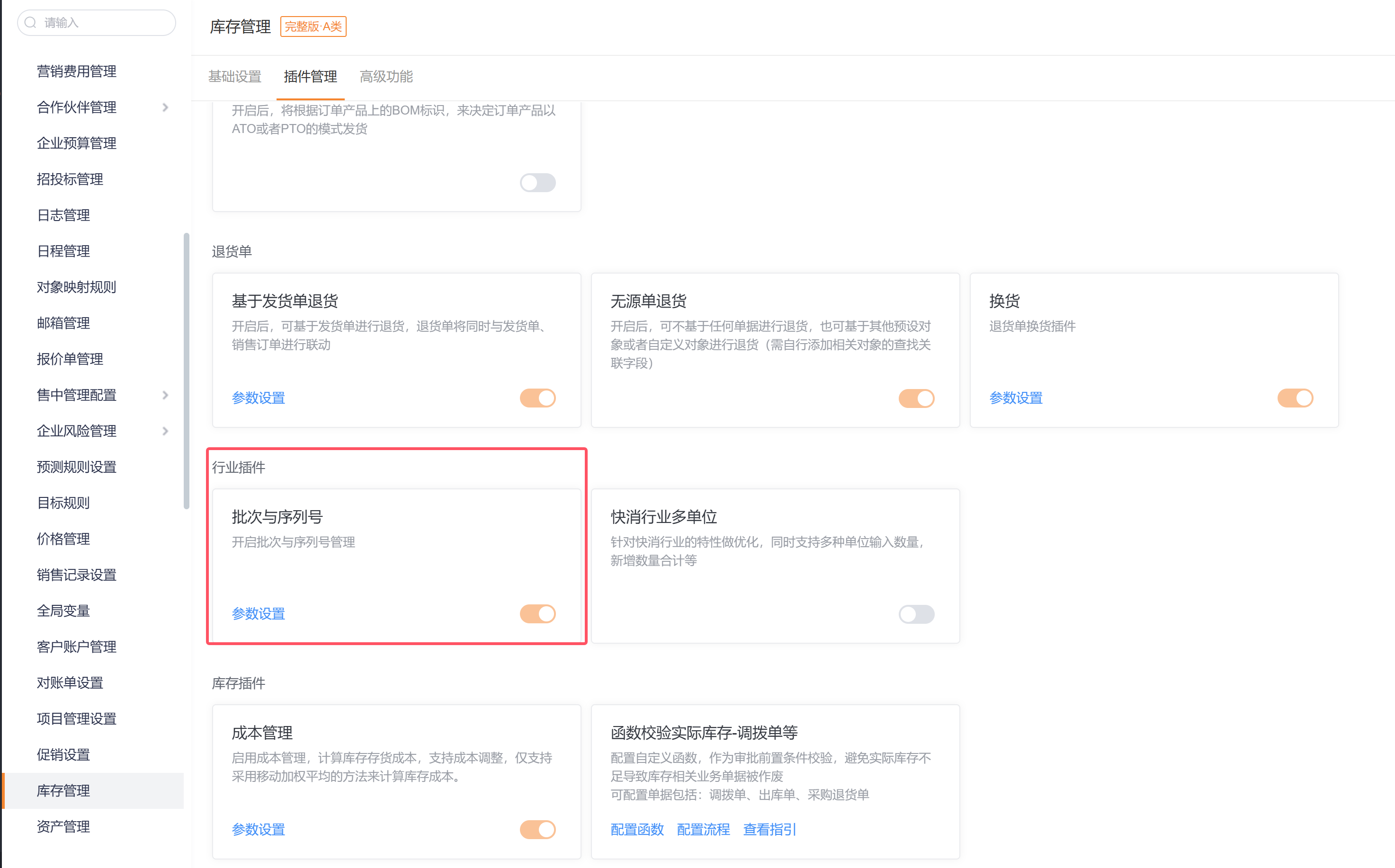
For batch, lot, or serial number-level tracking, enable the Batch & Serial Number industry plugin:
Admin Console -> CRM Platform Management -> Business Rules -> Inventory Management -> Plugin Management -> Industry Plugins.
6.5 Sales Order Placement Rules
6.5.1 Set Order Placement Mode
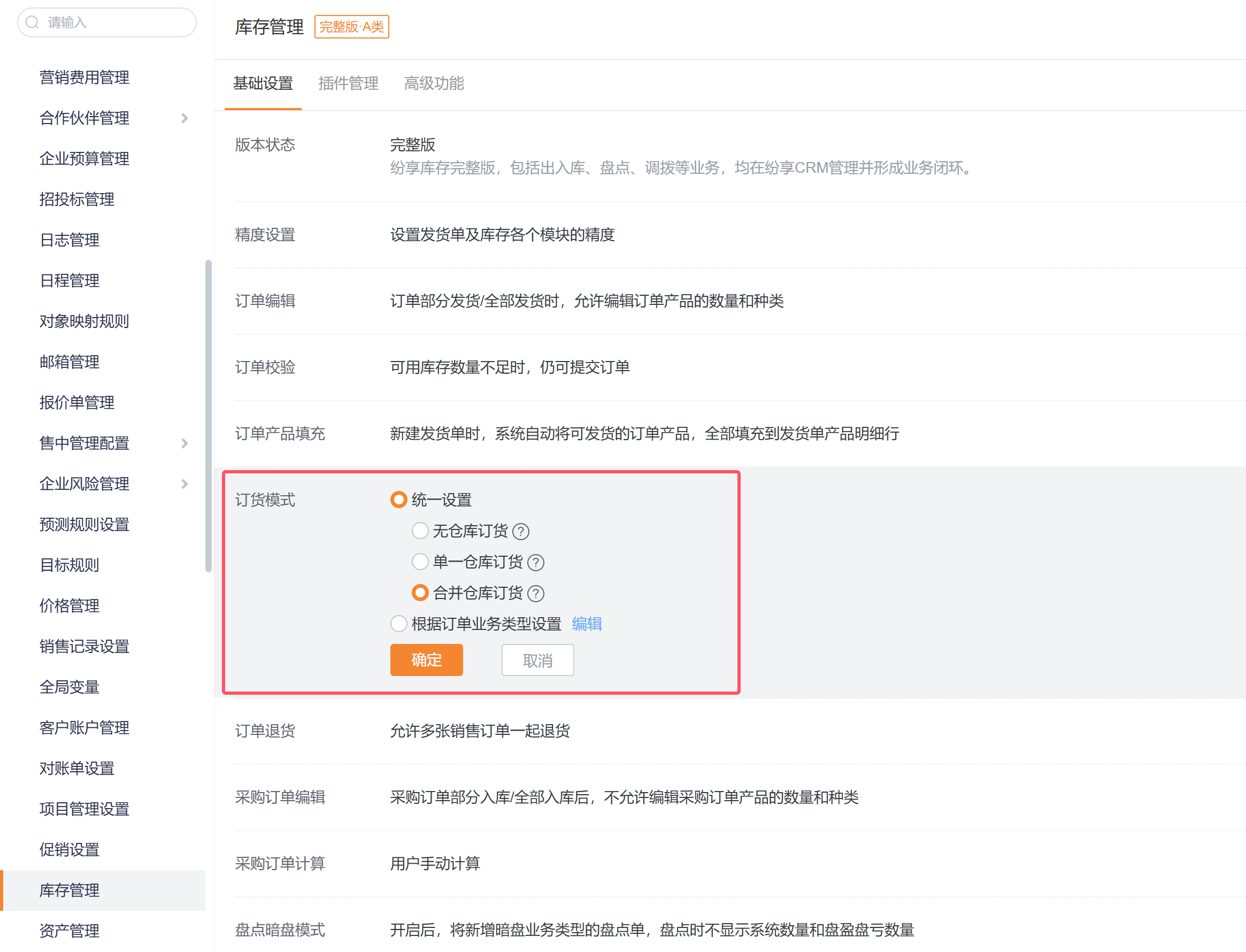
Modes: No-Warehouse, Single-Warehouse, Consolidated-Warehouse. See section 3.5.1 for definitions.
Default: Single-Warehouse. Set globally or by Sales Order Record Type.
6.5.2 Set Order Validation Rules
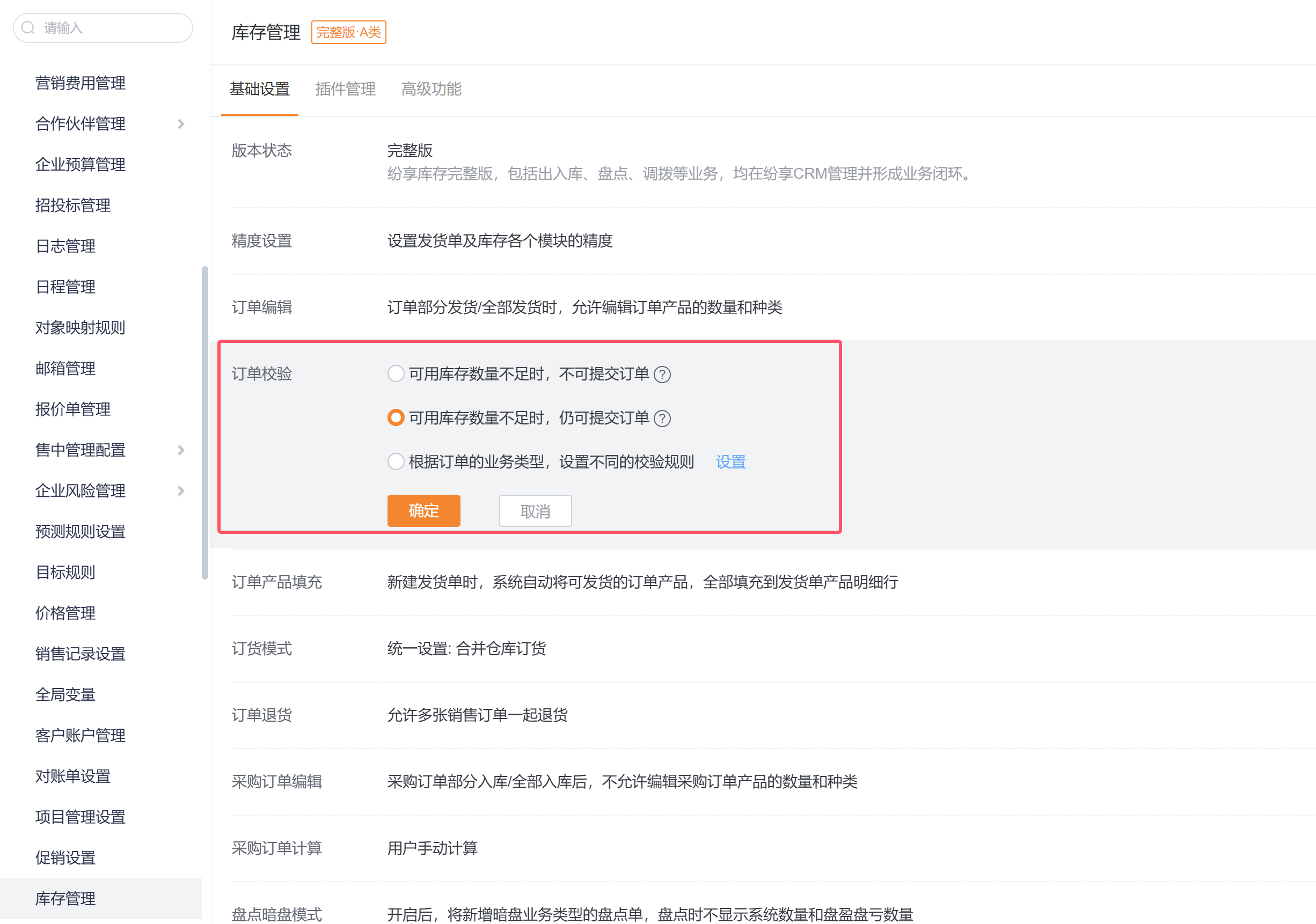
Two options: prevent submission when Available Inventory insufficient, or allow submission. Default: prevent. Configure globally or by Record Type.
6.5.3 Show Available Inventory
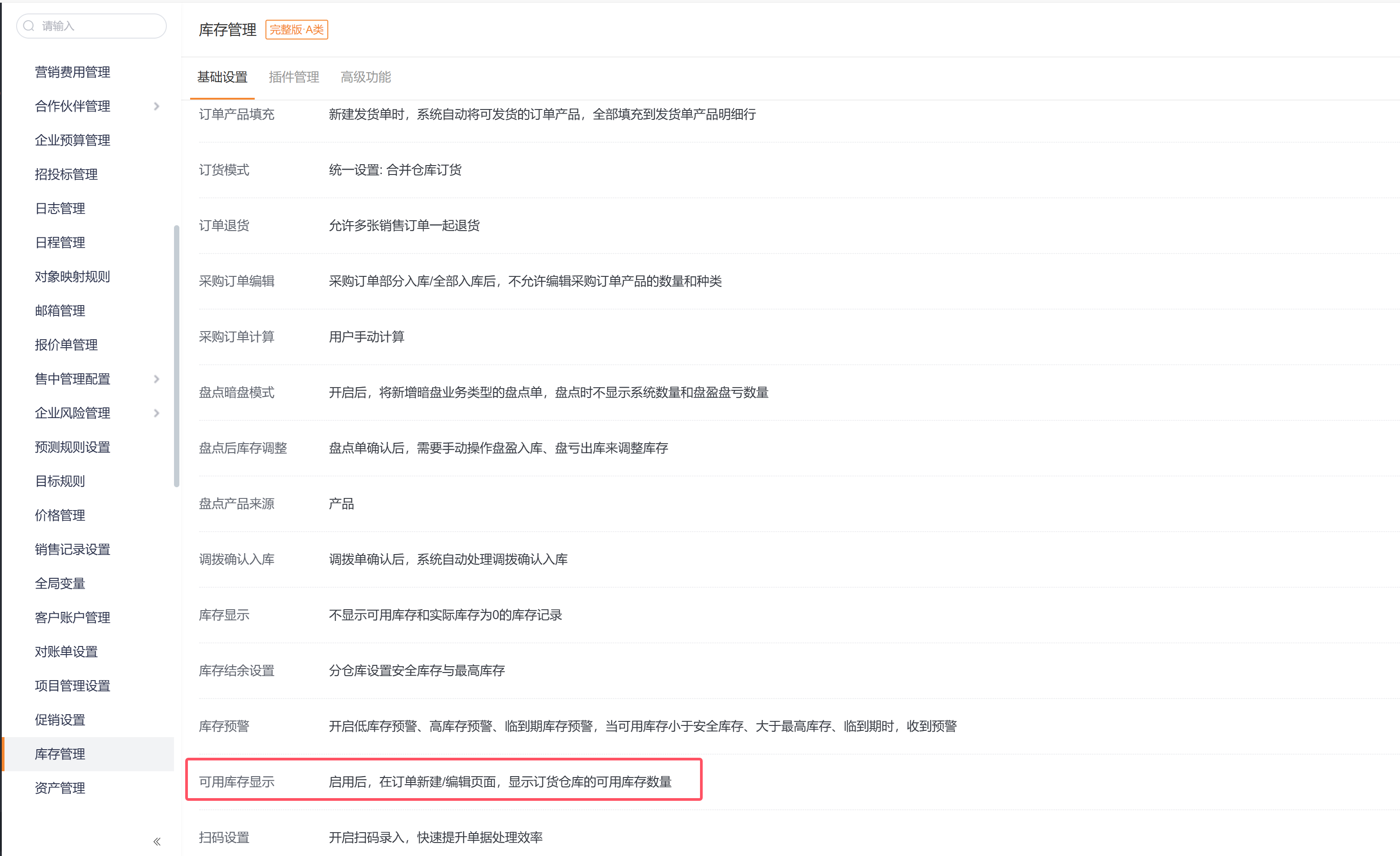
Enable to display ordering Warehouse’s Available Inventory when creating Sales Orders. Requires UI event quota; purchase UI Event Data Update Pack [5 events] if needed.
6.5.4 Enable Order Frozen Inventory Adjustment

When order placement mode is Single-Warehouse or Consolidated-Warehouse, submitting a Sales Order increases Frozen Inventory. To allow adjustments to Frozen Inventory after order submission, enable the Frozen Inventory Adjustment plugin (as shown).
6.6 Shipping Rules

6.6.1 Set Order Product Fill Rules
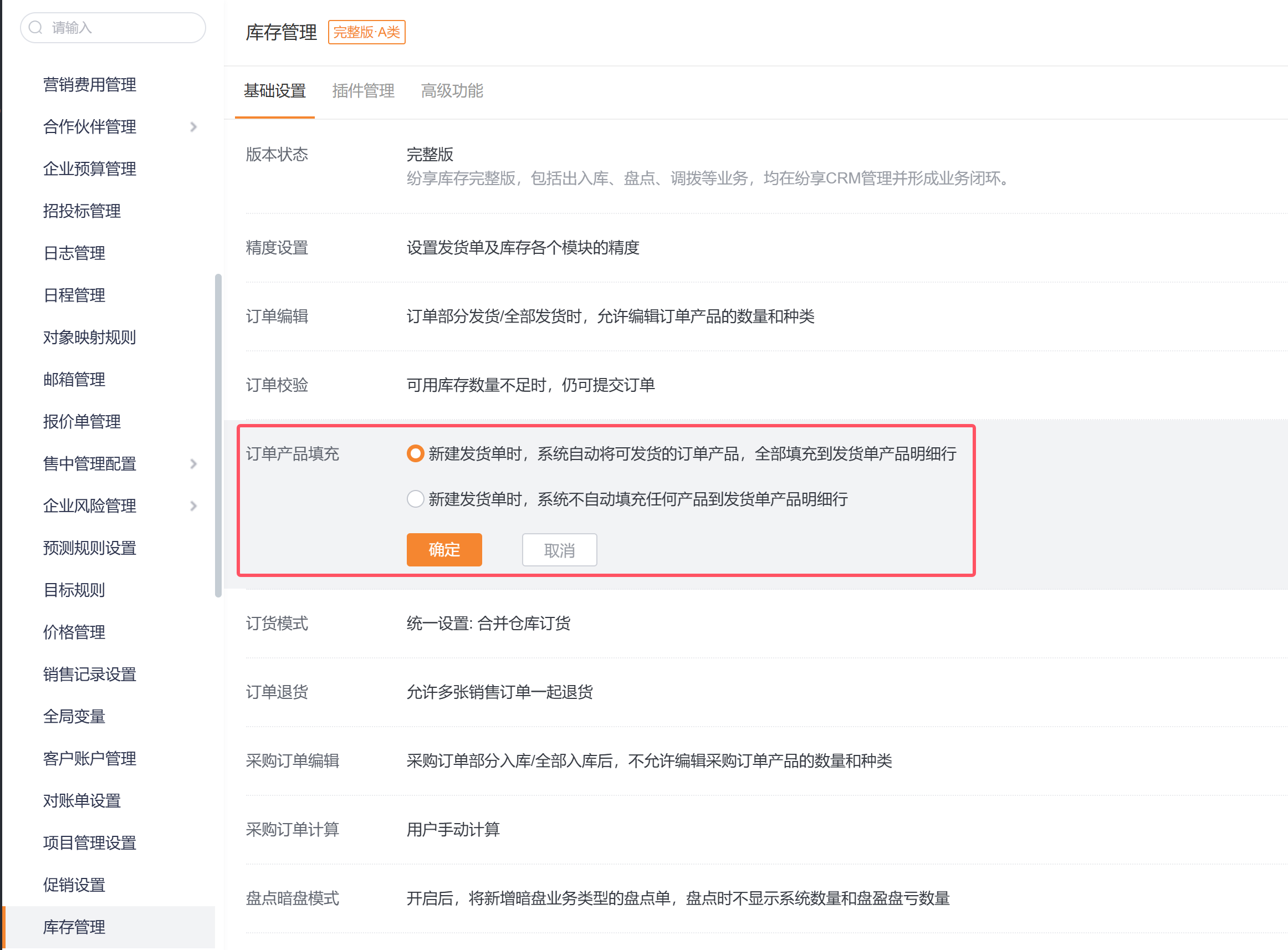
Two options: Auto-fill deliverable Order Products into Shipping Order lines, or do not auto-fill and configure mapping manually.
Default: Auto-fill.
6.6.2 Enable Multi-Order Shipping
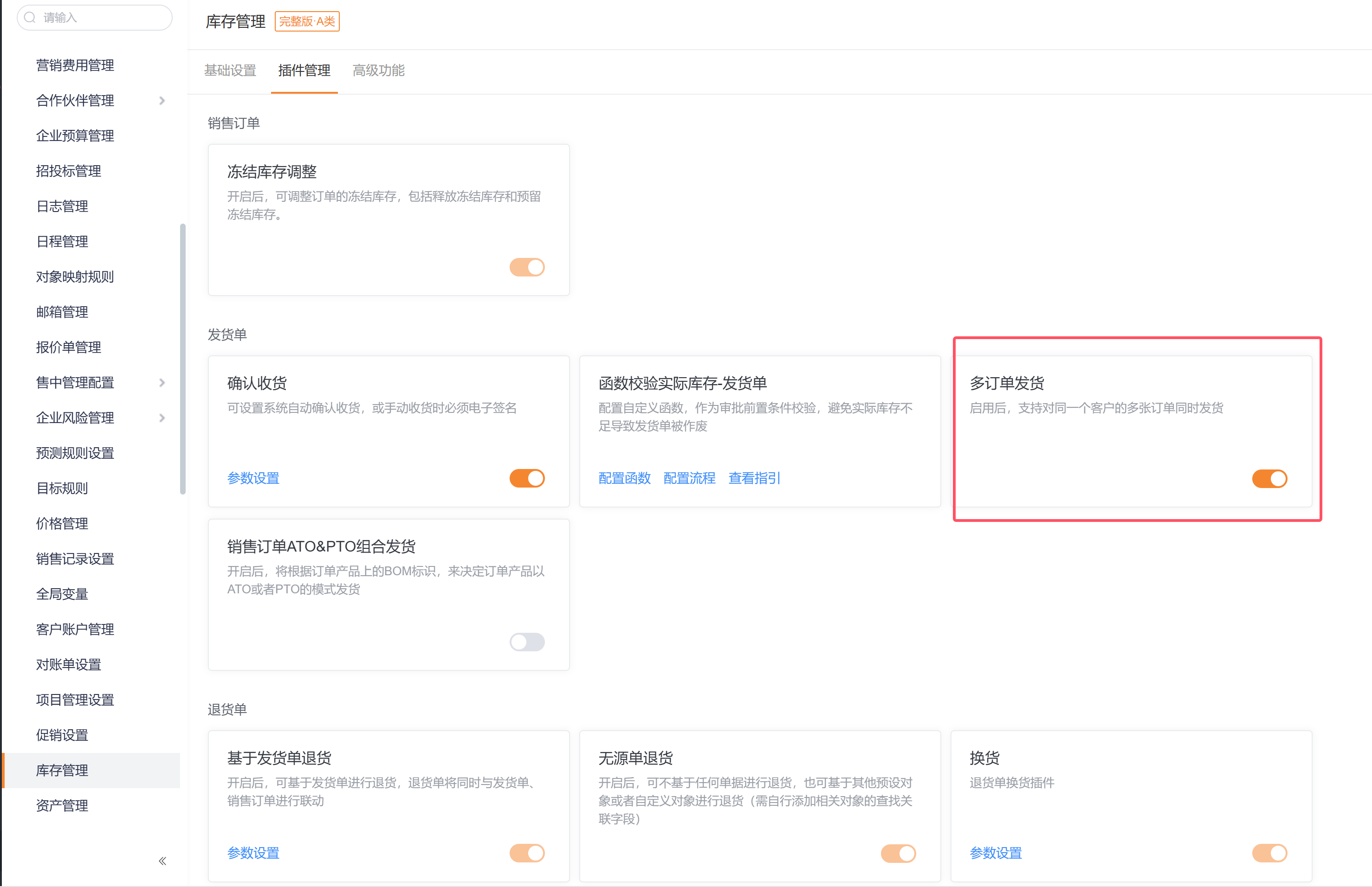
Enable Multi-Order Shipping plugin to ship multiple Sales Orders for the same Account in one Shipping Order. Enable path: Admin Console -> CRM Platform Management -> Business Rules -> Inventory Management -> Plugin Management.
See: https://help.fxiaoke.com/1969/inventory-management/delivery-note#header-2
6.6.3 ATO & PTO Combined Delivery
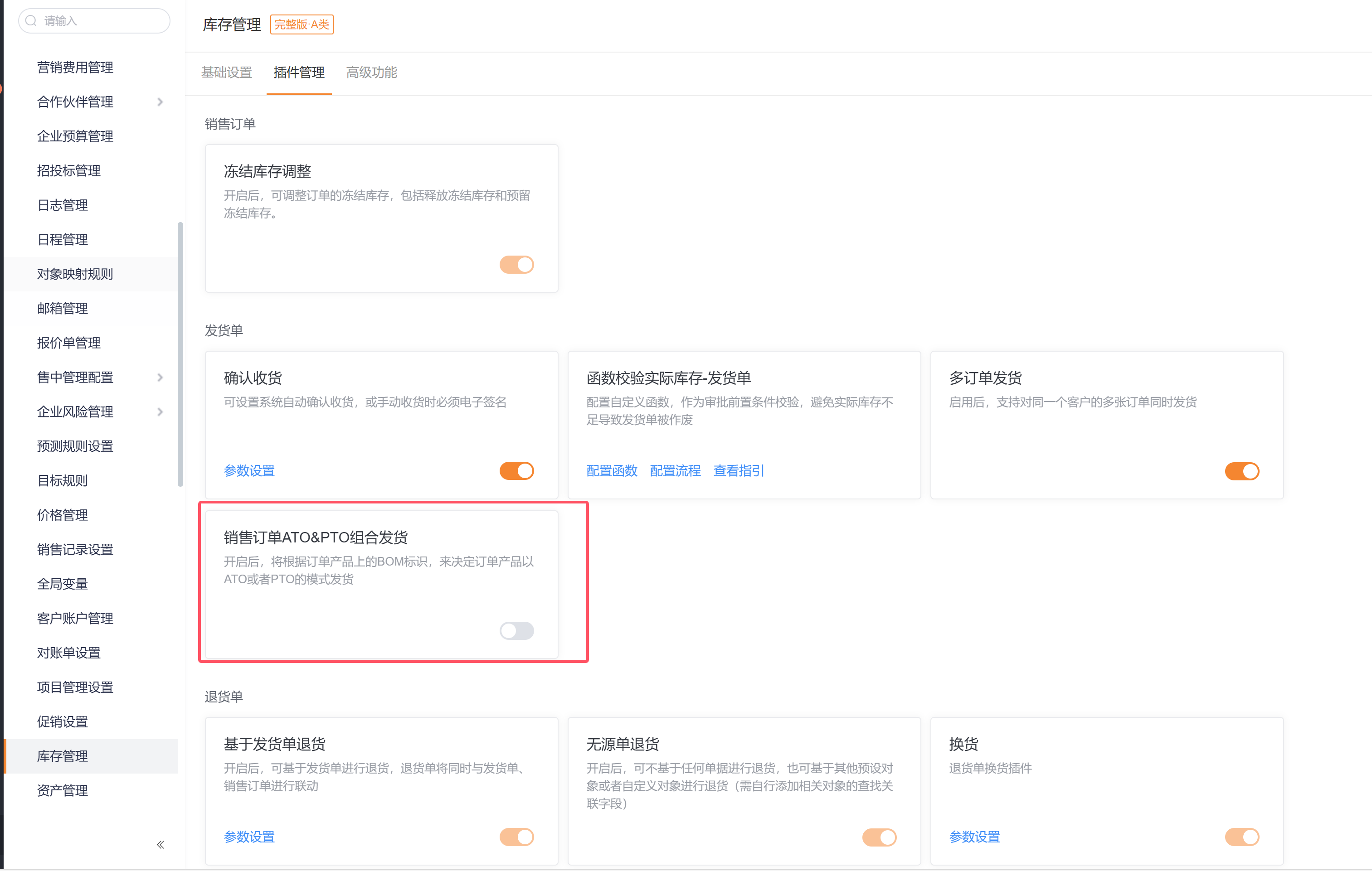
See ATO/PTO documentation: https://help.fxiaoke.com/1969/inventory-management/ato-pto-delivery
6.6.4 Logistics Query
Purchase the Logistics Query Pack to enable shipment tracking on Shipping Orders. See: https://help.fxiaoke.com/1969/inventory-management/delivery-note#header-4
6.6.5 Confirm Receipt
Receipt confirmation methods: manual, auto after timeout, or auto after carrier confirmation. See: https://help.fxiaoke.com/1969/inventory-management/delivery-note#header-5
6.7 Return Rules
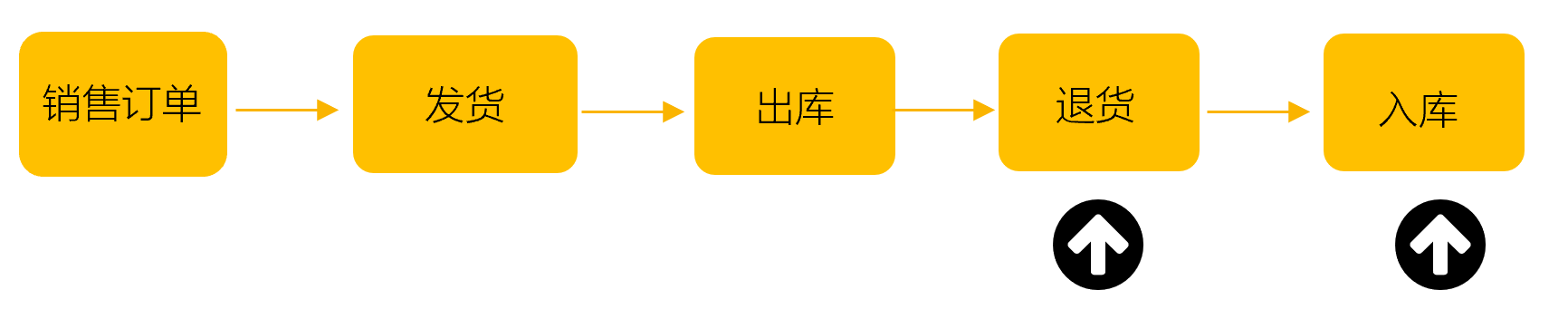
6.7.1 Return Based on Sales Order
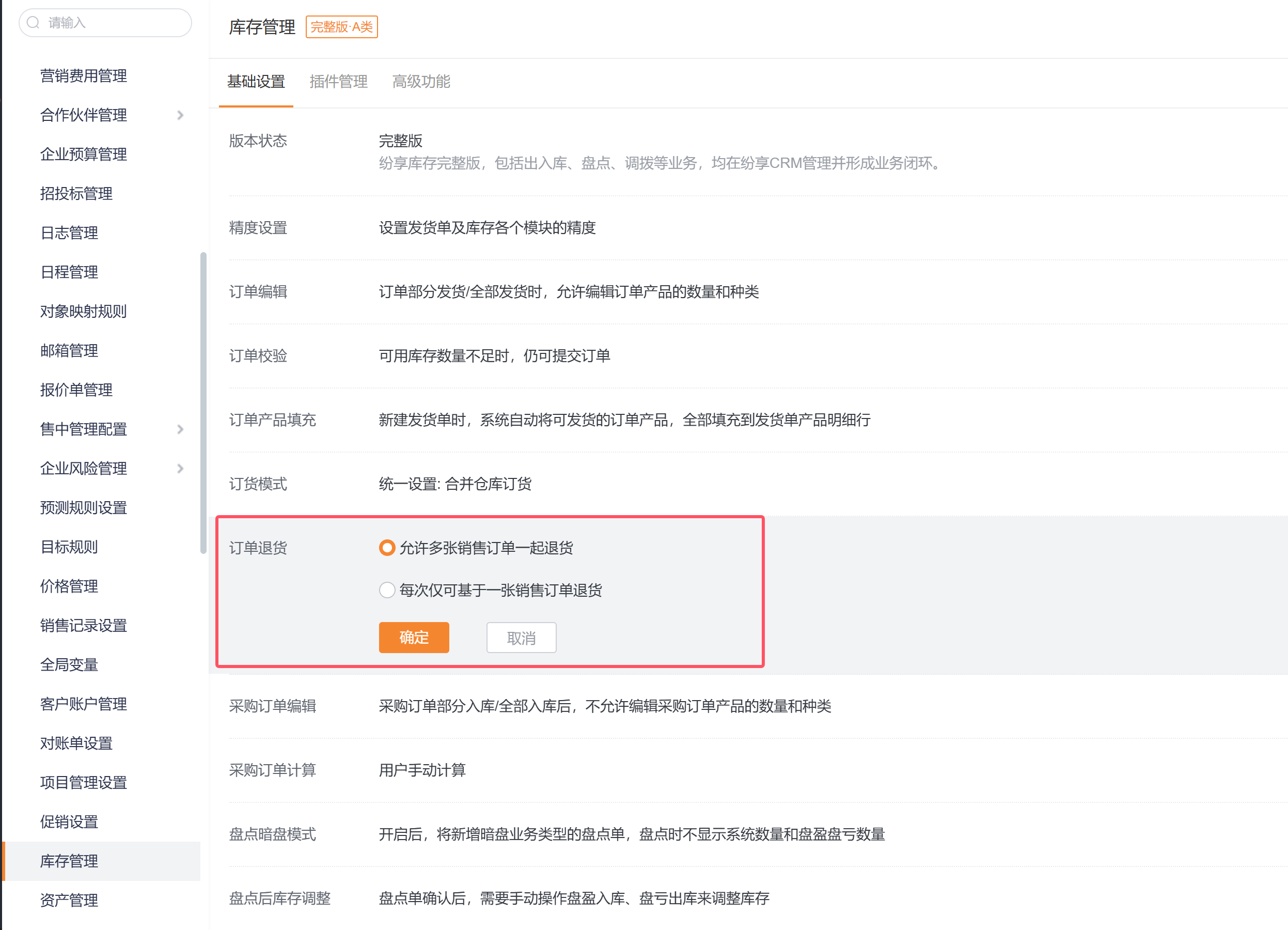
Return options: allow multiple Sales Orders per Return Order, or restrict to one Sales Order per return. See: https://help.fxiaoke.com/1969/inventory-management/return-order#header-3
6.7.2 Return Based on Shipping Order

Disabled by default—enable via Plugin Management. See: https://help.fxiaoke.com/1969/inventory-management/return-order#header-4
6.7.3 Return Without Source Document
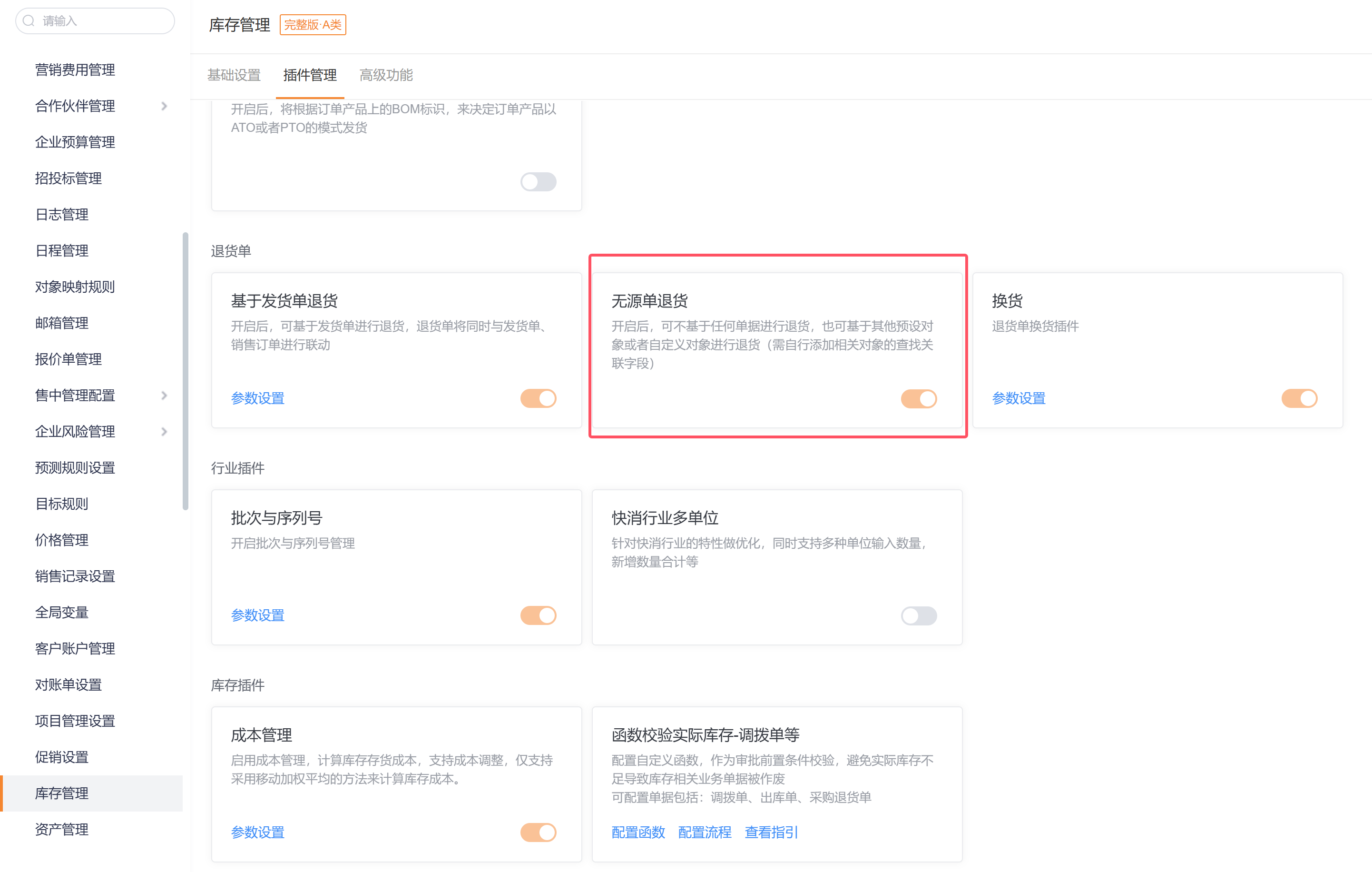
Disabled by default—enable via Plugin Management. See: https://help.fxiaoke.com/1969/inventory-management/return-order#header-5
6.7.4 Exchanges
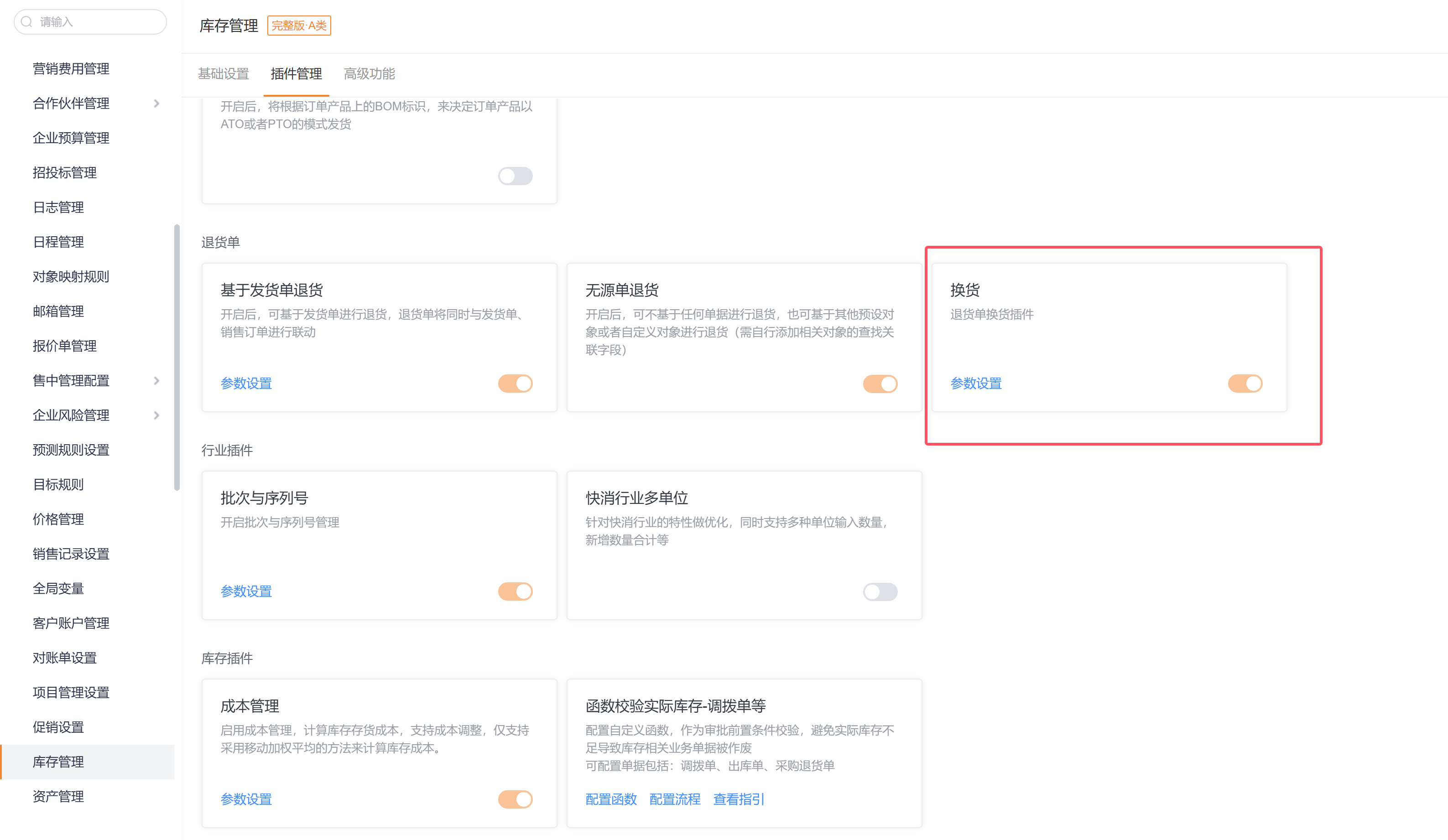
Disabled by default—enable via Plugin Management. See: https://help.fxiaoke.com/1969/inventory-management/return-order#header-6
6.8 Configure Transfer (Allocation) Rules
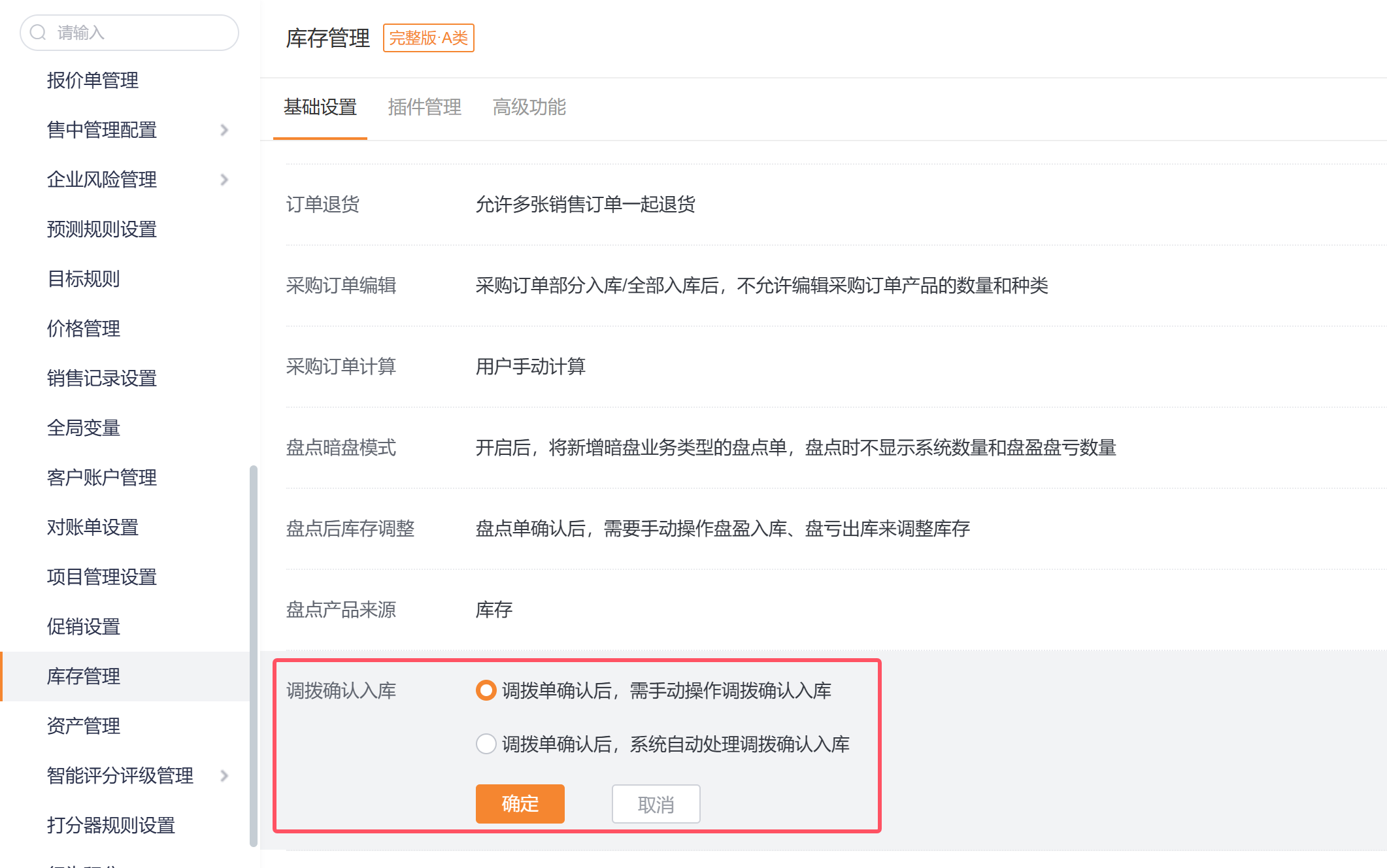
After confirming a Transfer Order, the source Warehouse automatically issues stock (outbound). By default, the destination Warehouse requires manual Transfer confirmation to register inbound. To automate inbound confirmation, set the parameter: “After Transfer Order confirmation, system automatically performs Transfer inbound confirmation.”
As a core document in standalone Inventory Management, Transfer Orders balance inventory supply and consumption. See: https://help.fxiaoke.com/1969/inventory-management/c331
6.9 Configure Inventory Check Rules
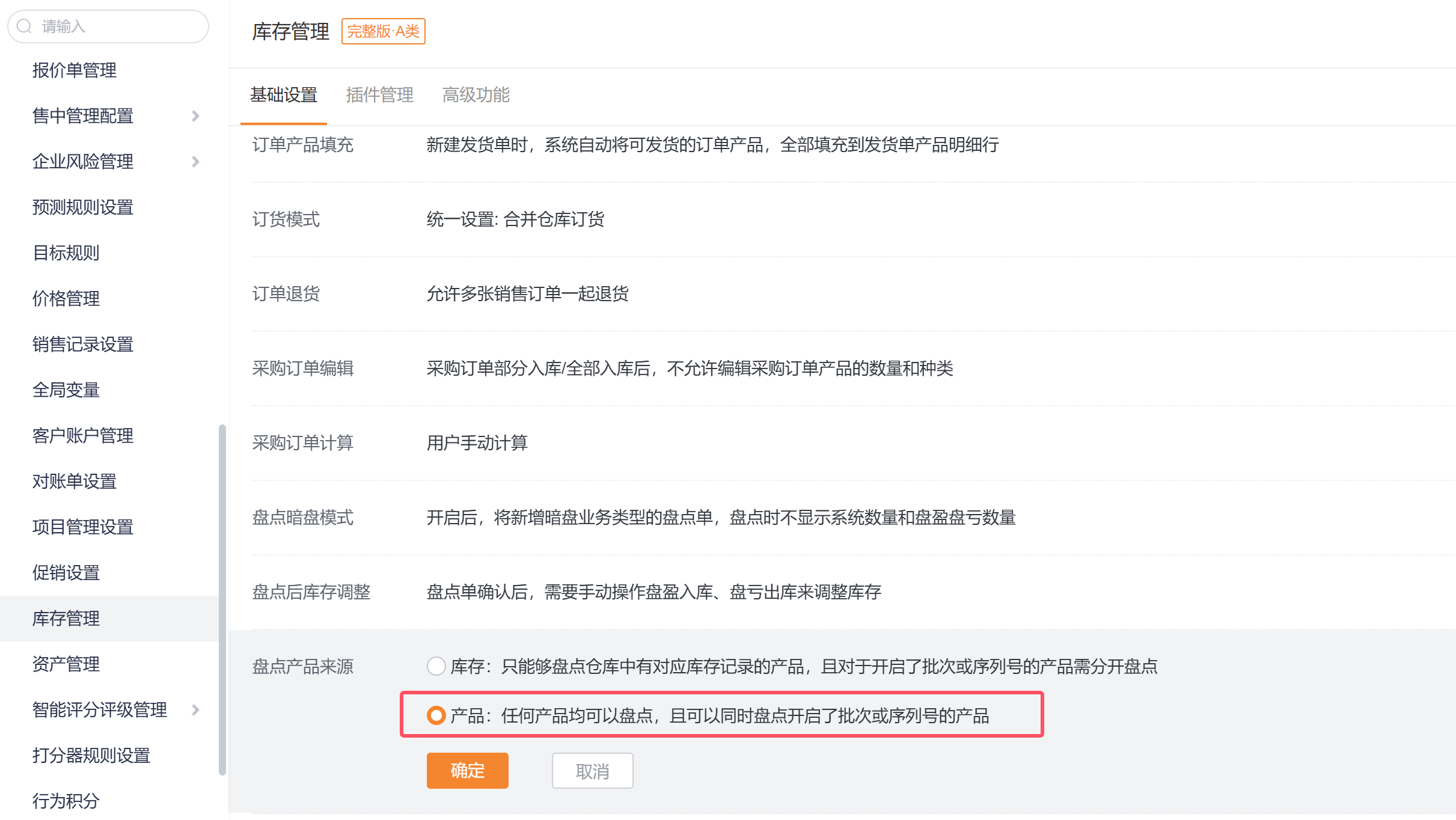
The default Inventory Check product source is Product, which allows counting any product regardless of whether it has inventory records in the selected Warehouse. To restrict checks to products that have inventory records in the Warehouse, switch the Inventory Check product source to Inventory.
6.10 Configure Inventory Warning Rules
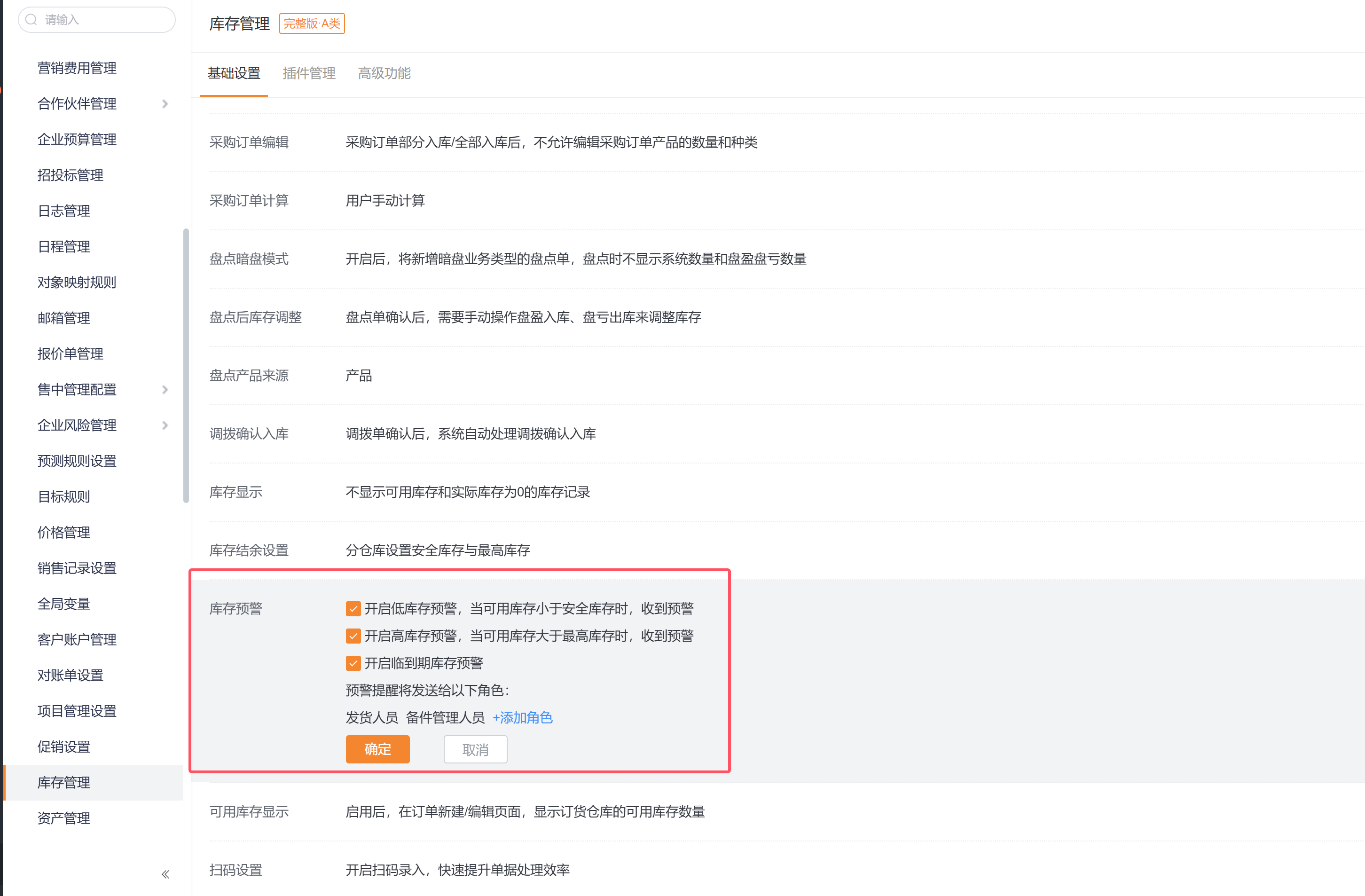
In Inventory Management basic settings, configure inventory alerts: Low Stock, High Stock, and Near-Expiry. Default recipient role: Shipping Operator. You can add other Roles.
Path: Admin Console -> CRM Platform Management -> Business Rules -> Inventory Management -> Basic Settings