Published at: 2025-10-30
BI Platform Feature Management
The BI platform controls feature access based on the current viewer's permissions. These permissions determine which BI-related menu entries the viewer sees, including:
| Menu | When this entry is visible |
|---|---|
| Reports | At least one visible Chart (combination of Subject-domain level "View" permission + Chart-level "View" permission) |
| Dashboards | Visible to all users |
| Subscription Management | At least one Subject-domain with "Subscribe" permission |
| Report Permission Management | At least one Subject-domain with "Create" permission |
| Report Logs | Visible only to Report Admins and CRM Admins |
| Statistic Chart Management | Visible only to Report Admins and CRM Admins |
| Targets | Has "View List" permission on the Target Value object |
| Target Completion | Visible if the Targets menu is visible |
1. Chart (Statistic Chart) Operation Permissions
What can I do with Charts?
- What types of charts can I create?
- Which charts can I view?
- Which charts can I edit/delete?
- Which charts can I subscribe to/export/forward/share?
1.1 Subject-domain Permissions
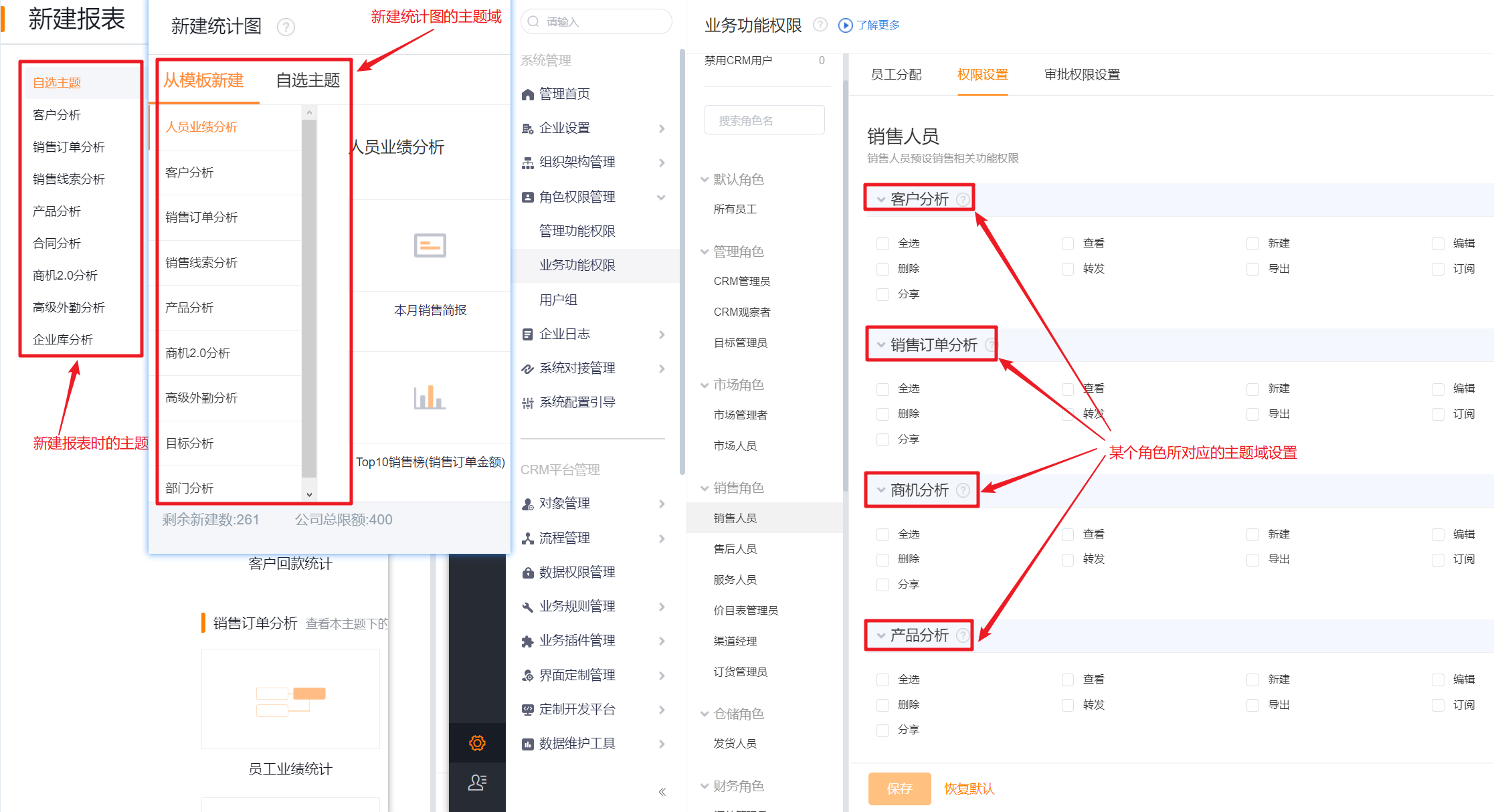
The permission model for BI charts aligns with business object permissions: access is granted by the employee's assigned Role. Chart operation permissions are controlled by the Subject-domain permissions granted to that Role.
A Subject-domain corresponds to an analytical scope centered on a core object (as described in Reports and Charts). When creating a report or chart, each "xx analysis" entry represents a Subject-domain. Every chart belongs to a specific Subject-domain. The actions you can perform depend on the permissions you have for that Subject-domain.
 </img>
1.2 Chart-level Permissions
Subject-domain level permissions are coarse-grained. How can you control access more precisely?
Use case example:
Amy is the executive assistant providing data insights for the CEO; she holds the Report Admin Role (has full Subject-domain permissions).
Scott is a salesperson who needs analysis on Account sales and follow-ups; he has View/Edit/Delete permissions for the "Account Analysis" Subject-domain.
Amy creates a Statistic Chart titled "Sales by Region" under the "Account Analysis" Subject-domain.
Scott can View the chart and then Edit and save changes.
Use case example:
Amy is the executive assistant providing data insights for the CEO; she holds the Report Admin Role (has full Subject-domain permissions).
Scott is a salesperson who needs analysis on Account sales and follow-ups; he has View/Edit/Delete permissions for the "Account Analysis" Subject-domain.
Amy creates a Statistic Chart titled "Sales by Region" under the "Account Analysis" Subject-domain.
Scott can View the chart and then Edit and save changes.
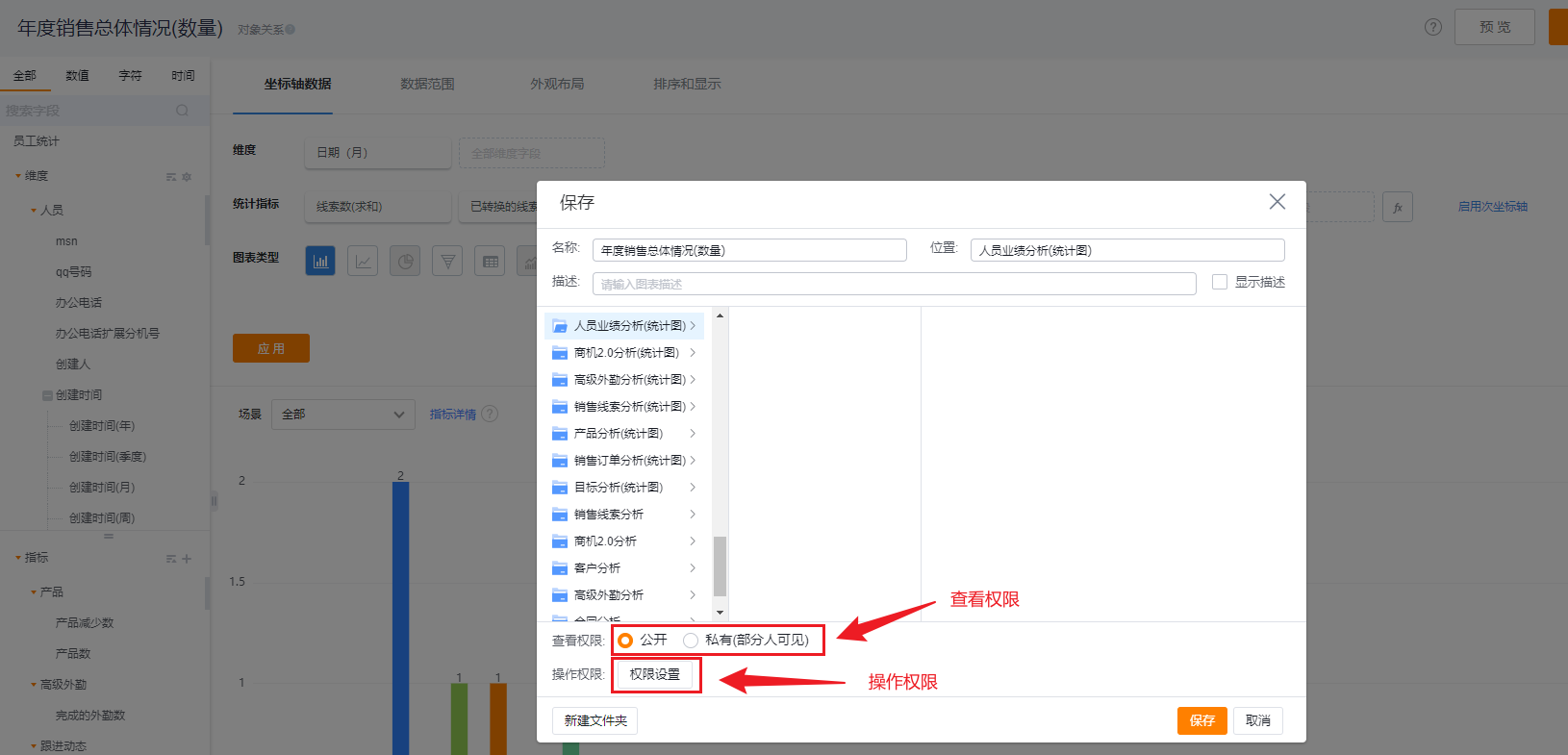
Problem: Amy wants the chart she created to be visible only to specific people and to prevent others from editing or deleting it. To address this, the platform provides Chart-level fine-grained permissions that apply to an individual Chart.
- View scope:
- Public: visible to everyone;
- Private: visible only to selected users, Departments, Department Heads, User Groups, or Roles.
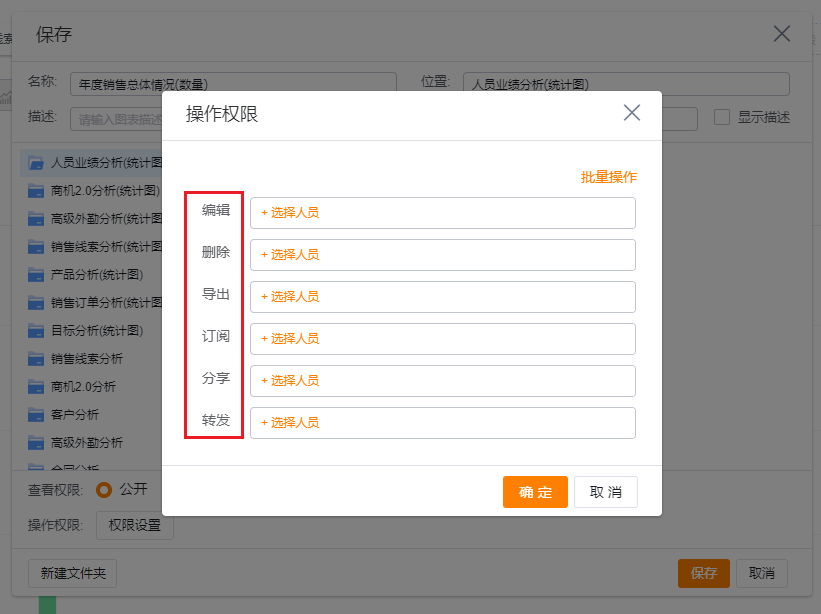
- Action permissions:
- Edit: permission to edit this Chart; assignable to selected users, Departments, Department Heads, User Groups, or Roles.
- Delete: permission to delete this Chart; assignable to selected users, Departments, Department Heads, User Groups, or Roles.
- Export: permission to export this Chart; assignable to selected users, Departments, Department Heads, User Groups, or Roles.
- Subscribe: permission to subscribe to this Chart; assignable to selected users, Departments, Department Heads, User Groups, or Roles.
- Share: permission to share this Chart; assignable to selected users, Departments, Department Heads, User Groups, or Roles.
- Forward: permission to forward this Chart; assignable to selected users, Departments, Department Heads, User Groups, or Roles.
*These Chart-level view and action permissions apply only if the user already has the corresponding Subject-domain permissions.
 </img>
 </img>
1.3 System-provided Report Permissions
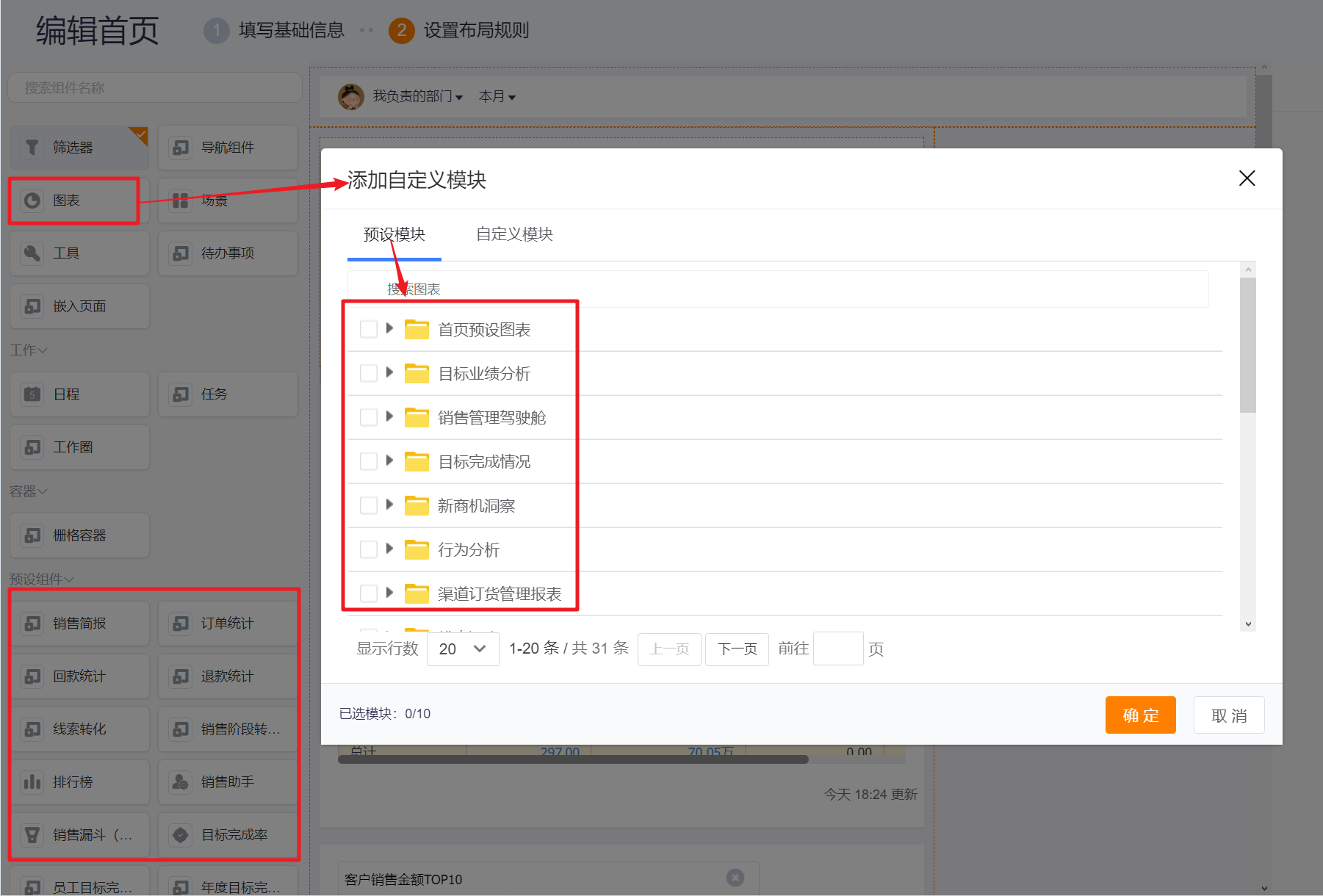
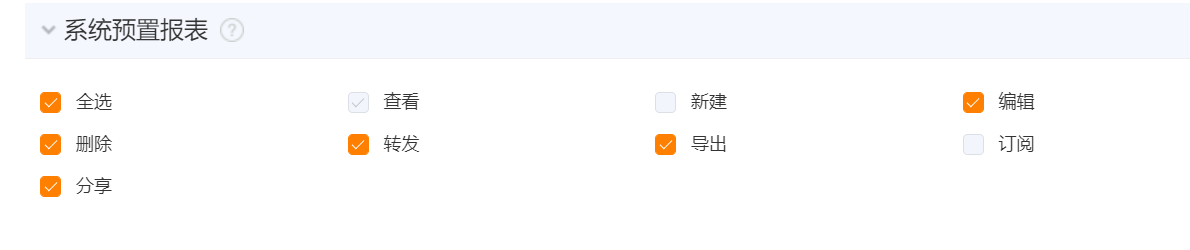
The "System-provided Reports" Subject-domain governs permissions for all pre-configured Charts.
System-provided Charts differ from user-created Charts: they are pre-delivered by the system for immediate enterprise use and are visible to all employees (for example, pre-configured modules on the homepage or Charts inside pre-built Dashboards).
System-provided Charts differ from user-created Charts: they are pre-delivered by the system for immediate enterprise use and are visible to all employees (for example, pre-configured modules on the homepage or Charts inside pre-built Dashboards).
- CRM Admins and Report Admins: have View, Edit, Delete, Forward, Export, and Share permissions;
- Non-admin Roles: have View permission by default and can be granted Edit, Delete, Forward, Export, and Share permissions;
- Notes: "Edit" allows saving a system Chart as a personal Chart. "Delete" allows removing personal Charts that were created by "Save As" from system Charts.
 </img>
 </img>
1.4 Statistic Chart Management Permissions
The "Statistic Chart Management" Subject-domain governs permissions for chart Subjects and metrics.
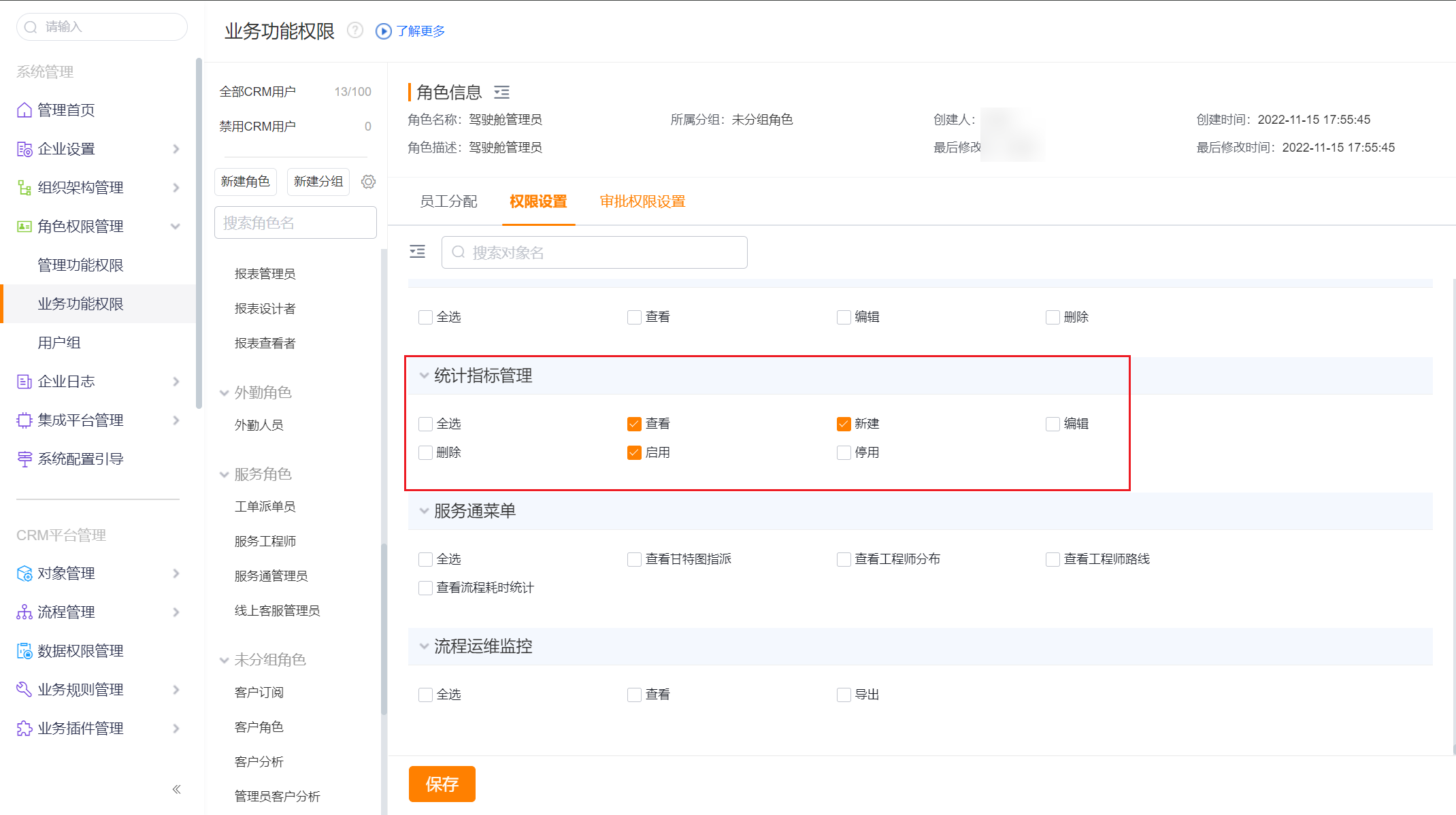
Key permissions include: View, Create, Edit, Delete, Enable, and Disable. Details:
Key permissions include: View, Create, Edit, Delete, Enable, and Disable. Details:
- View: shows the "Statistic Chart Management" page link in the Reports list and grants visibility of all Subjects and metrics;
- Create: can create any Subject or metric. Selecting Create automatically grants View and Create permissions;
- Edit: can edit any Subject or metric;
- Delete: can delete any Subject or metric. Selecting Delete automatically grants View and Disable permissions;
- Enable: can enable Subjects and metrics;
- Disable: can disable Subjects and metrics.
Note: View permission lets users see unused metrics on the Statistic Chart Management page; Disable permission lets users disable metrics on the "Unused Metrics" page; with both Disable and Delete permissions, users can disable and delete metrics on the "Unused Metrics" page.
 </img>
2. Dashboard (Data Dashboard) Permissions
2.1 Custom Dashboard Backend Permissions
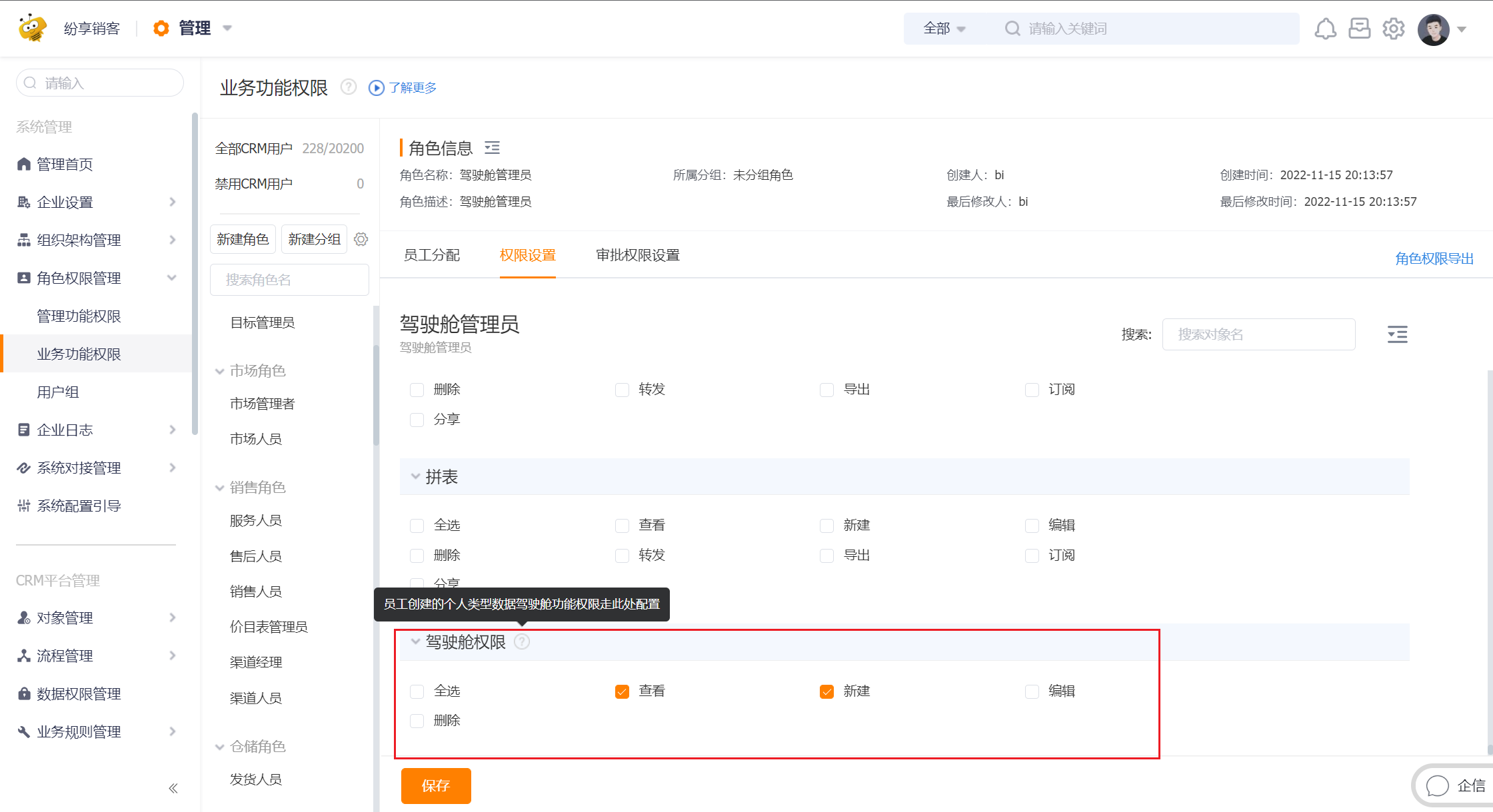
The permission model for custom Dashboards follows the same Role-based approach as business objects. Dashboard operations are controlled by the Dashboard permissions assigned to Roles.
Available backend permissions: View, Create, Edit, Delete
Available backend permissions: View, Create, Edit, Delete
- View: permission to view Dashboards;
- Create: permission to create Dashboards;
- Edit: permission to edit Dashboards;
- Delete: permission to delete Dashboards;
Note: applies only to custom personal Dashboards
 </img>
2.2 Preset Dashboard Backend Permissions
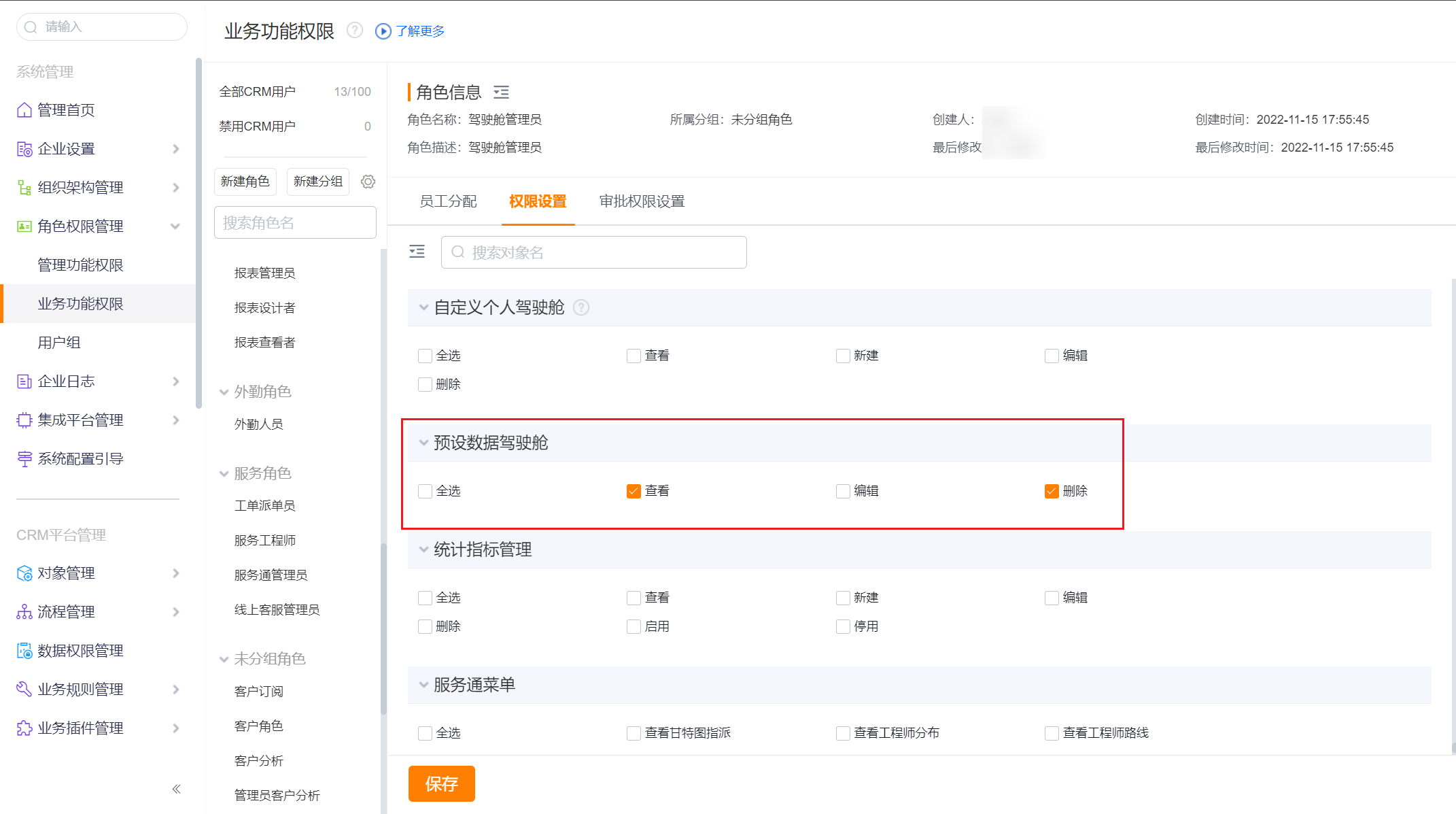
The permission model for preset Dashboards also uses Role-based Dashboard permissions.
Available backend permissions: View, Edit, Delete
Available backend permissions: View, Edit, Delete
- View: permission to view Dashboards;
- Edit: permission to edit Dashboards;
- Delete: permission to delete Dashboards;
Note: applies only to preset personal Dashboards
 </img>
2.3 Dashboard Page Permissions
When creating a Dashboard you choose a type: Personal or Organization.
View scope: Public or Private
View scope: Public or Private
- Public: visible to all users with backend View permission
- Private: visible only to specified users who also have backend View permission
| Dashboard Type | Who can create | Data scope |
|---|---|---|
| Personal | Roles with backend Create permission | Uses the viewer's personal data permissions: if Employee A shares a Personal Dashboard with Employee B, B sees data according to B's own data permissions |
| Organization | Only CRM Admins and Report Admins | Uses the authorizer's data permissions: if Admin A authorizes an Organization Dashboard to B, B views data under Admin A's data permissions (you can further restrict data via global filters). This solves scenarios where an employee lacks data access but needs to view an executive-level dashboard. |
Dashboard action permission details:
| Action | Description |
|---|---|
| Create | Roles with backend Create permission can create Personal Dashboards; CRM Admins and Report Admins can create Organization Dashboards |
| Edit | Users can edit Dashboards they created; they can edit Dashboards shared or authorized to them if Edit was granted; CRM Admins and Report Admins can edit all Dashboards |
| Delete | Users can delete Dashboards they created; they can delete Dashboards shared or authorized to them if Delete was granted; CRM Admins and Report Admins can delete all Dashboards |
| Share | Users can share their Personal Dashboards for others to view. Unsharing removes visibility for others |
| Authorize | Only CRM Admins and Report Admins can authorize Organization Dashboards to others. Revoking authorization removes visibility |
| Hide | Users can hide any Dashboard they can see. Hiding affects only the user who hides it and does not impact others |
 </img>
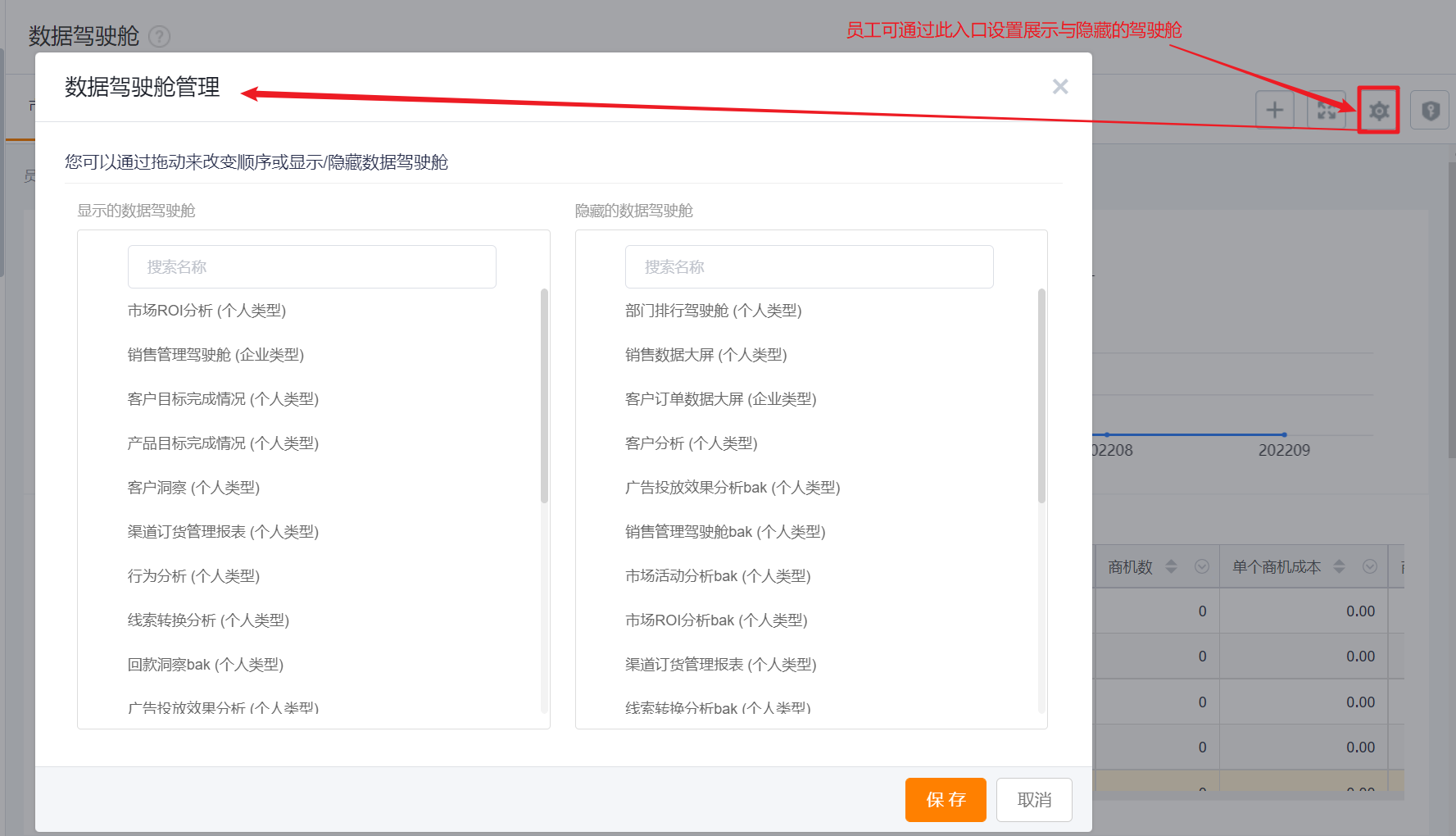
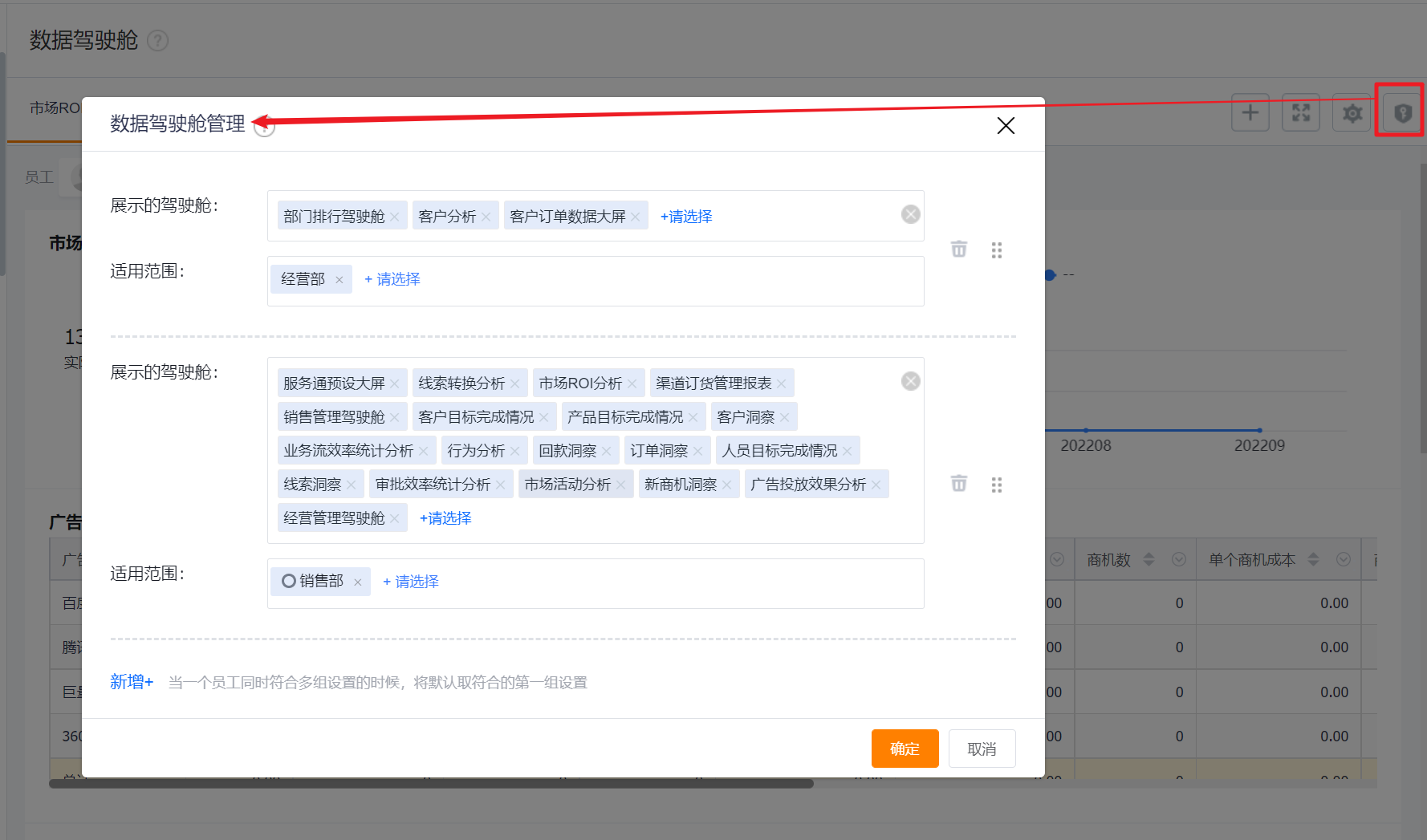
- The "Dashboard Management" entry is available only to CRM Admins and Report Admins. Admins can assign different Dashboards to different Roles (e.g., CEO, Finance, Department/Region Heads, Sales reps) and Departments so employees see appropriate Dashboards.
- Employees within the applicable scope see default Dashboards which include admin-assigned Dashboards plus Dashboards they created, Dashboards shared/authorized to them, and newly added preset Dashboards;
- If an employee customized the displayed Dashboards or their order before an admin assignment, the admin assignment will override the employee's customizations;
- Employees can still further adjust admin-assigned Dashboards (for example: hide or reorder them).
*If an employee matches multiple assignment groups, the first matching group is applied by default.
 </img>
3. Object / Field Permissions
The BI platform inherits business-side object and field permissions. When viewing Charts, available objects and fields align with business permissions.
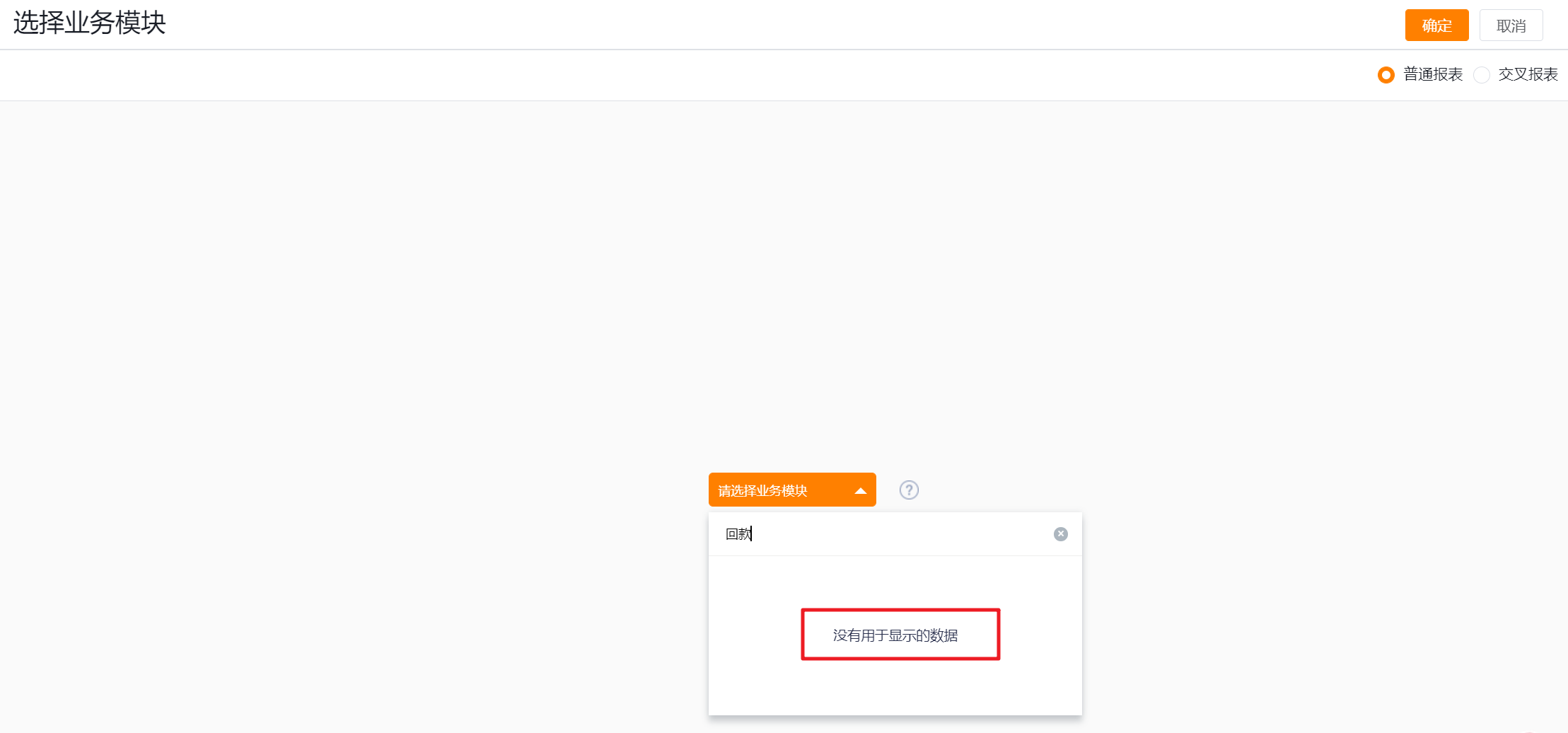
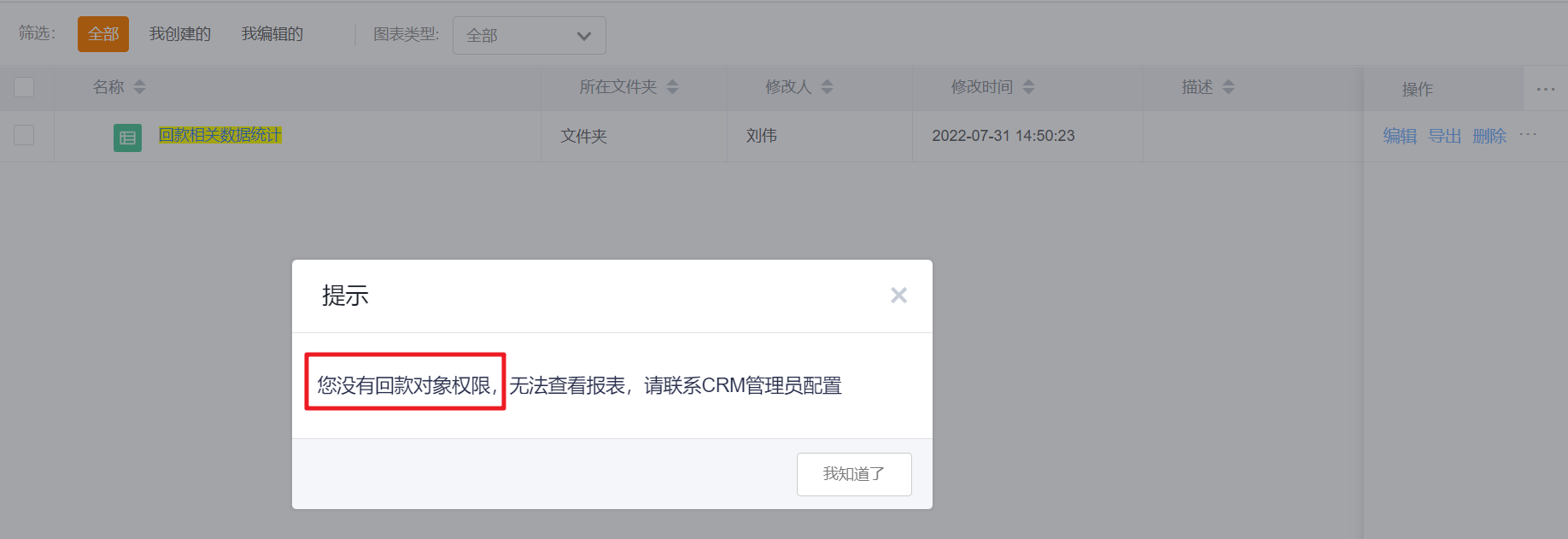
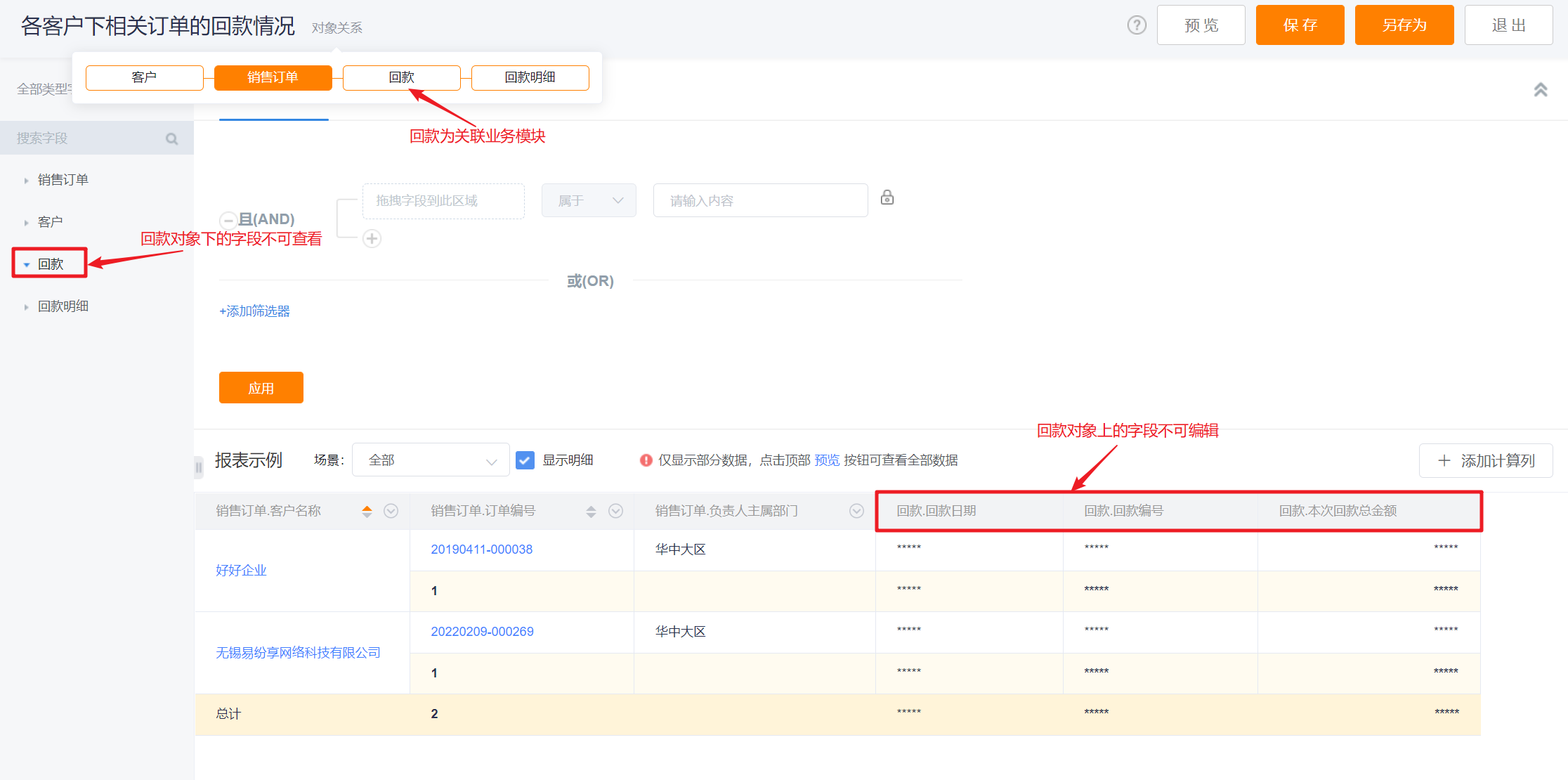
Example: Amy is a salesperson and lacks object-level permission for Payment Collection (no "View List" permission). Therefore:
Example: Amy is a salesperson and lacks object-level permission for Payment Collection (no "View List" permission). Therefore:
- When creating a report and choosing objects, she cannot select the Payment Collection object;
 </img>
- When viewing a Report that uses Payment Collection as the primary business module, she cannot view the details;
 </img>
- When viewing a Report that analyzes Payment Collection as a related module, she cannot see Payment Collection fields or aggregated statistics;
 </img>
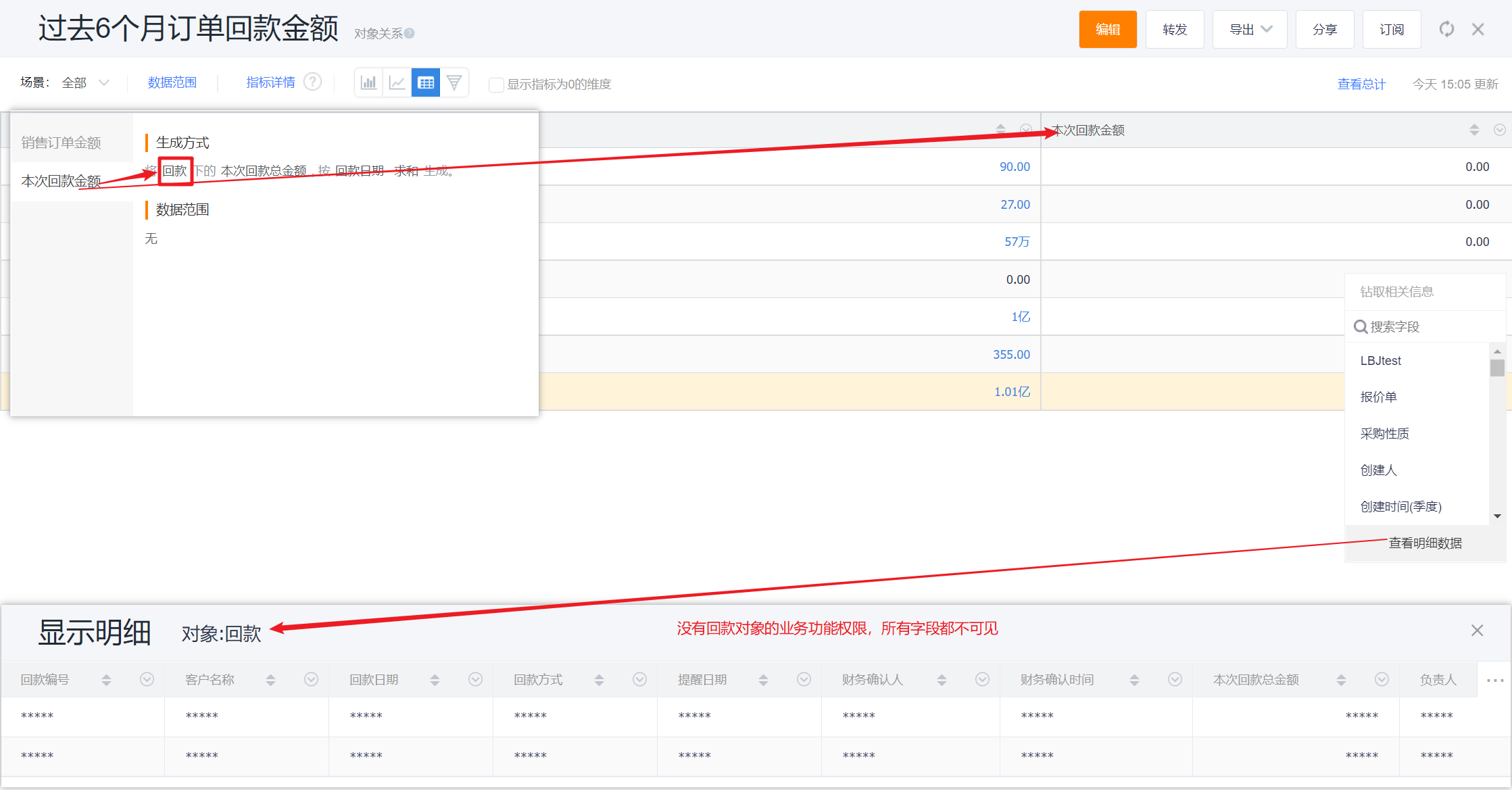
When inspecting a Chart metric's detail, not all fields may be visible.
 </img>
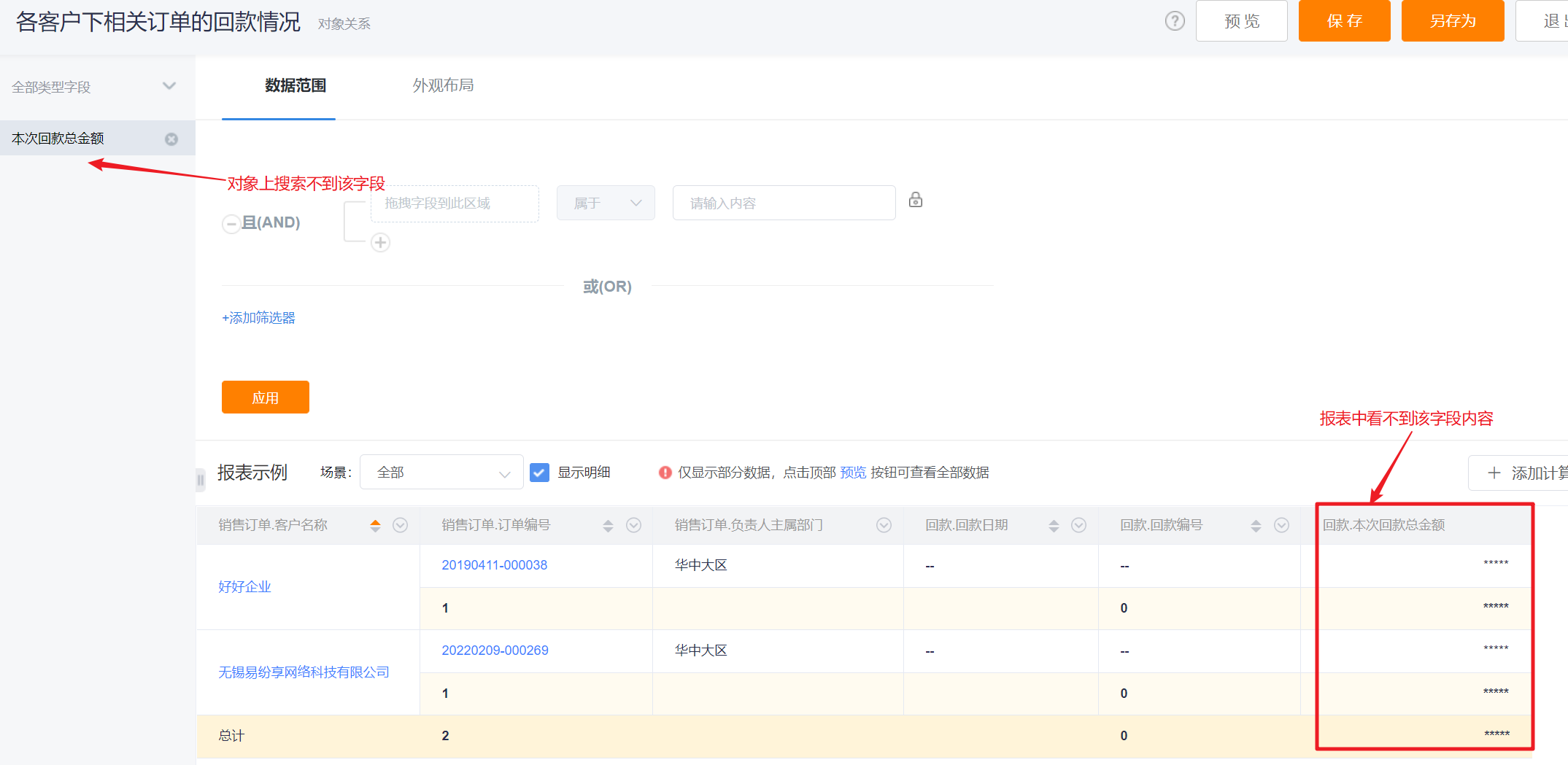
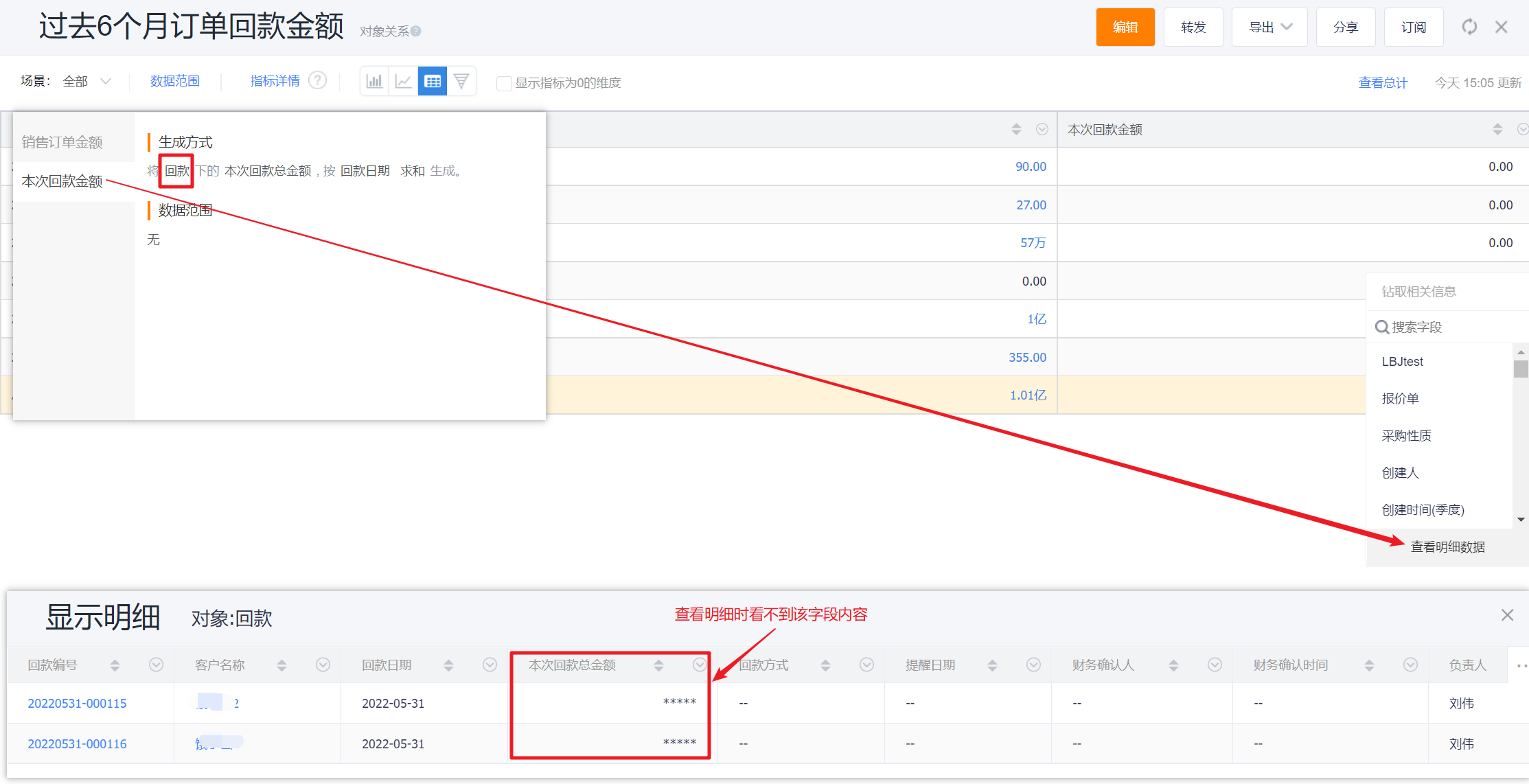
- If Amy has object-level access to Payment Collection but lacks field-level access to the field "Current Payment Amount", then:
- She cannot select that field when configuring a Report;
- When viewing Reports or Chart metric drilldowns, that field will be masked and display as *****;
 </img>
 </img>
- Special objects:
Business Process Instance, Business Process Task, Approval Process Instance, Approval Process Task, Pipeline (Phase Progressor), Behavior Points Detail.
These objects do not have independent object-level permission controls:
1) The enterprise edition includes Business Process, Approval Process, Pipeline, and Behavior Points capabilities; and
2) The enterprise has active ("Enabled") process definitions; then these objects become selectable for analysis.
 </img>