Published at: 2025-10-31
Minimum Order Quantity (MOQ) - Configuration Guide
1. Typical Business Scenario:
Brand owners or primary Distributors may set minimum order quantities for channel partners (or for specific Products) due to cost control (packaging, logistics), capacity constraints, or to prevent disorderly stockpiling. Orders must not fall below the minimum order quantity.
2. Current Scope Where Minimum Order Quantity Applies
Note: This iteration only applies to the mobile app. The Web interface will be supported in a later release.
The mobile scope is as follows:

3. Configuration Guide
2.1 Enable Minimum Order Quantity Switch
Location: Mall Settings > Business Parameters > Minimum Order Quantity
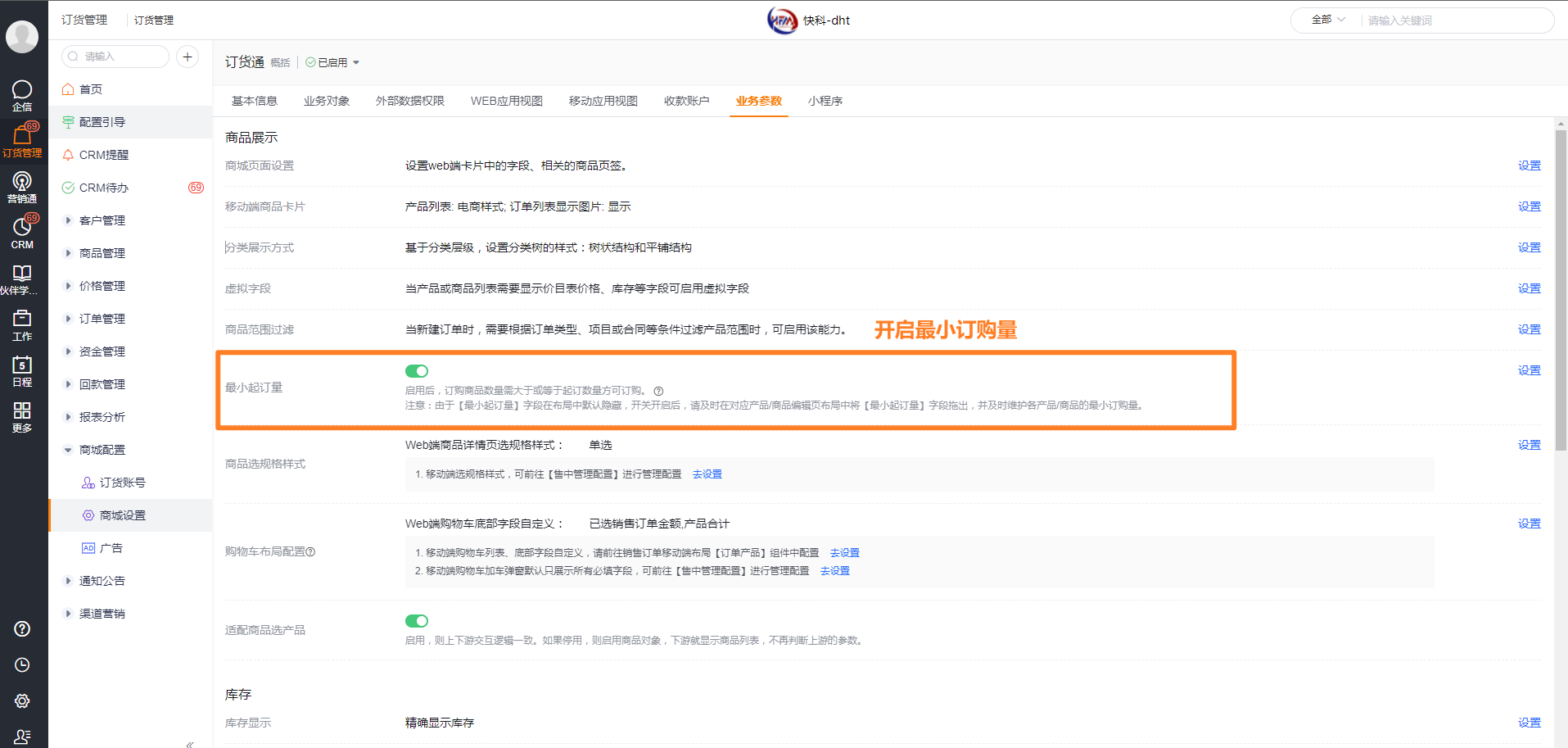
Click Go to Settings to quickly open the Product or Products list and maintain each Product’s minimum order quantity:
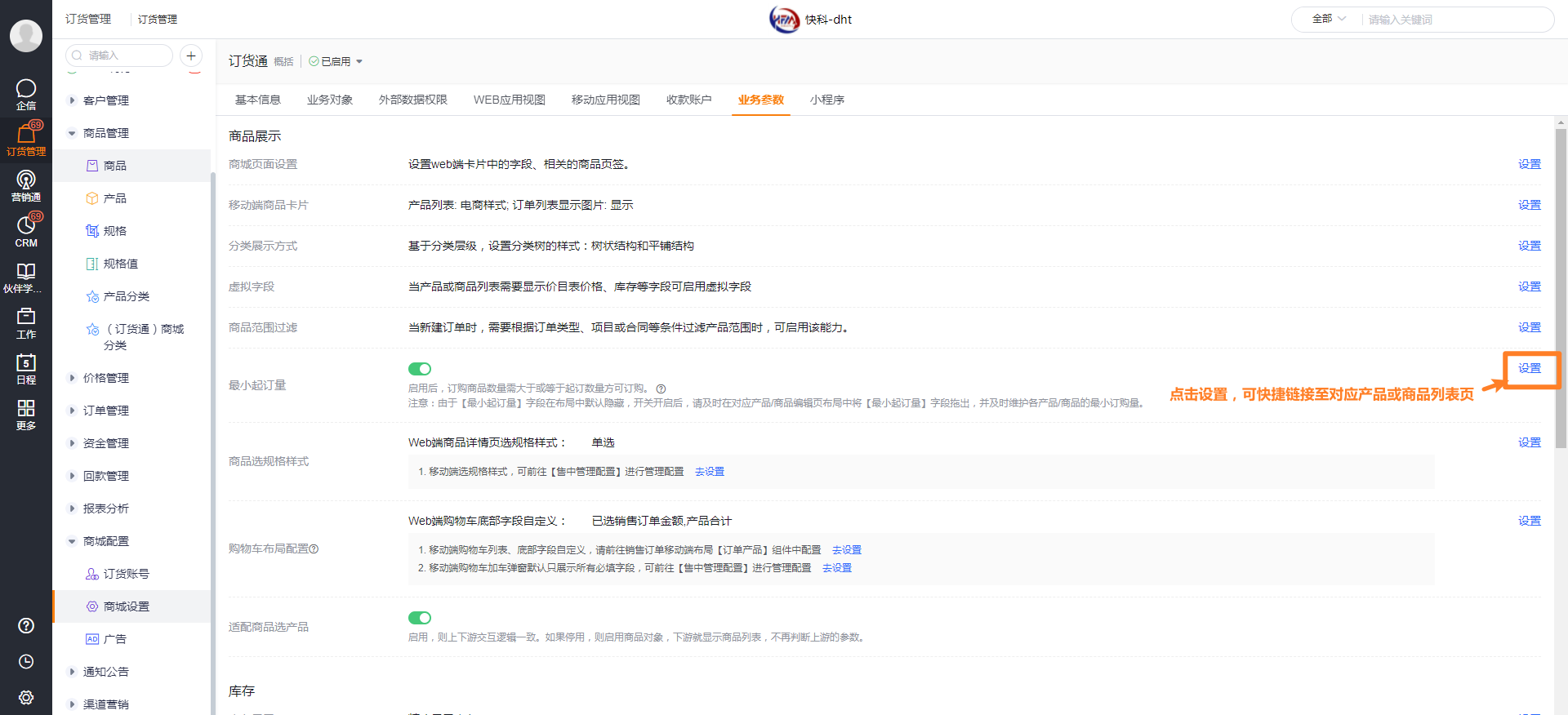
2.2 Add the Minimum Order Quantity Field to Product/Products Create/Edit Layouts
Location: Admin Console > Preset Objects > Products or Products object
Note: The Products object does not have a create/edit layout. Configure the field directly in the detail page layout.
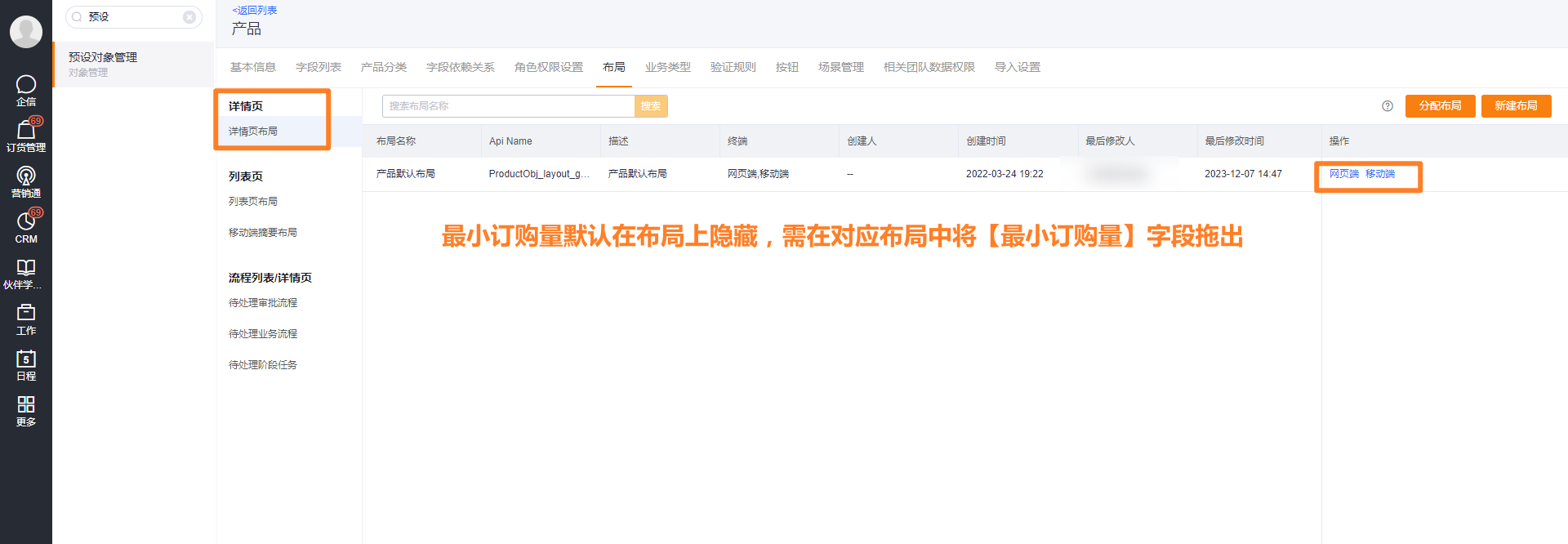

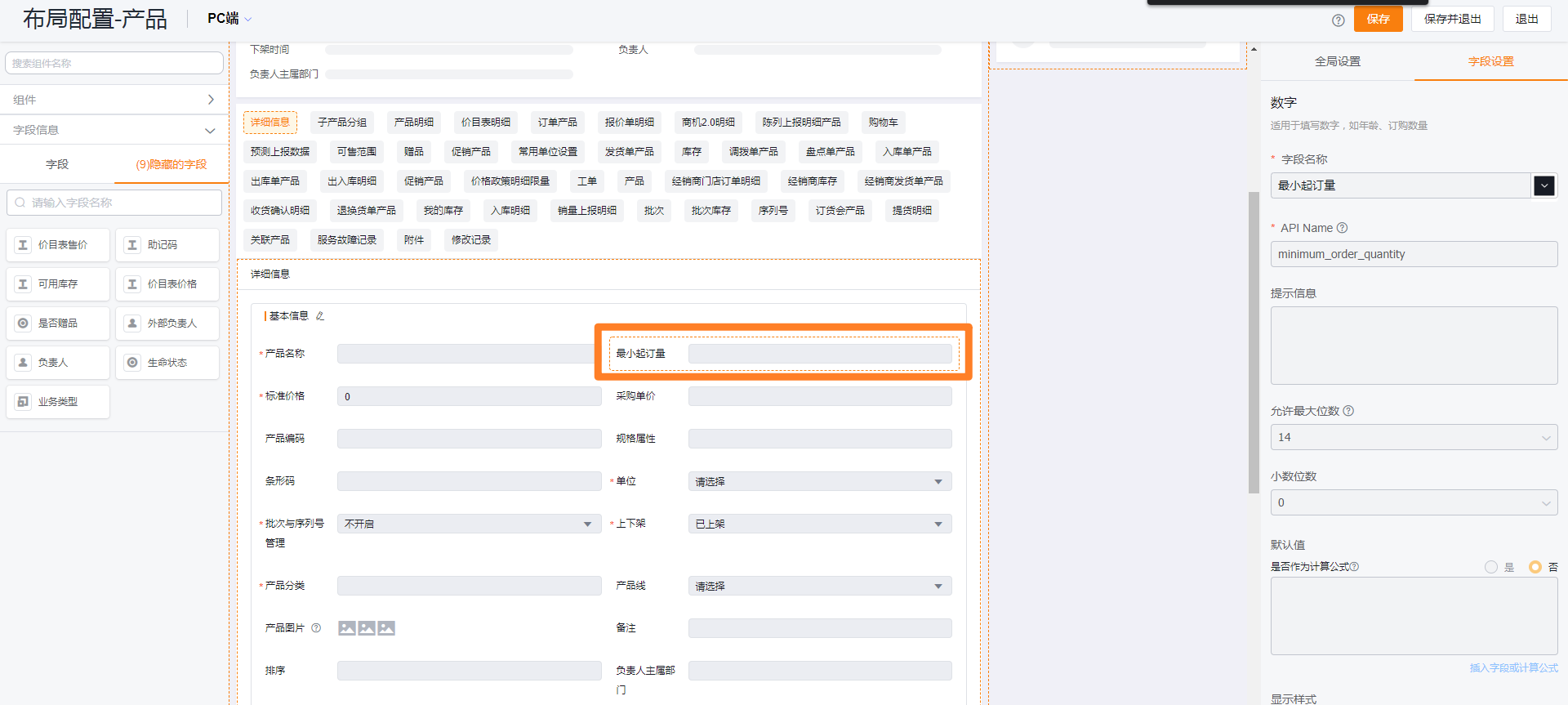
2.3 Maintain Minimum Order Quantity for Each Product/Products Individually
2.3.1 Products Enabled Only
Location: Click Go to Settings from the Minimum Order Quantity switch, or open the Products or Products list and go to the detail page to configure.
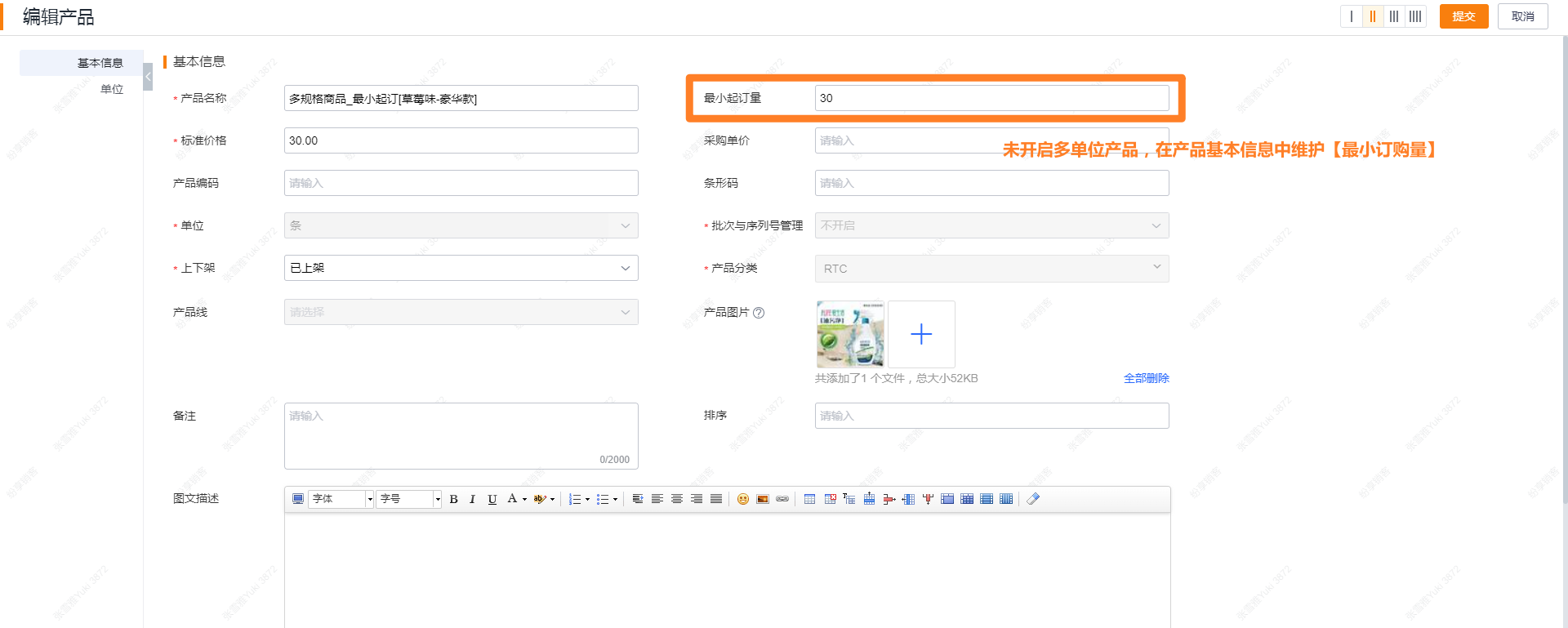
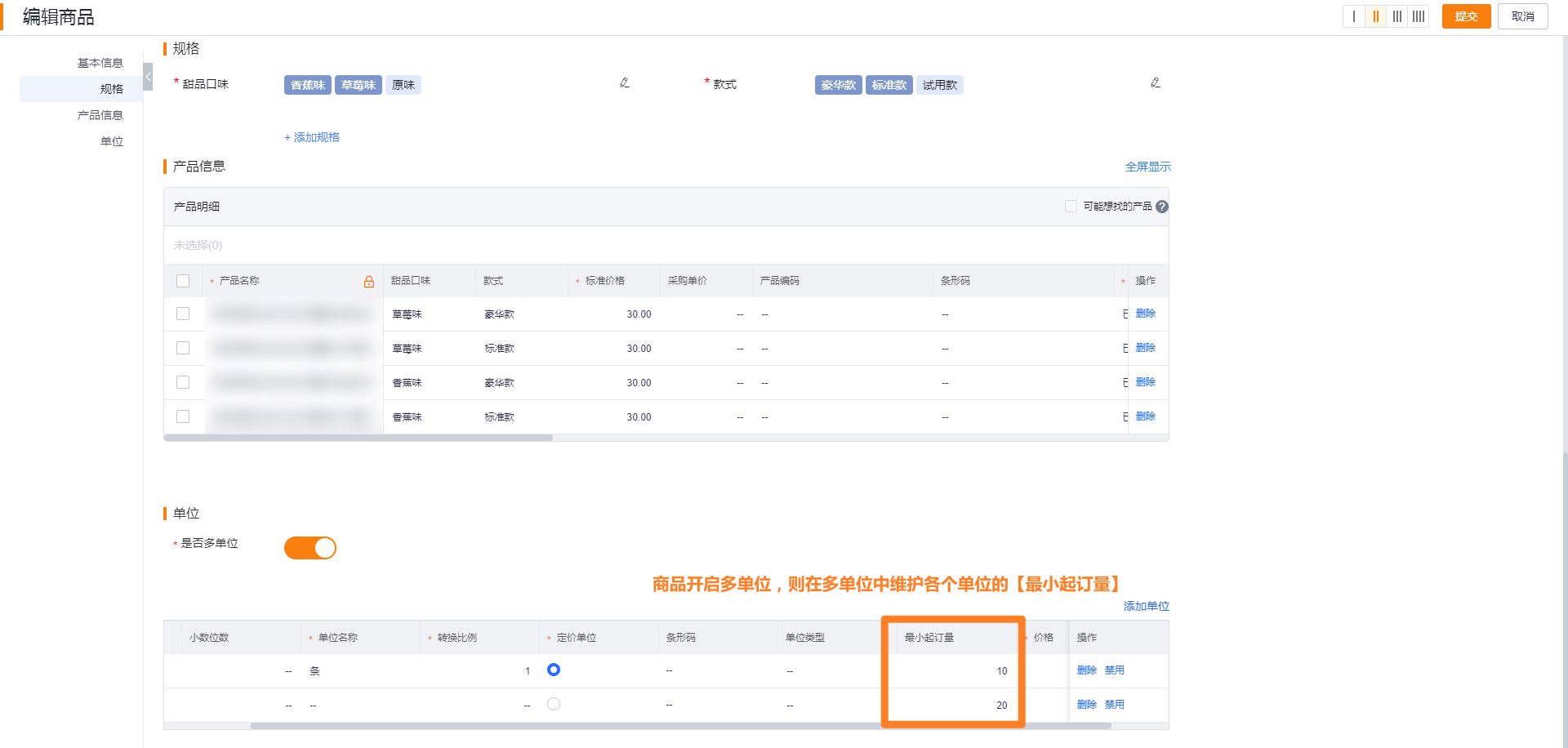
If a Product enables multiple Units, maintain the minimum order quantity in the unit-conversion relationship table.

2.3.2 Products (single Product) Enabled
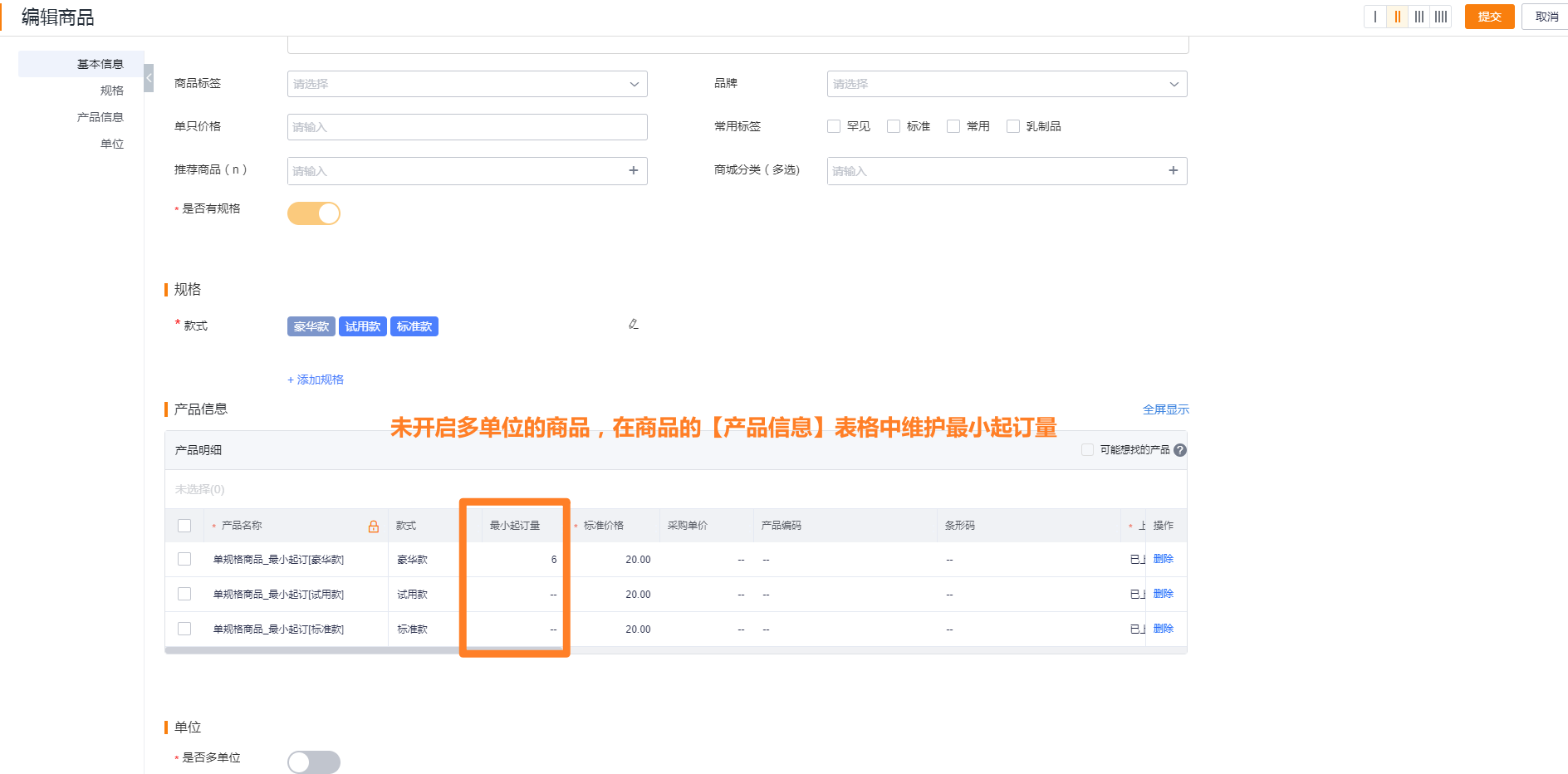
If a Product enables multiple Units, maintain the minimum order quantity in the unit-conversion relationship table.
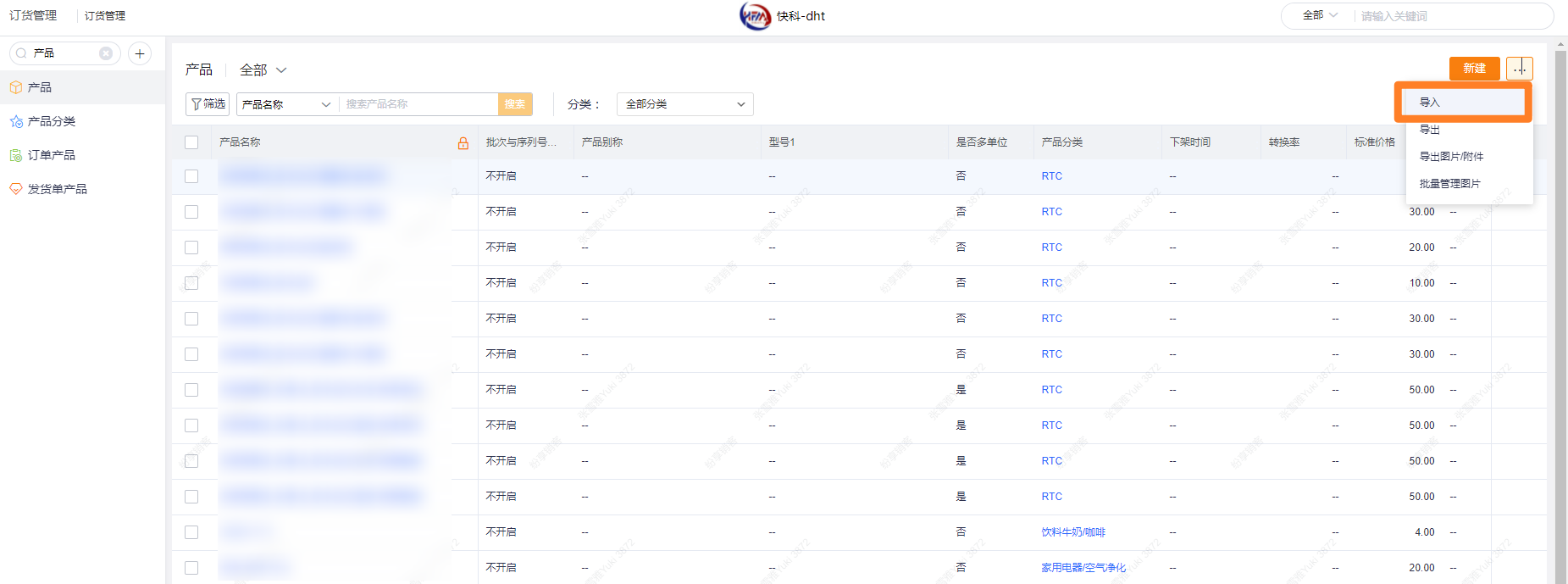
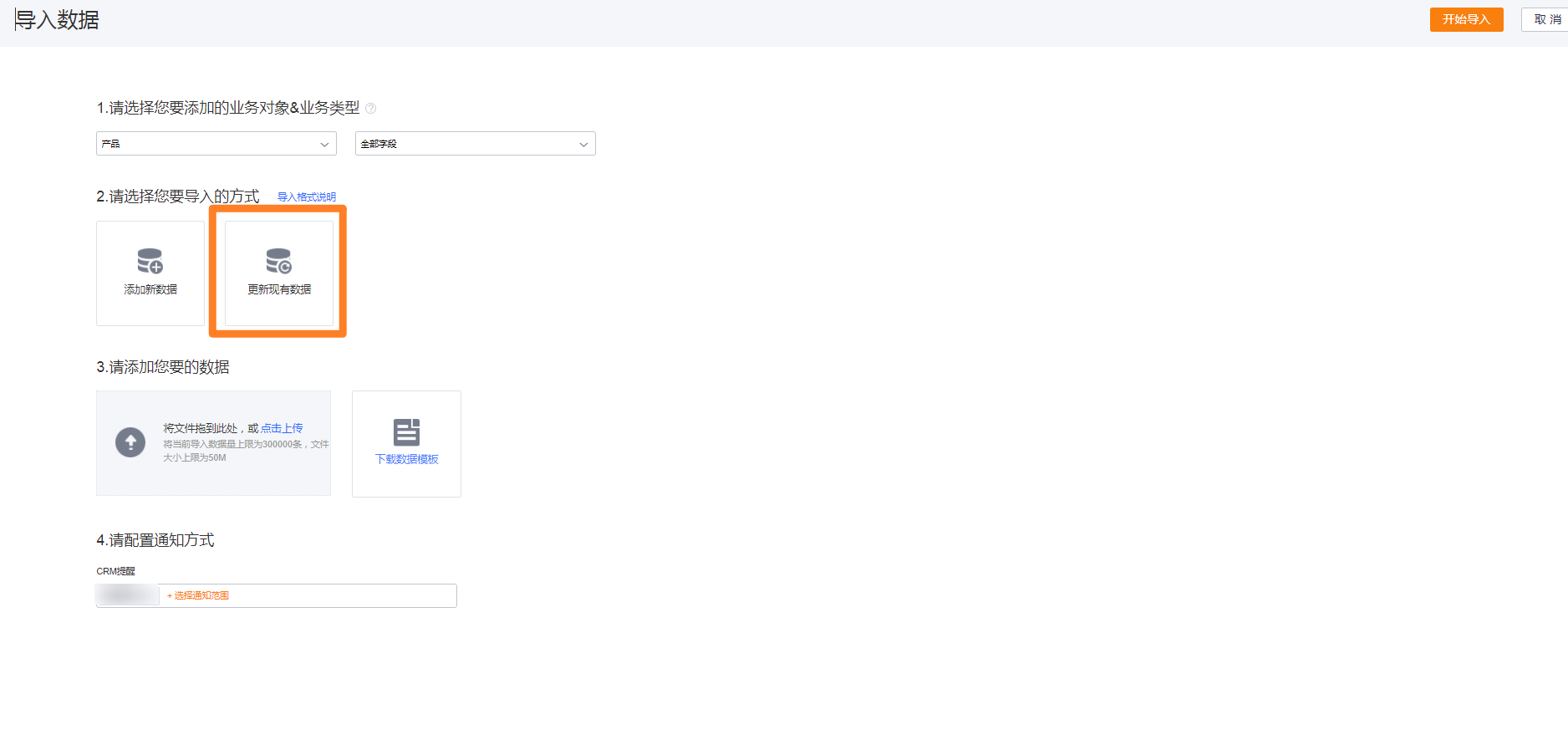
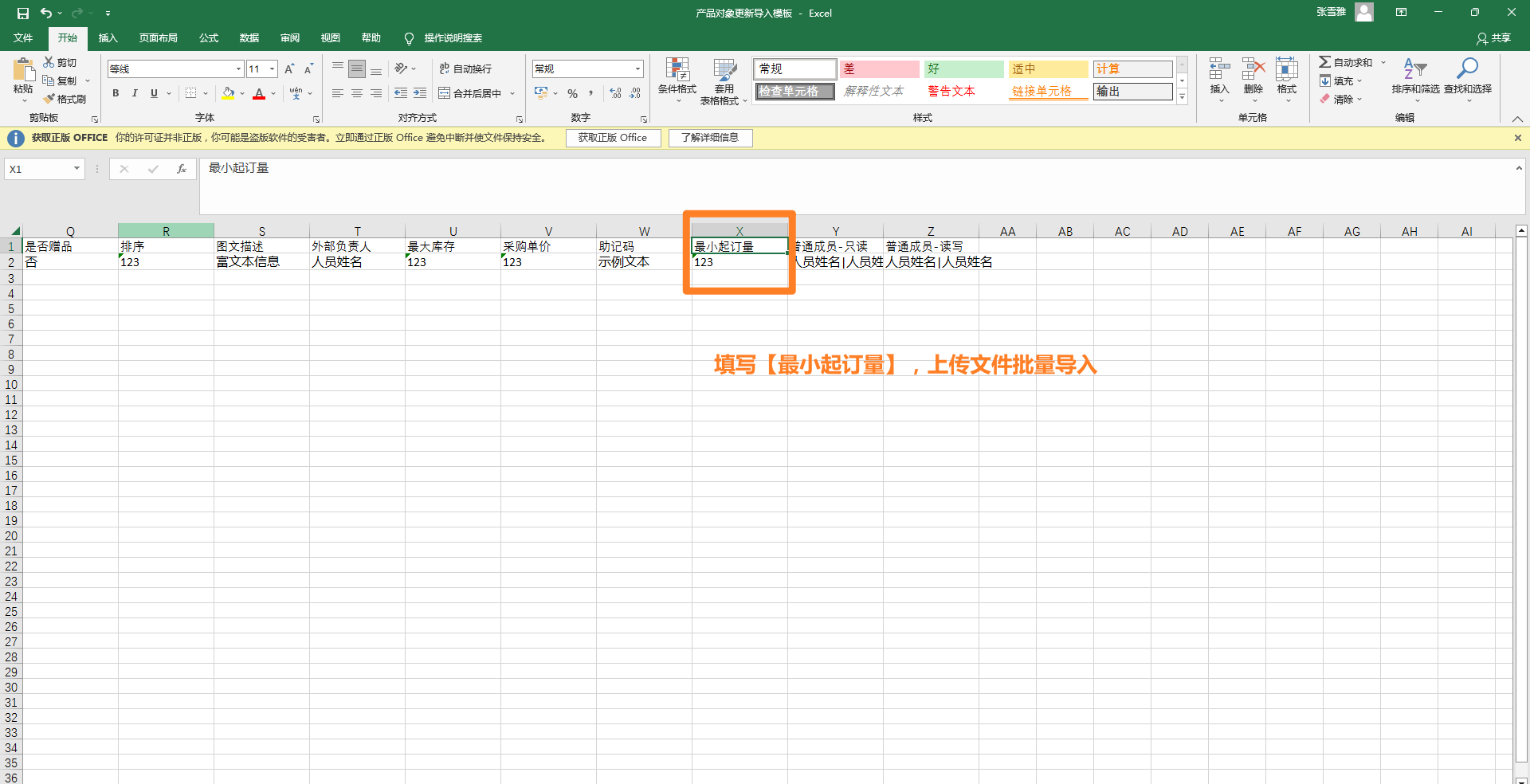
2.4 Bulk Import Minimum Order Quantities for Products/Products
You can use the import function to bulk update minimum order quantities for Products or Products: