Published at: 2025-10-30
BI Components in Channel Portal
1. Web
The Channel Portal on the web supports the following BI components:
- Basic components: Filter;
- Business components: Chart.
Downstream viewing permissions for charts refer to Interconnection scenario BI permissions.
1.1 Configuration Flow
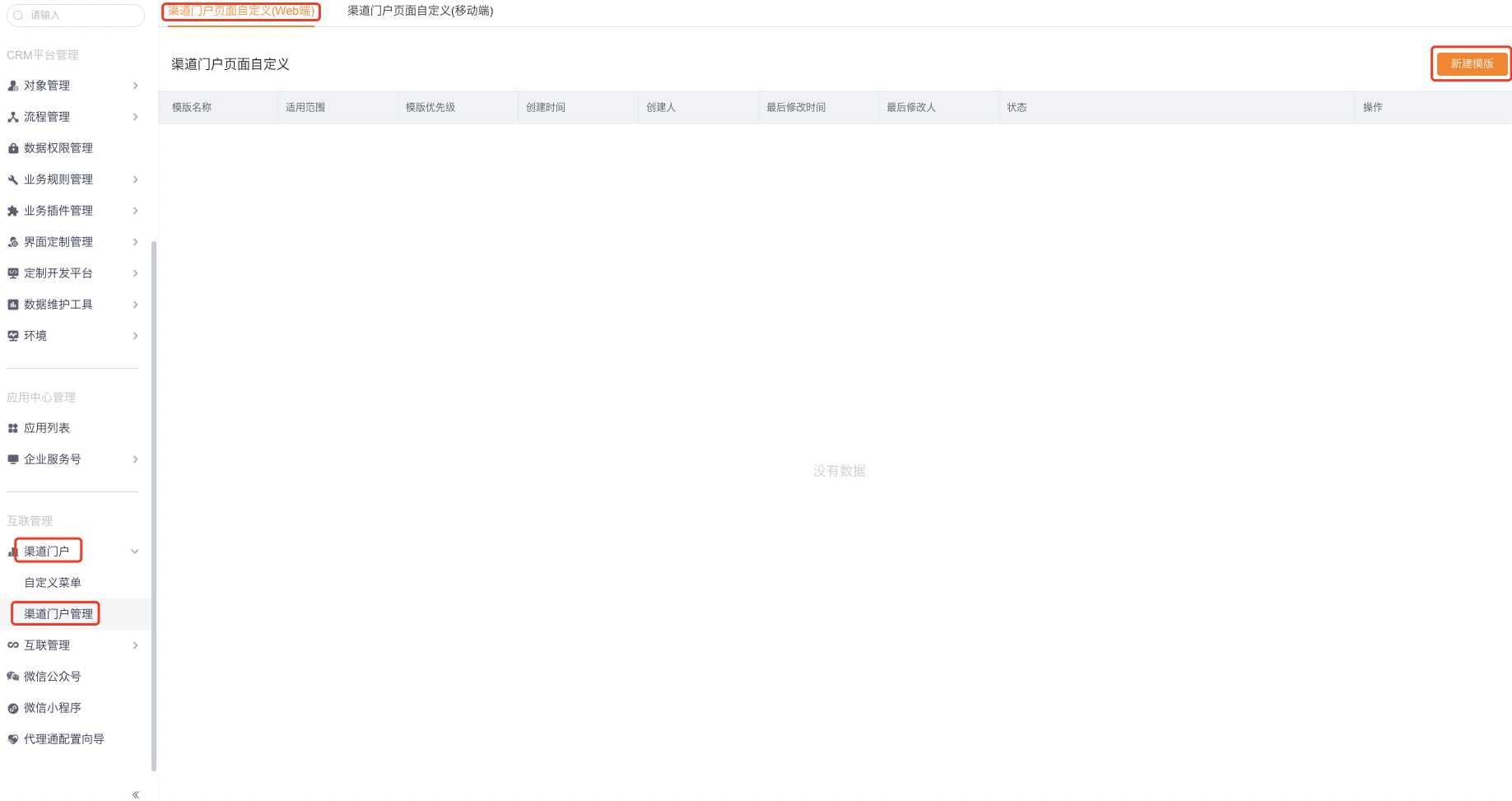
When you click Create Template in Admin > Interconnection Management > Channel Portal Management, you can add BI components.
 </img>
1.1.1 Filter
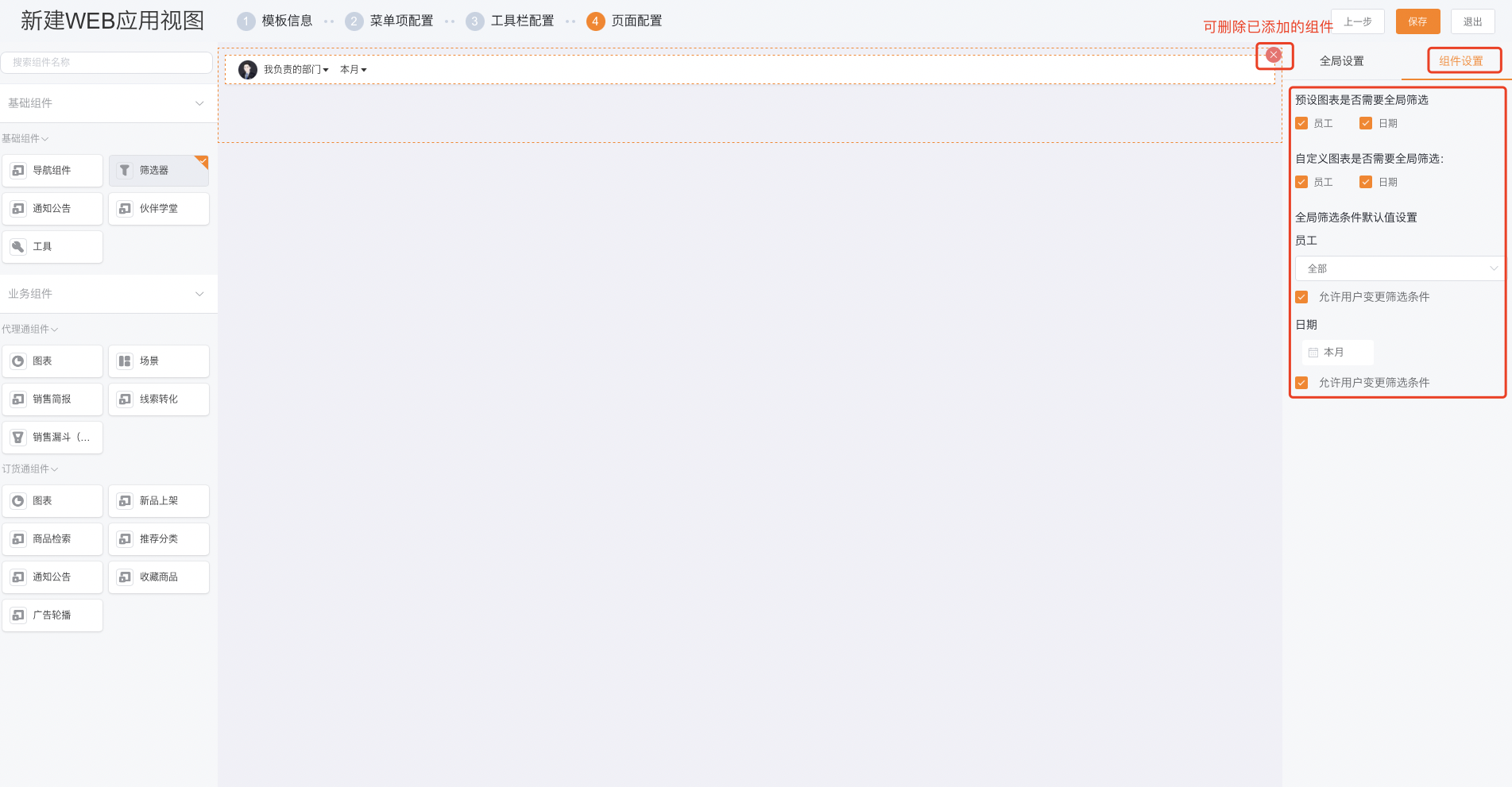
Each home page in the Channel Portal can contain only one Filter component.
- Component settings
- Preset charts affected by global Filter: configure whether employee and date in preset charts are affected by the global Filter;
- Custom charts affected by global Filter: configure whether employee and date in custom charts are affected by the global Filter;
- Default values for global Filter conditions: set default values for the global Filter and whether users may change the Filter conditions;
- Employee: set default to Individual, All, or My Responsibilities Dept.;
- Date: set a specific date or a date range as the default;
- You can delete added components in the action area;
- Note: the employee selection filters by the external responsible person for the chart;
 </img>
1.1.2 Chart
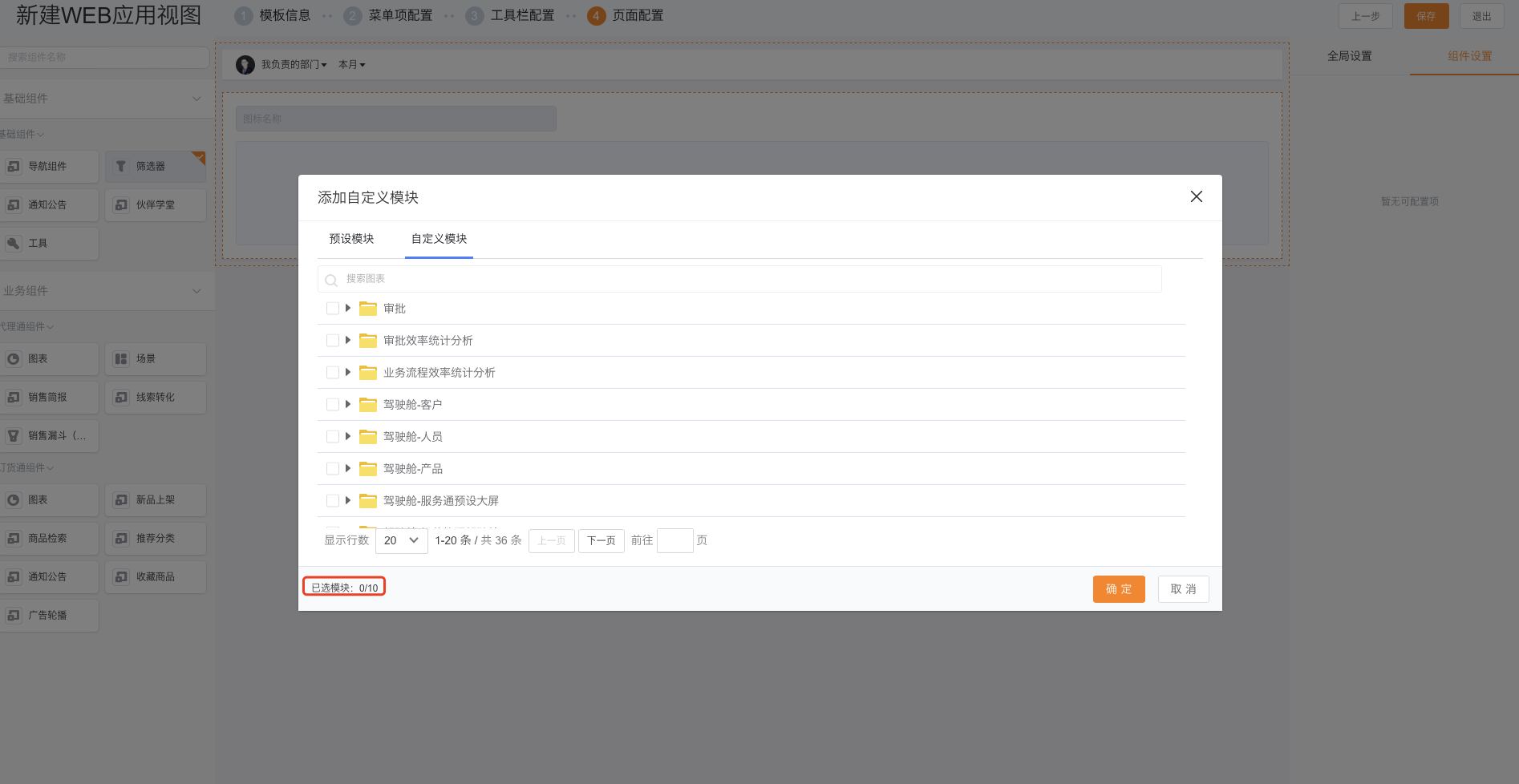
After dragging the Chart component, select previously created charts. You may choose up to 10 charts at a time.
- Note: The selectable charts for the Chart component within each Interconnection app include Statistic Charts and Reports created from object Subjects that are configured as downstream-visible within the Interconnection app, and reports whose primary business module is a downstream-visible object.
 </img>
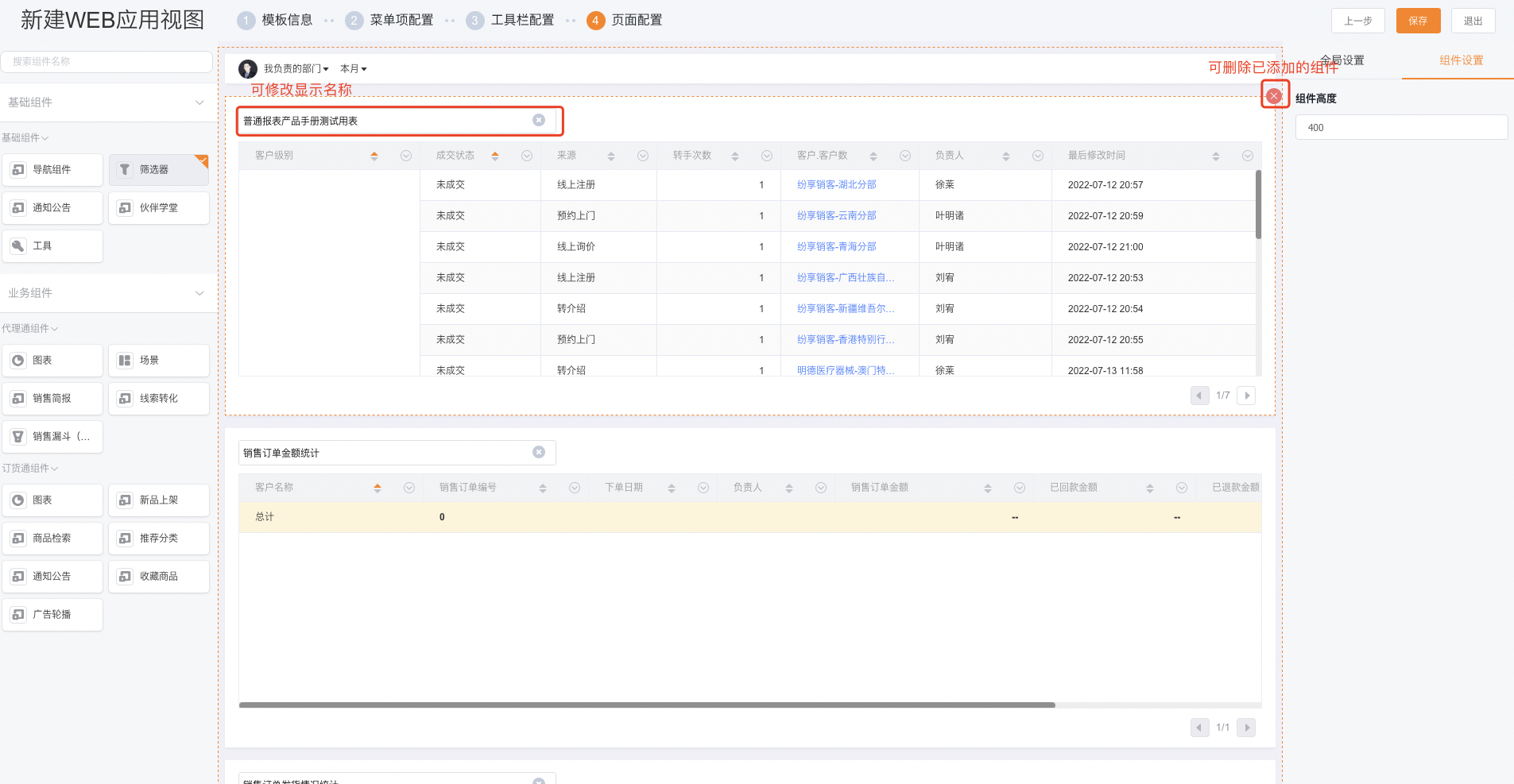
- Component settings
- Component height: configure the display height of the added Chart component;
- Modify the display name of added components in the action area;
- Delete added components in the action area;
 </img>
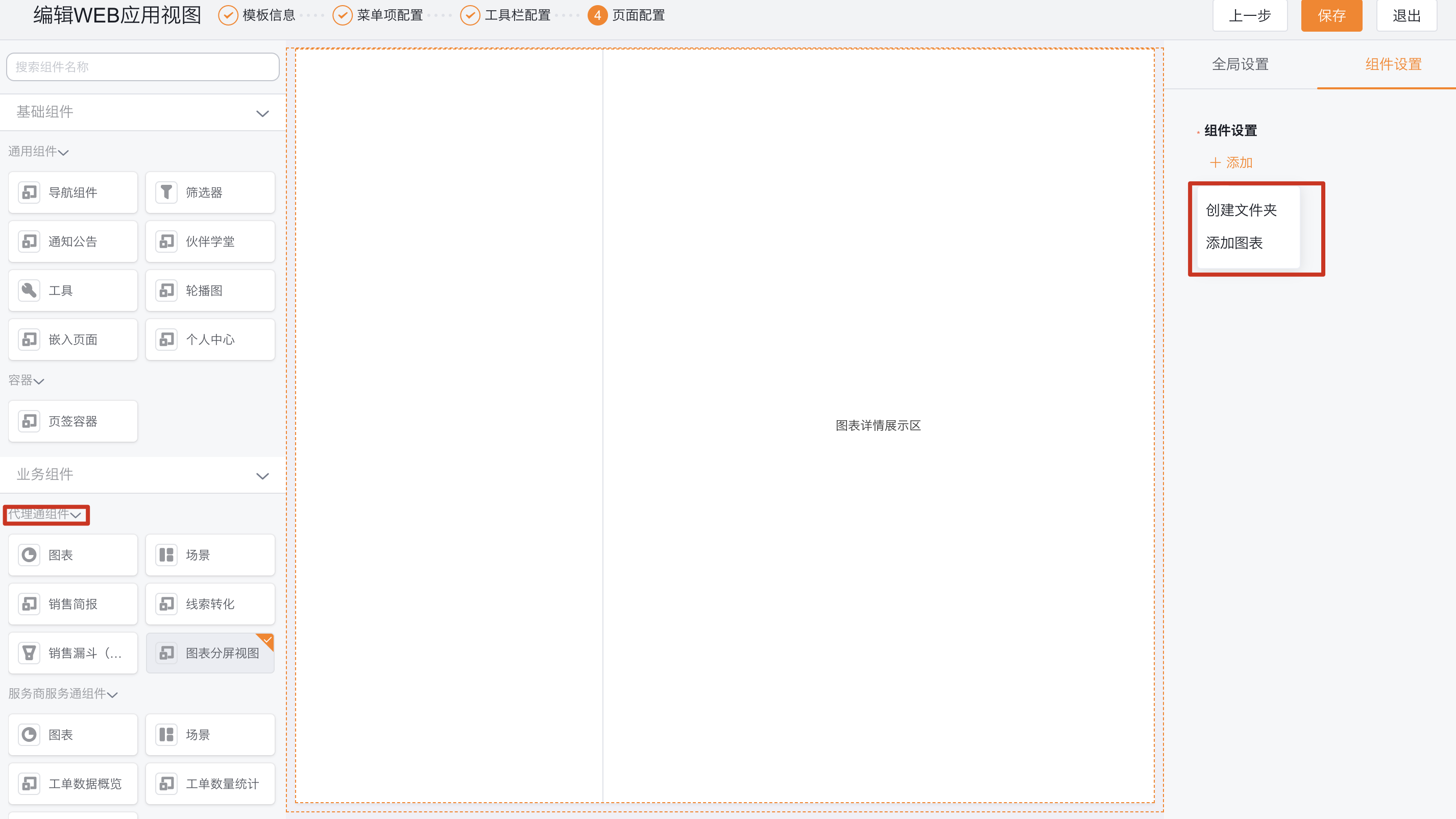
1.1.3 Chart Split-Screen View
After dragging the Chart Split-Screen View component, select previously created BI resources. Available components vary by Interconnection app.
 </img>
- Component settings
- Supports adding folders; you can add created charts inside folders;
- Delete added components in the action area;
2. Mobile
The Channel Portal on mobile supports the same BI components as the web, including:
- Basic components: Filter;
- Business components: Chart.
Downstream viewing permissions for charts refer to Interconnection scenario BI permissions.
2.1 Configuration Flow
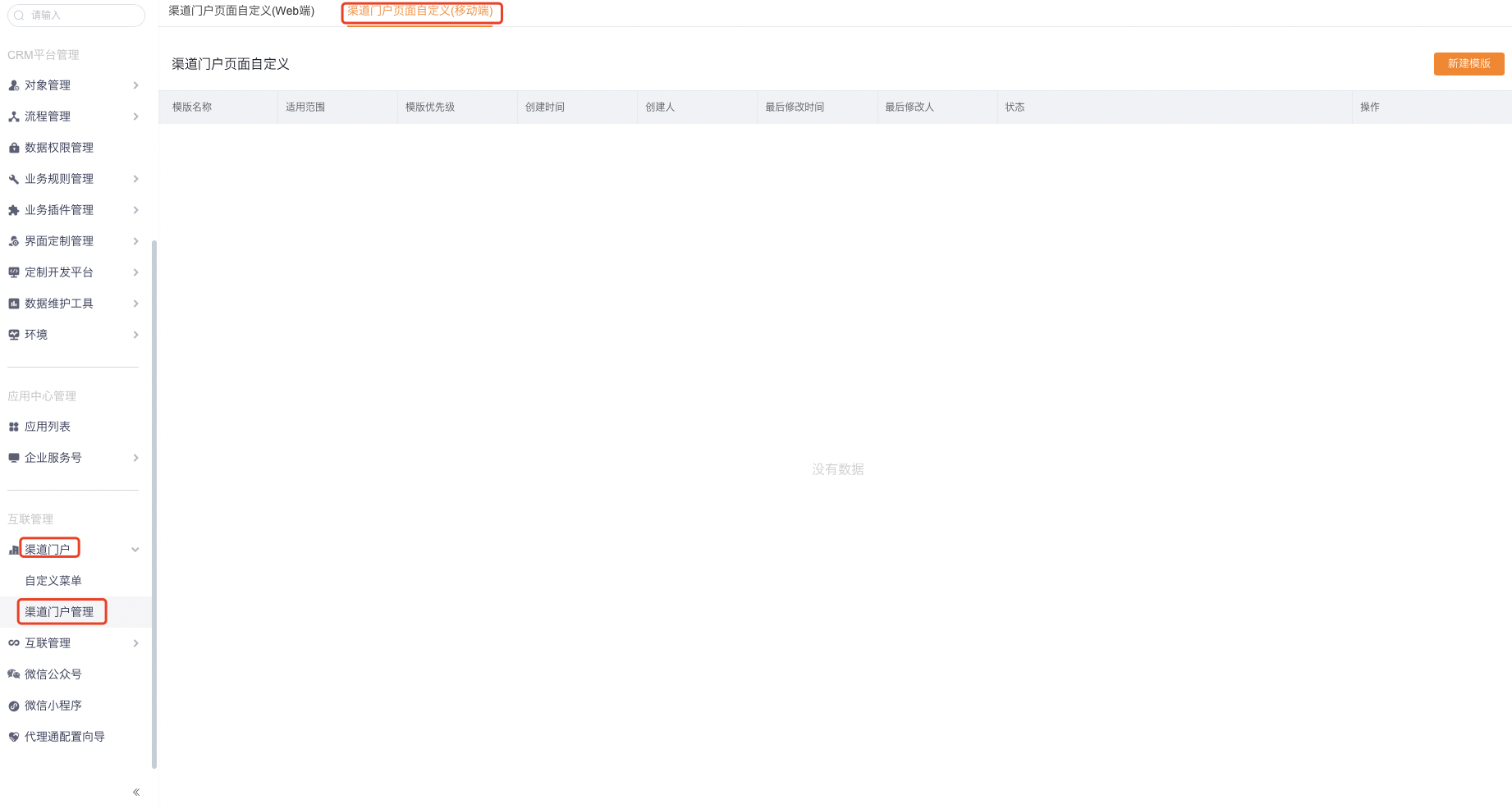
When you click Create Template in Admin > Interconnection Management > Channel Portal Management, you can add BI components.
 </img>
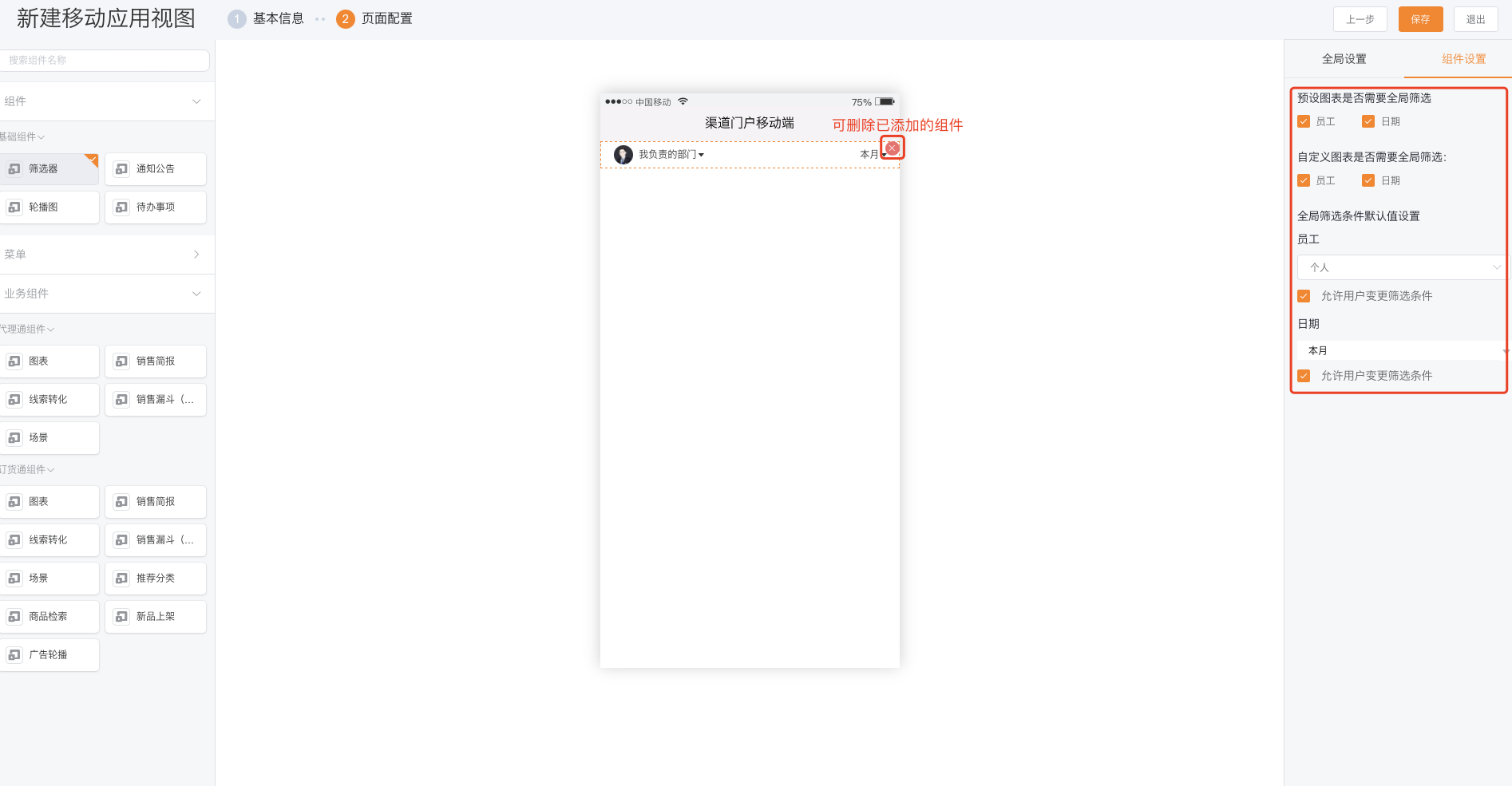
2.1.1 Filter
Each home page in the Channel Portal can contain only one Filter component.
- Component settings
- Preset charts affected by global Filter: configure whether employee and date in preset charts are affected by the global Filter;
- Custom charts affected by global Filter: configure whether employee and date in custom charts are affected by the global Filter;
- Default values for global Filter conditions: set default values for the global Filter and whether users may change the Filter conditions;
- Employee: set default to Individual, All, or My Responsibilities Dept.;
- Date: set a specific date or a date range as the default;
- You can delete added components in the action area;
- Note: the employee selection filters by the external responsible person for the chart;
 </img>
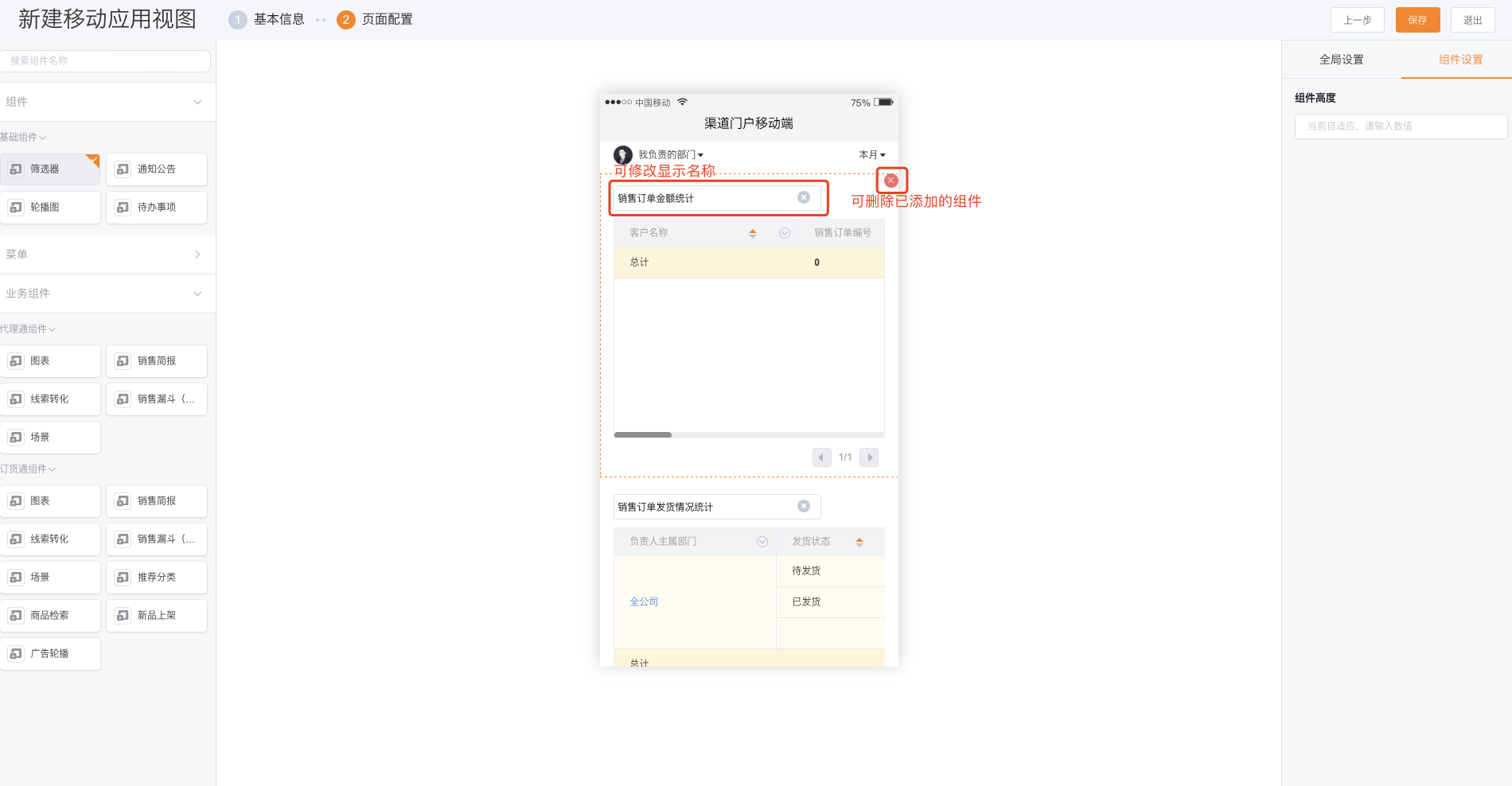
2.1.2 Chart
After dragging the Chart component, select previously created charts. You may choose up to 10 charts at a time.
- Note: The selectable charts for the Chart component within each Interconnection app include Statistic Charts and Reports created from object Subjects that are configured as downstream-visible within the Interconnection app, and reports whose primary business module is a downstream-visible object.
 </img>