Published at: 2025-10-30
BI Components in Custom Pages
1. Web
The web custom page supports the following BI components:
- Common components: Charts, Filter, Chart Split-Screen View, Dashboard.
1.1 Configuration Flow
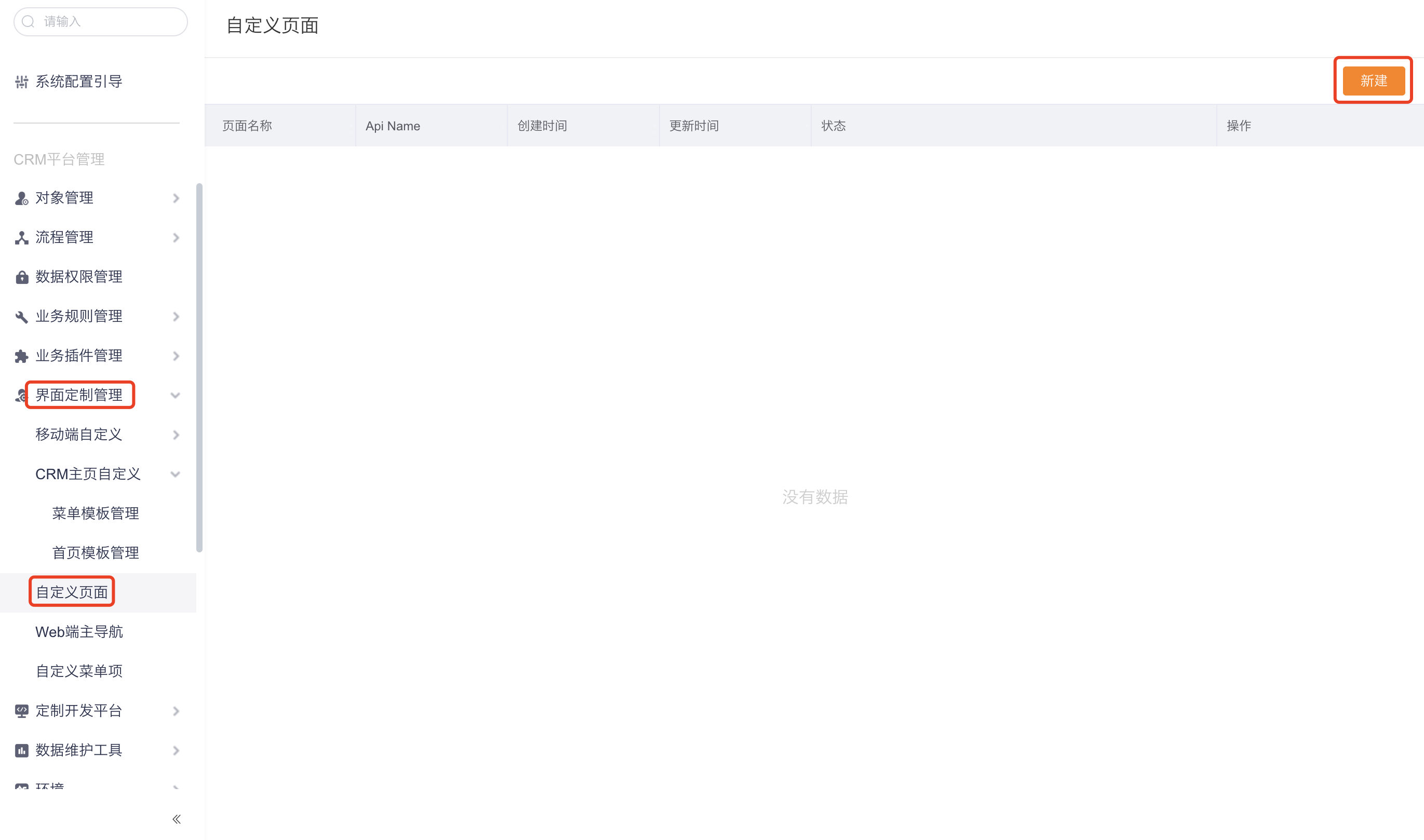
When creating or editing a custom page (Backstage Management > Interface Customization Management > Custom Pages > New Custom Page), you can add BI components to the page.
 </img>
1.1.1 Filter
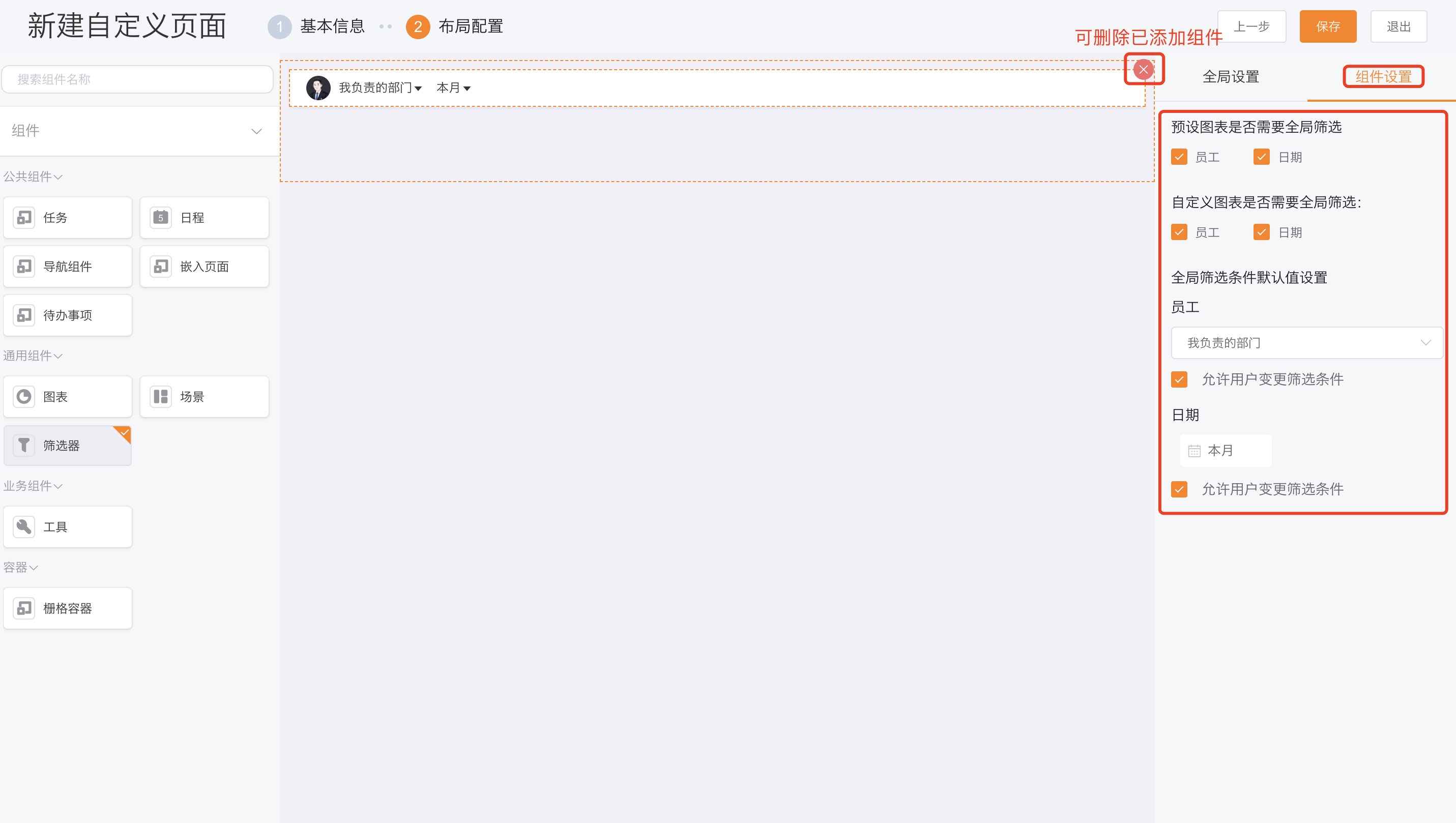
Each custom home page may include only one Filter component.
- Component settings
- Preset charts affected by global filter: Configure whether Employee and Date fields in preset charts are impacted by the global filter;
- Custom charts affected by global filter: Configure whether Employee and Date fields in custom charts are impacted by the global filter;
- Default values for global filter conditions: Set default values for the global filter and whether users can change them;
- Employee: Default can be set to Individual, All, or My Responsibilities;
- Date: Default can be set to a specific date or a date range;
- You can delete added components from the action area;
 </img>
1.1.2 Charts
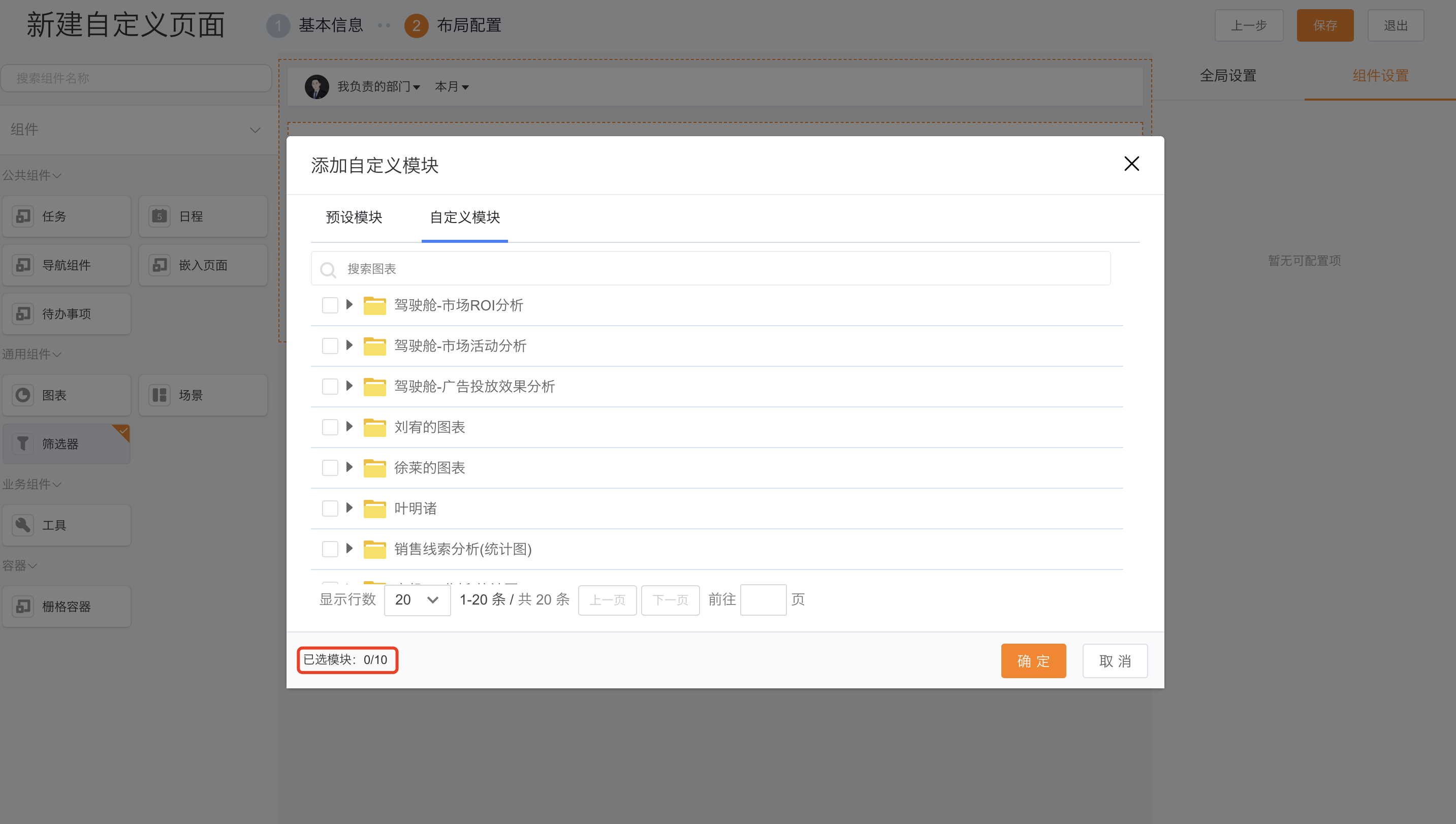
After dragging the Chart component onto the page, select previously created charts. You can select up to 10 charts at a time.
 </img>
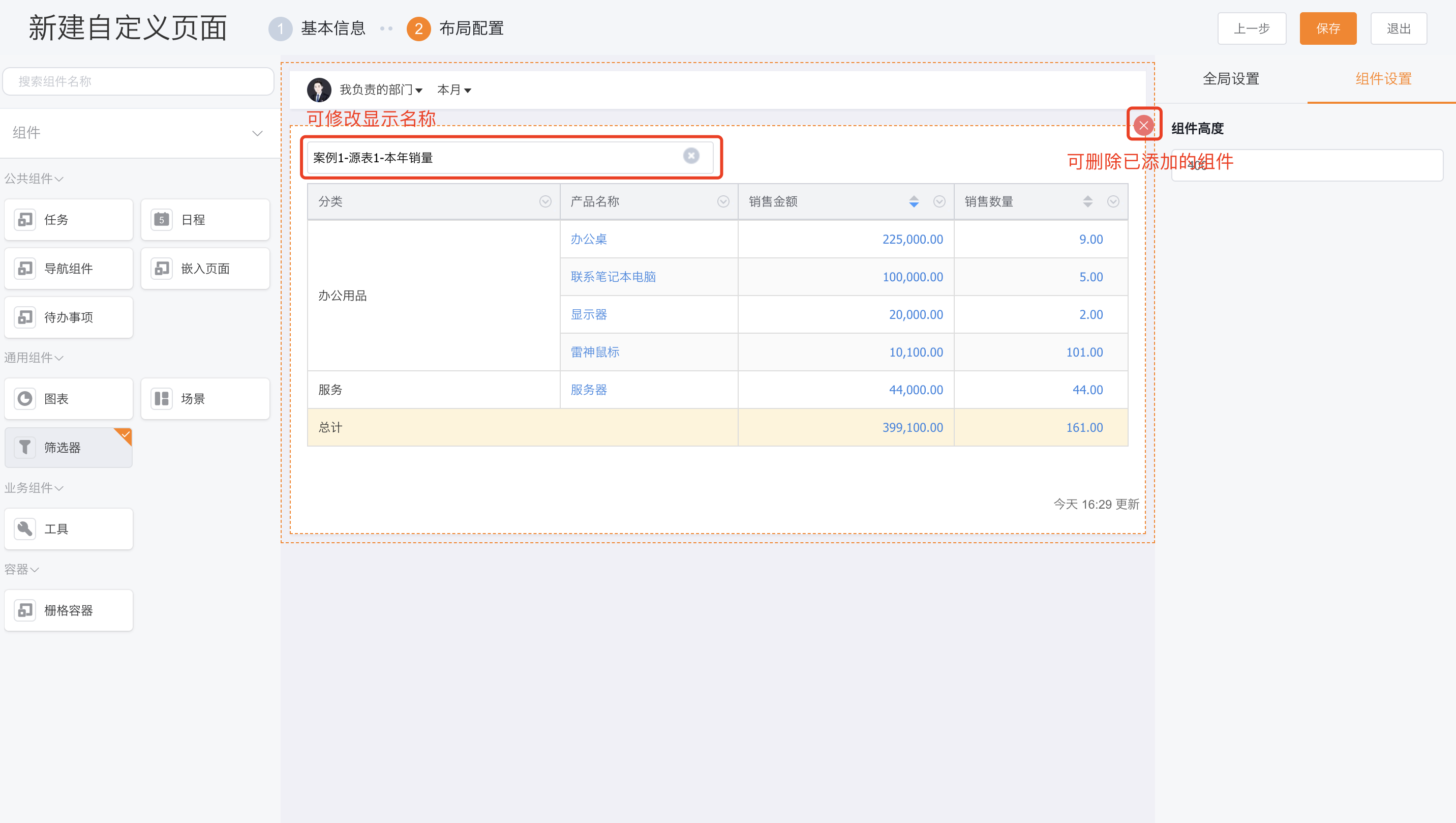
- Component settings
- Component height: Configure the display height of each chart component;
- Auto height (table-type charts only): Allow the component height to adapt to the actual data;
- Modify component display name in the action area;
- Delete added components from the action area;
 </img>
1.1.3 Chart Split-Screen View
After dragging the Chart Split-Screen View component, select previously created BI resources.
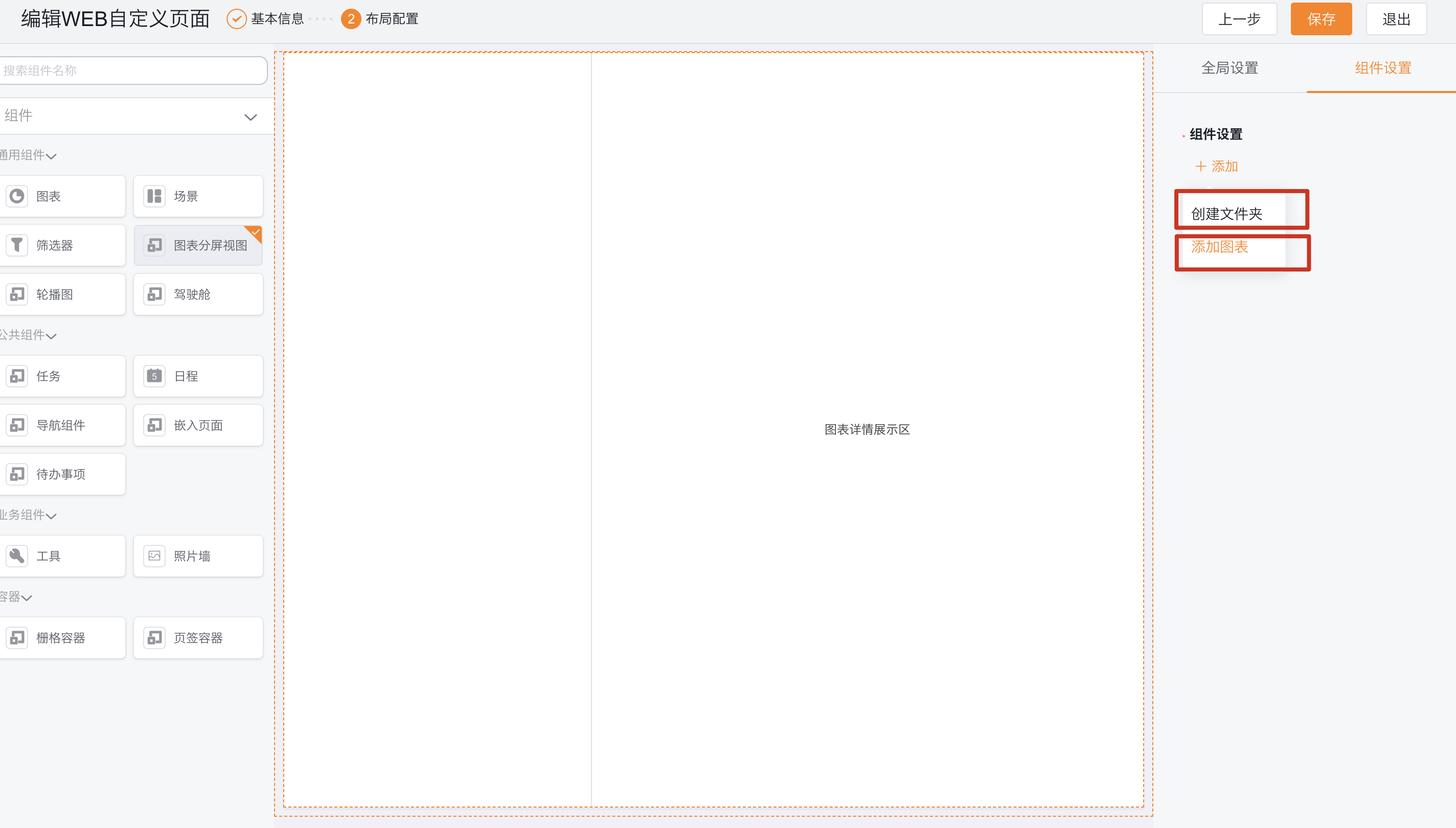 </img>
- Component settings
- Support adding folders; each folder can contain previously created charts;
- Delete added components from the action area;
1.1.4 Dashboard
After dragging the Dashboard component, select previously created dashboards.
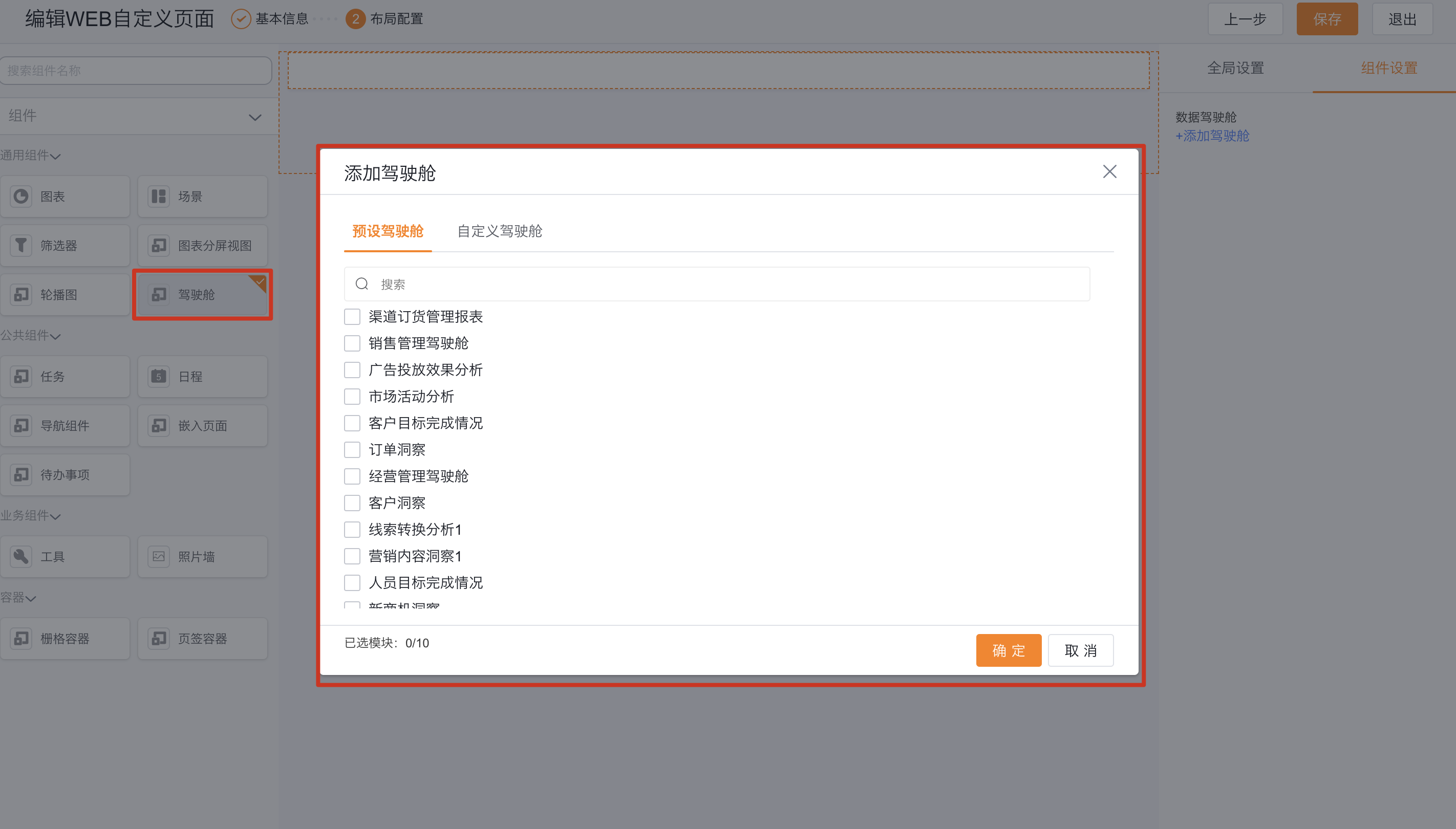 </img>
- Component settings
- Adjust the display order of added dashboards;
- Add the same dashboard again;
- Delete added components;
- Set whether dashboard height is auto-adaptive;
- When only one dashboard is added to the component, you can hide the title;
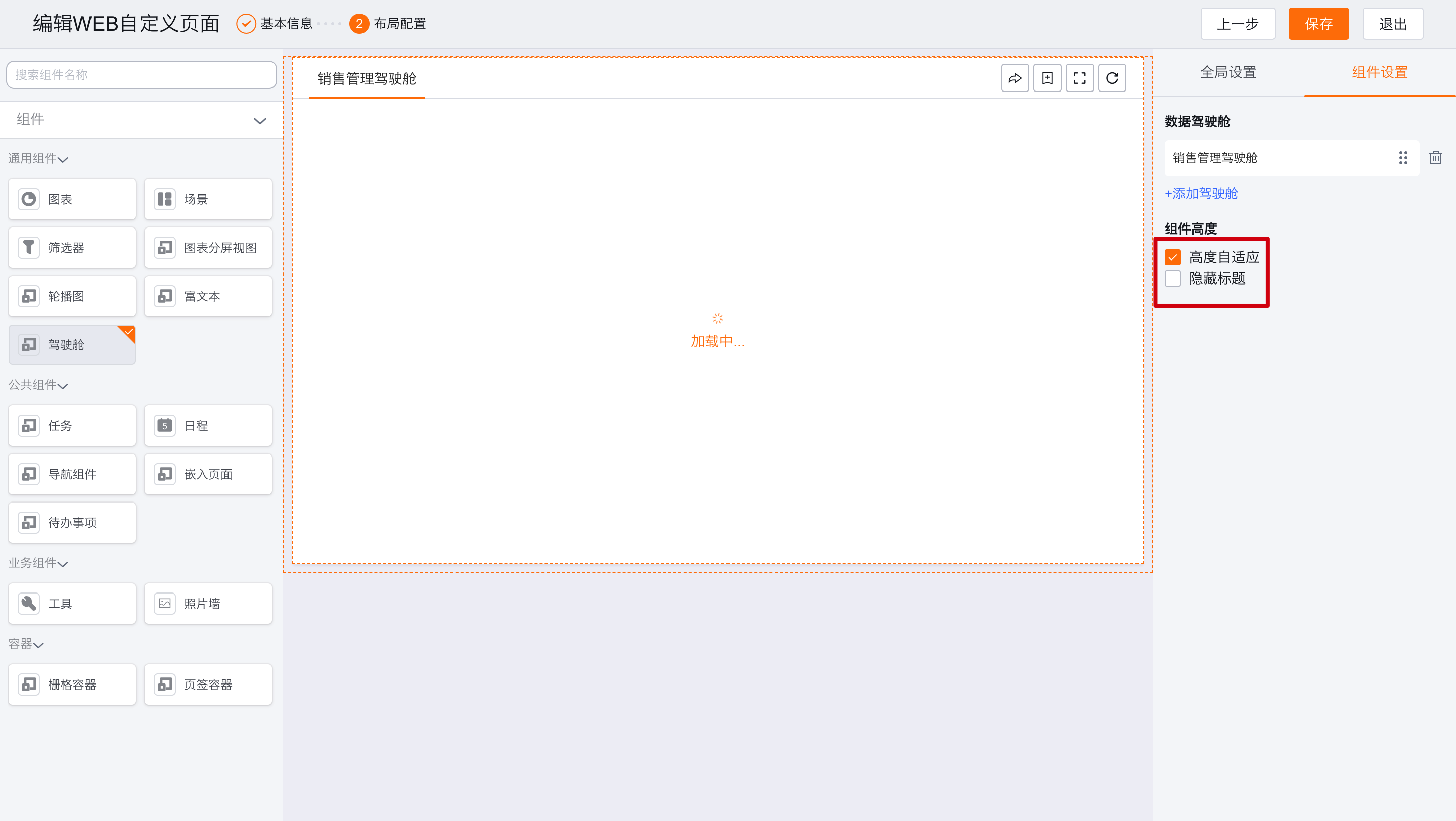 </img>
2. Mobile
The mobile custom page supports the following BI components:
- Base components: Filter, Chart, Dashboard;
- Preset components: Sales Briefing, Leads Conversion, Sales Funnel (Opportunity Amount).
2.1 Configuration Flow
When creating or editing a mobile custom page (Backstage Management > Interface Customization Management > Mobile Custom > Page Template Management), you can add BI components to the page.
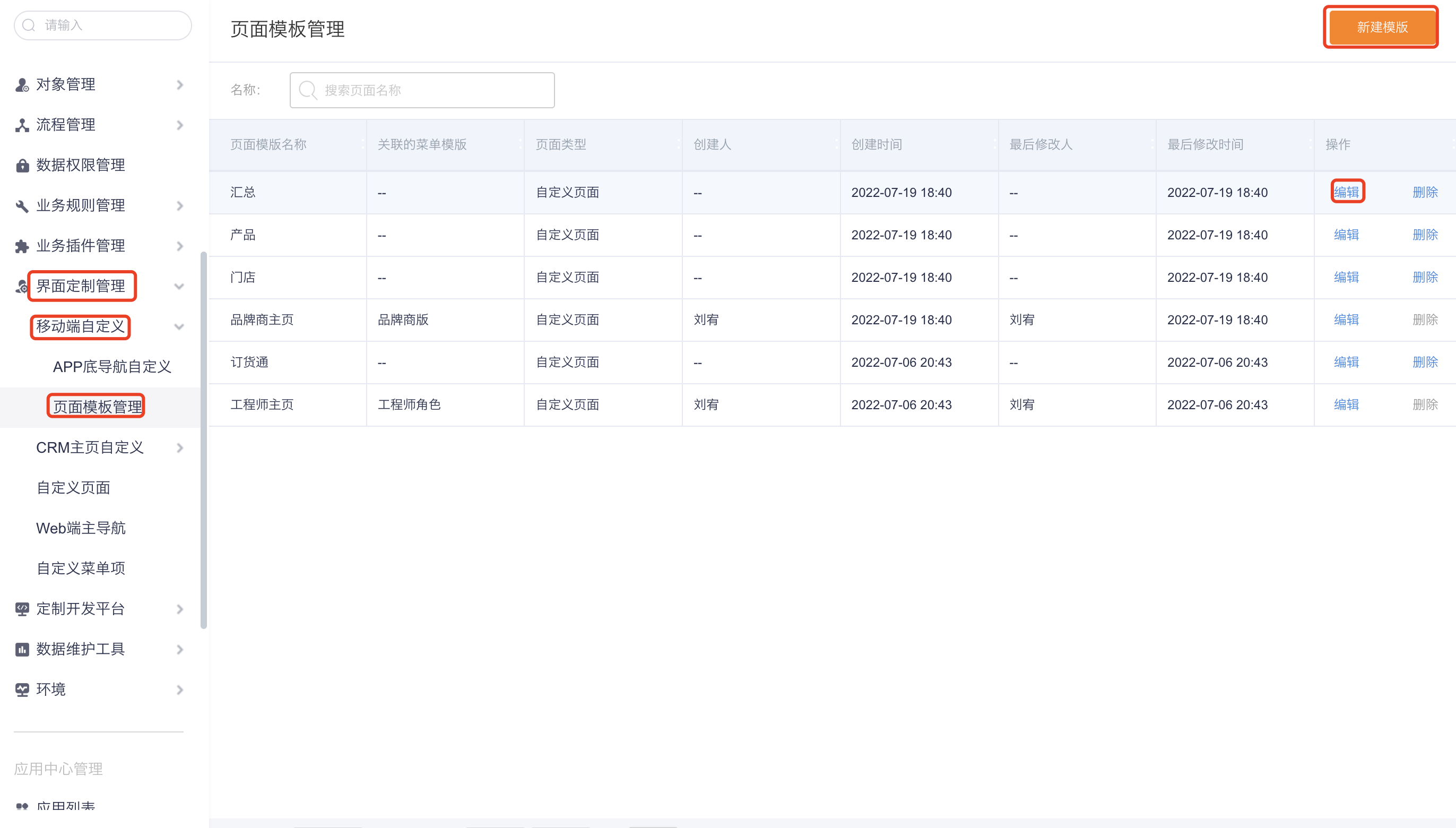 </img>
2.1.1 Filter
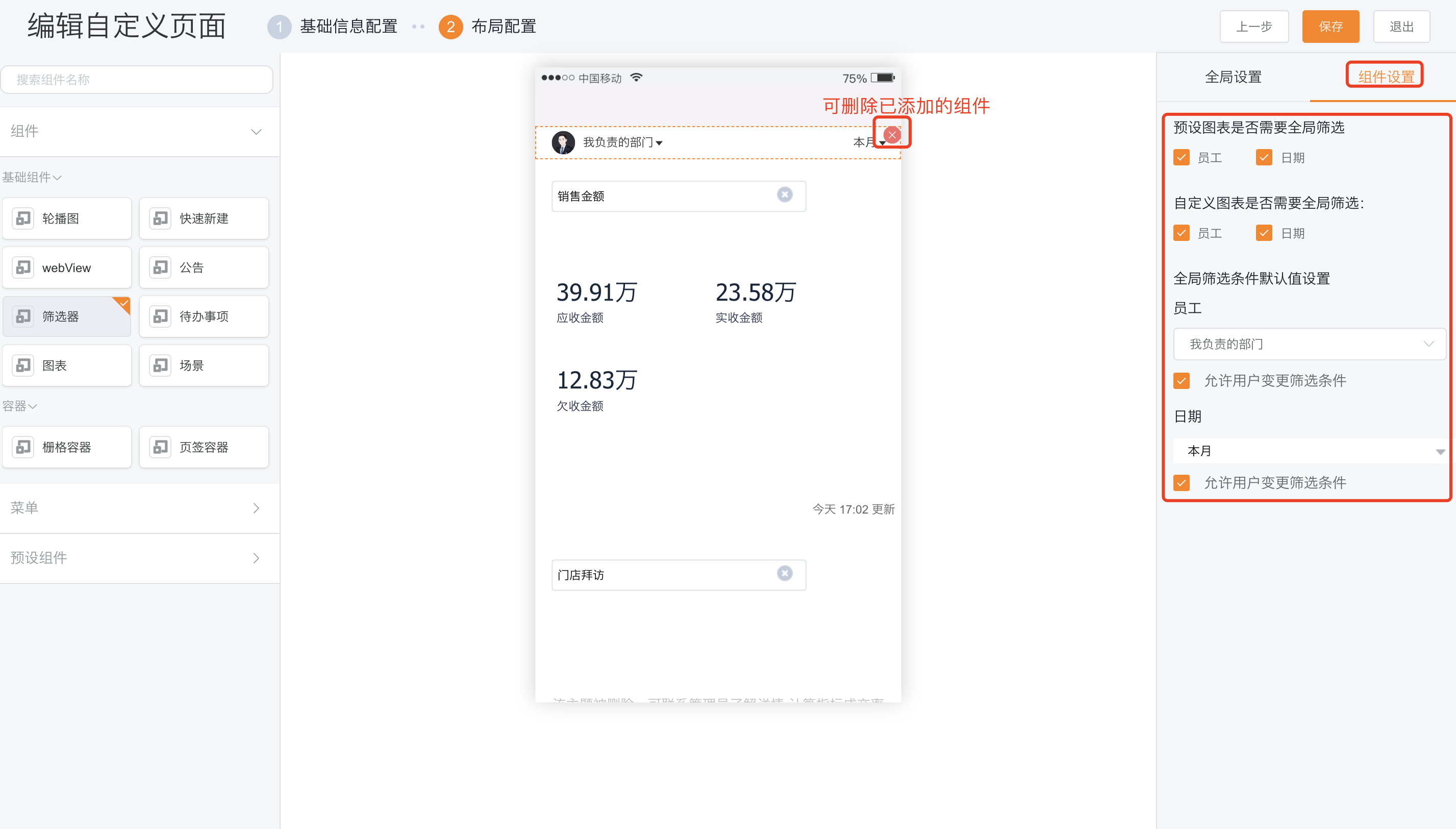
Each mobile home page may include only one Filter component.
- Component settings
- Preset charts affected by global filter: Configure whether Employee and Date fields in preset charts are impacted by the global filter;
- Custom charts affected by global filter: Configure whether Employee and Date fields in custom charts are impacted by the global filter;
- Default values for global filter conditions: Set default values for the global filter and whether users can change them;
- Employee: Default can be set to Individual, All, or My Responsibilities;
- Date: Default can be set to a specific date or a date range;
- You can delete added components from the action area;
 </img>
2.1.2 Charts
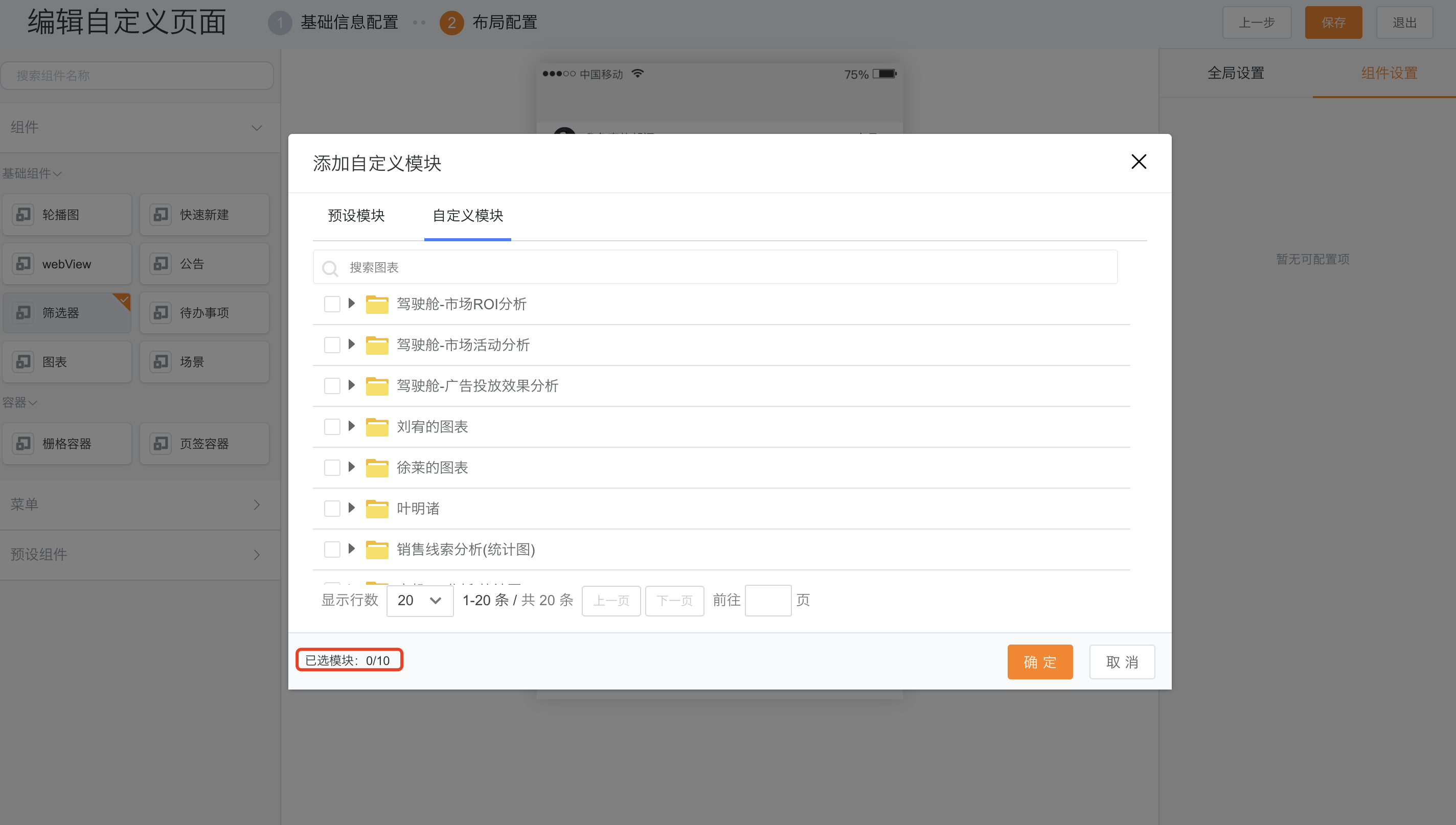
After dragging the Chart component onto the page, select previously created charts. You can select up to 10 charts at a time.
 </img>
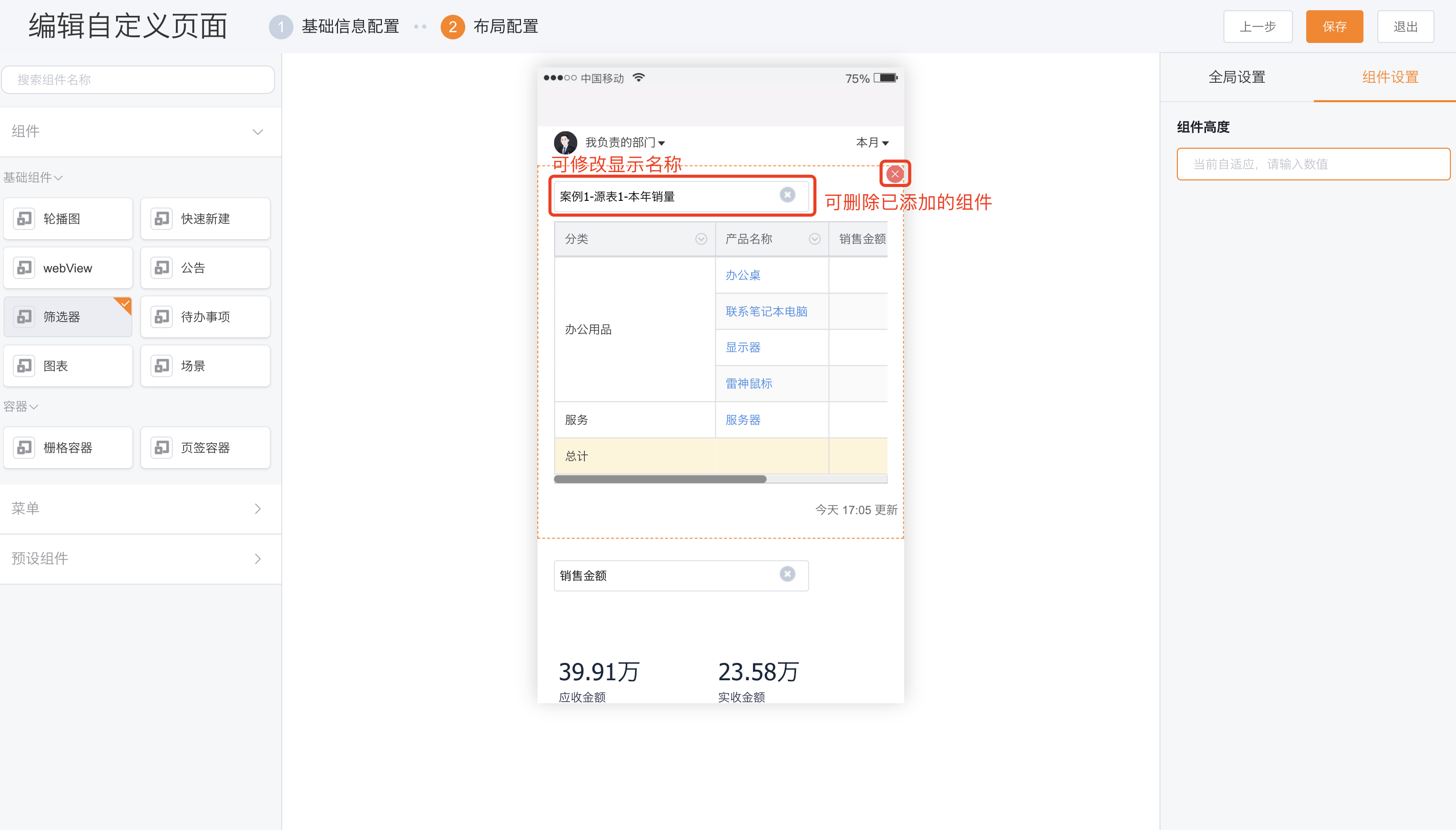
- Component settings
- Component height: Default is auto-adaptive; you can also set a fixed height for chart components;
- Modify component display name in the action area;
- Delete added components from the action area;
 </img>
2.1.3 Dashboard
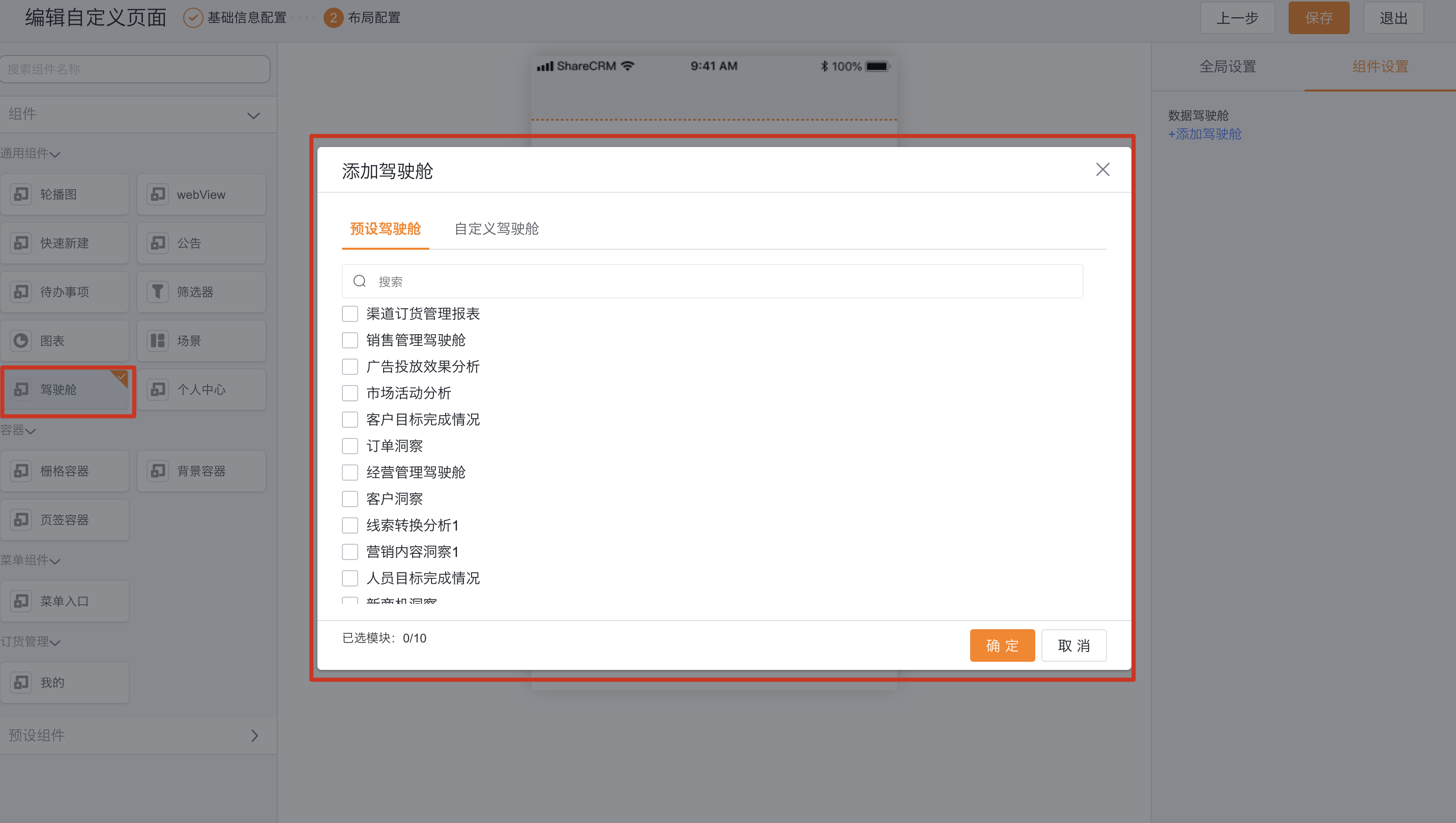
After dragging the Dashboard component, select previously created dashboards.
- Component settings
- Adjust the display order of added dashboards;
- Add the same dashboard again;
- Delete added components;
 </img>
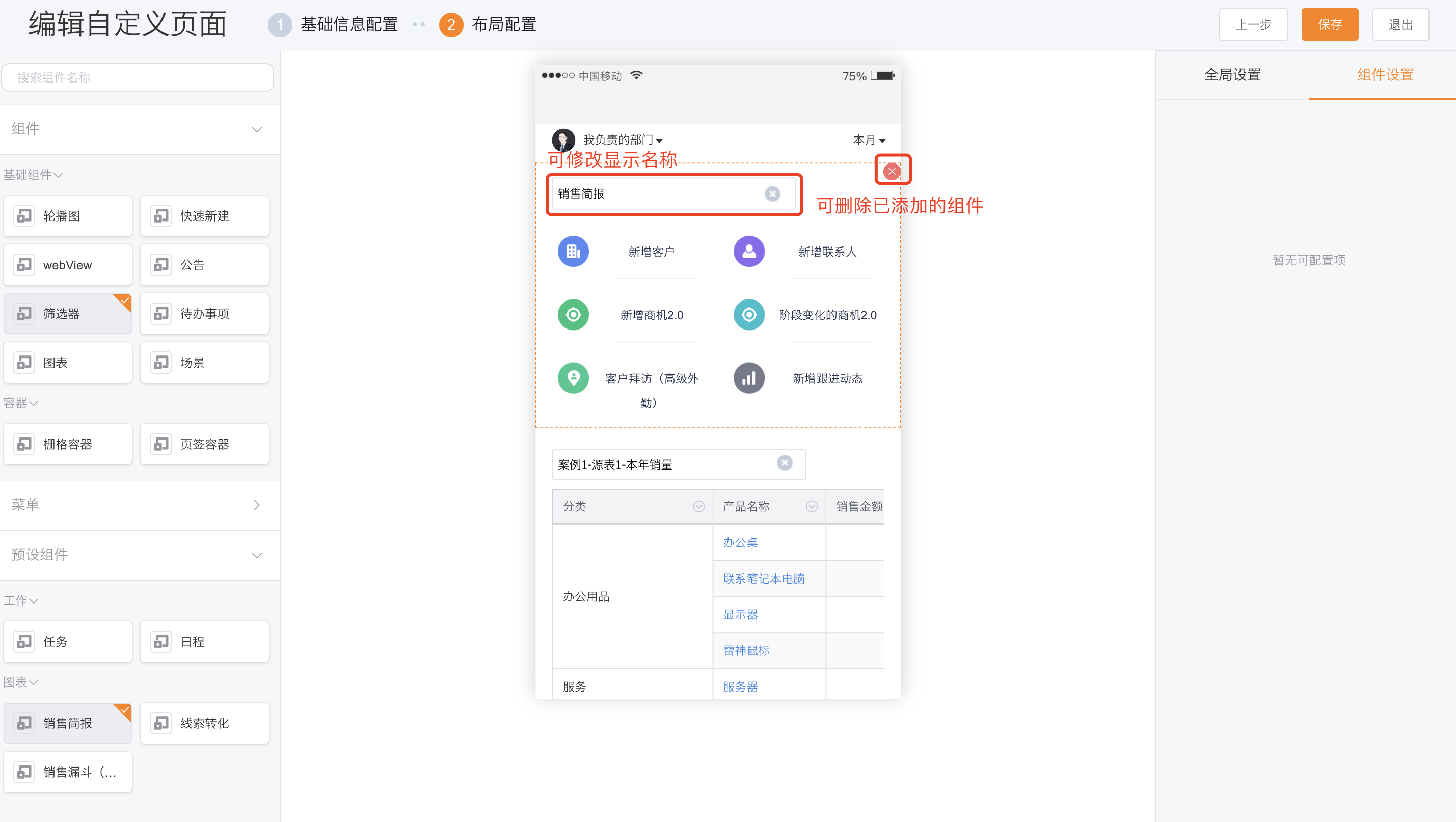
2.1.4 Sales Briefing
Each mobile home page may include only one Sales Briefing component.
- Component settings
- Modify component display name in the action area;
- Delete added components from the action area;
- Analyzed metrics
- New Accounts
- New Opportunity 2.0
- Account Visits (Advanced Fieldwork)
- New Contacts
- Opportunity 2.0 with Stage Changes
- New Follow-Up Activity
- For detailed definitions of metrics, see Home Preset Charts
 </img>
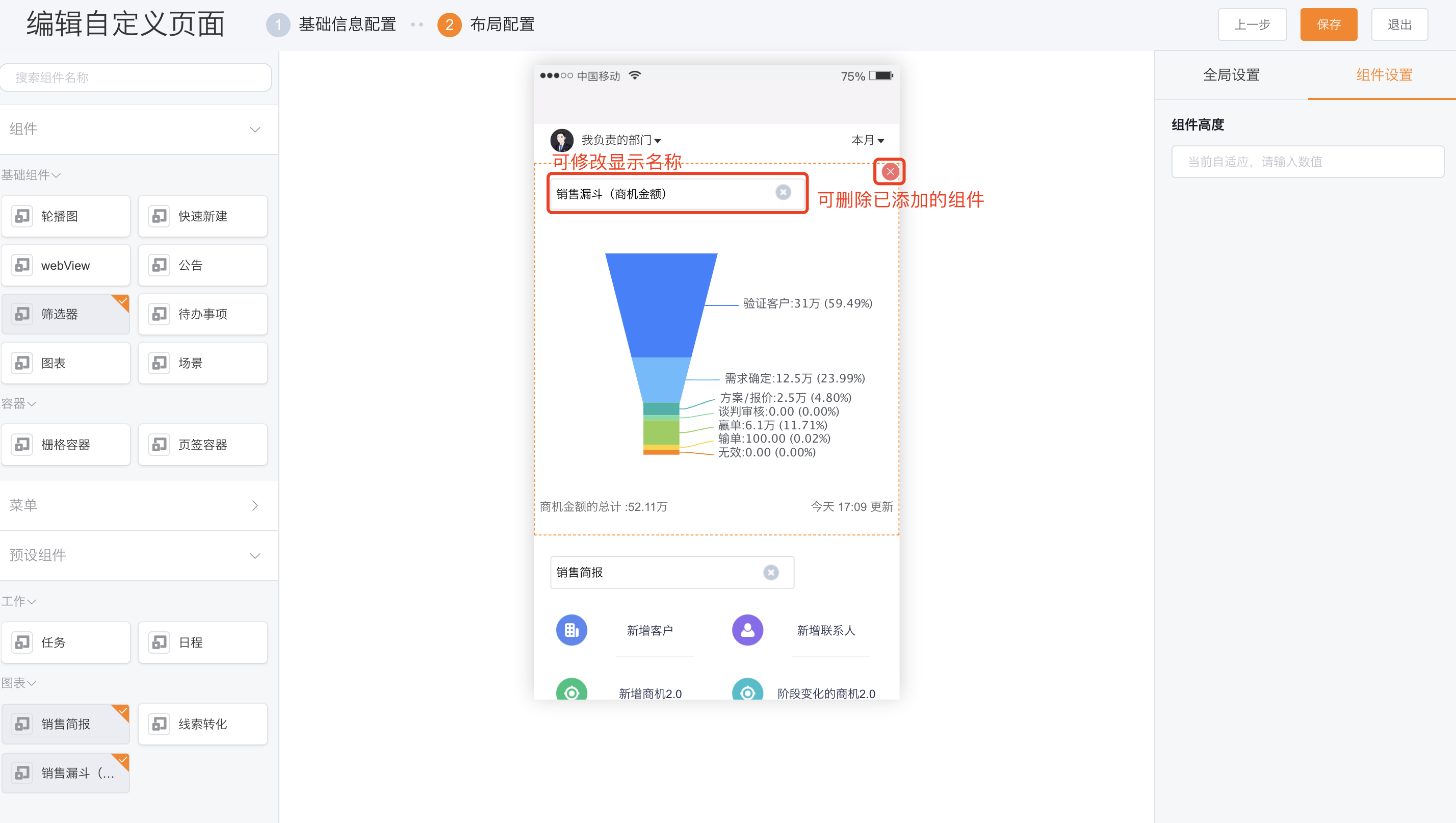
2.1.5 Sales Funnel (Opportunity Amount)
Each mobile home page may include only one Sales Funnel (Opportunity Amount) component.
- Component settings
- Component height: Configure the display height of the chart component;
- Modify component display name in the action area;
- Delete added components from the action area;
- Analyzed metrics
- Opportunity amounts at each opportunity stage;
- Total opportunity amount;
- For detailed definitions of metrics, see Home Preset Charts
 </img>
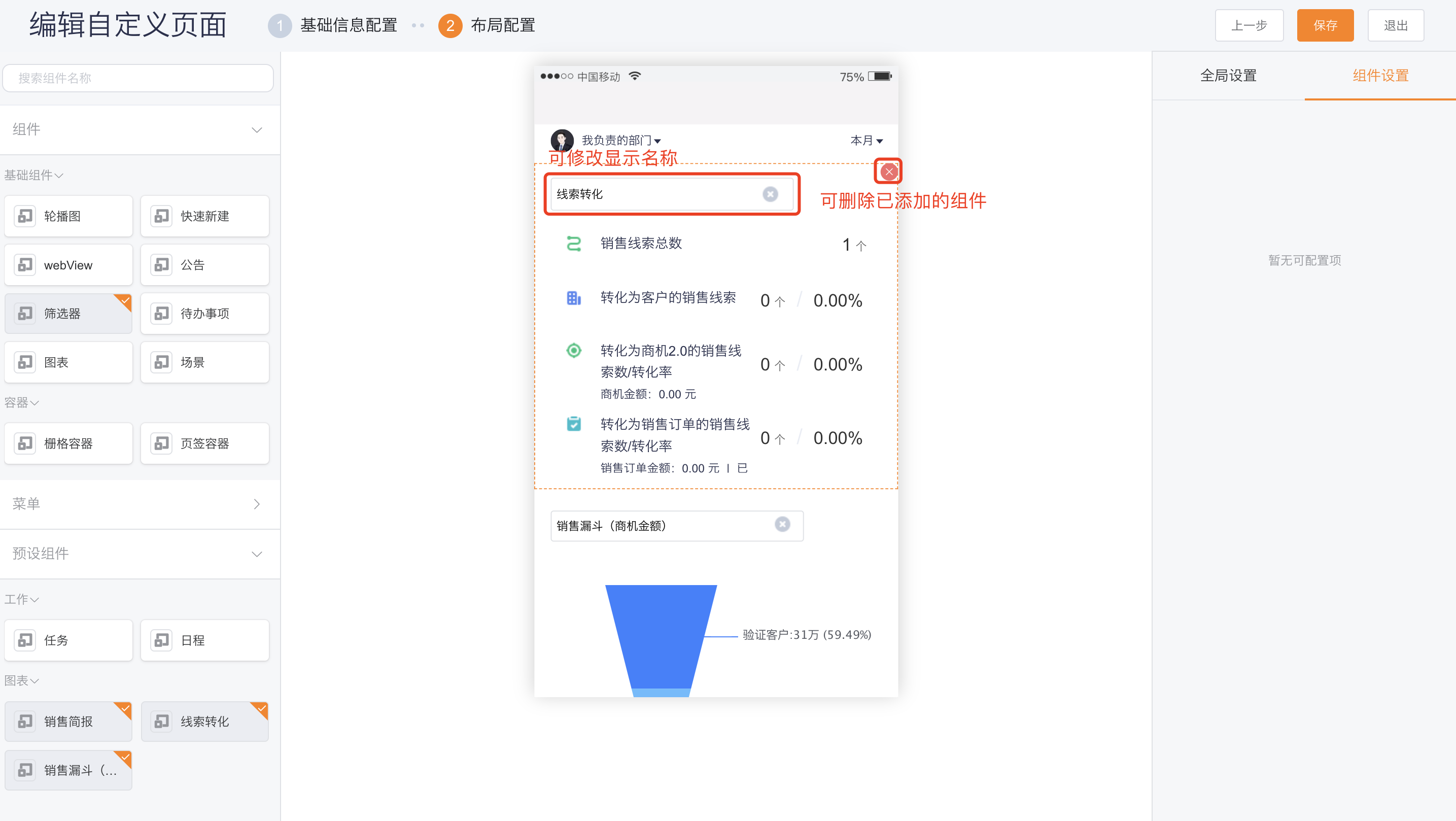
2.1.6 Leads Conversion
Each mobile home page may include only one Leads Conversion component.
- Component settings
- Modify component display name in the action area;
- Delete added components from the action area;
- Analyzed metrics
- Total number of Leads
- Number/Conversion rate of Leads converted to Accounts
- Number/Conversion rate of Leads converted to Opportunity 2.0
- Opportunity amounts
- Number/Conversion rate of Leads converted to Sales Orders
- For detailed definitions of metrics, see Home Preset Charts
 </img>